
Windows Server 2012 R2 How To from Zero to Pro
A practical step-by-step guide explaining how to set up and use Windows Server 2012 R2 within business environments, highlighting key features and maintenance tips.
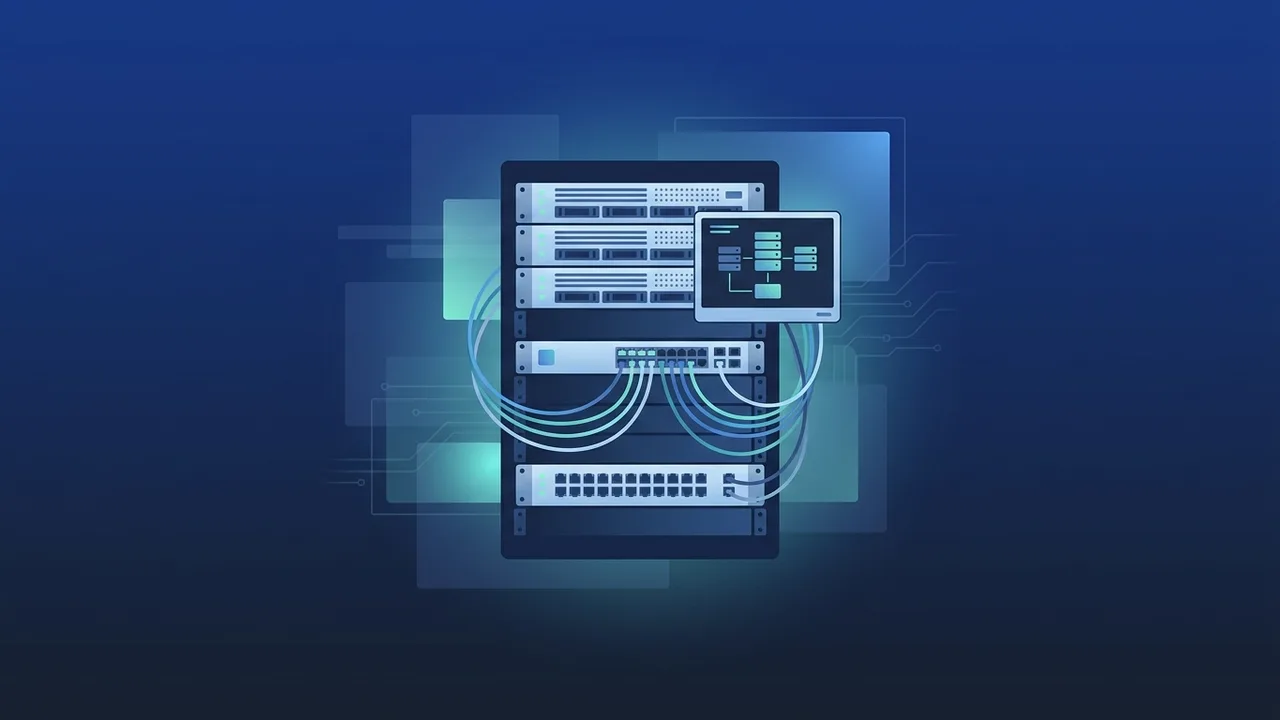
Overview of Windows Server 2012 R2
The deployment of Windows Server 2012 R2 has long been a cornerstone for IT infrastructures, providing organizations with a highly stable and reliable foundation for network administration. For businesses seeking a robust system to host applications, manage user credentials, and handle database environments, this operating system delivers outstanding capability. It offers IT professionals unmatched control over virtual storage configurations and computing resources, helping simplify daily operations.
Using Windows Server 2012 R2 allows administrators to manage complex workloads while scaling up system reliability. Built to meet rigorous enterprise standards, it introduced significant improvements in virtualization, cloud integration, and security. By implementing this established operating system, businesses can maintain seamless operations, minimize administrative overhead, and optimize their data center efficiency using original software licenses.
Key Features
This operating system comes packed with sophisticated tools designed to enhance corporate network performance. Some of its most notable capabilities include:
- Enhanced Hyper-V Virtualization: Offers flexible virtual machine management, enabling companies to optimize physical server usage and cut down hardware costs.
- Resilient Storage Spaces: Allows combining cost-effective physical disks into a flexible storage pool, providing high-speed access and built-in data protection.
- Active Directory Domain Services: Provides robust user and credential management, allowing administrators to secure remote access and enforce fine-grained access policies.
- Advanced Networking: Includes intelligent IP Address Management (IPAM) to streamline network configuration and maintain secure connections.
- IIS 8.5 Web Server: Delivers a steady hosting environment for business websites and custom web applications with optimized resources.
How to Use
Setting up Windows Server 2012 R2 starts with installing the software correctly on your physical hardware or virtual machine. Follow these fundamental steps to complete your configuration:
Step 1: System Installation
- Insert your installation media and boot your system from it.
- Select your language preference, set your preferred time and keyboard layout, then click "Install Now".
- Enter your genuine product activation key to proceed with the secure installation process.
- Choose "Server with a GUI" if you prefer utilizing standard graphical menus, or select the "Server Core" option for command-line management.
- Choose the target installation disk partition, click next, and let the setup wizard copy files and restart the server.
Step 2: Basic Server Configuration
After the system restarts and you define your administrator password, you will be greeted by the Server Manager dashboard. This interface is your control hub where you should complete the following tasks:
- Configure Static IP: Assign a static IP address to your server so that clients and network nodes can find it reliably.
- Set Server Name: Rename the server from its random default name to an organized label (such as SRV-DC-01) for clean network identification.
- Enable Remote Desktop: Turn on remote management features to easily monitor and configure your server from anywhere within the network.
Step 3: Activating Server Roles
To turn your server into a functional domain controller or web host, open the Server Manager, click "Add Roles and Features", and select the services your network requires, such as Active Directory or File and Storage Services.
Common Questions
Here are clear answers to some of the most frequent questions technical administrators ask regarding the ongoing use and configuration of this system:
- Is Windows Server 2012 R2 still supported? Mainstream and extended support from Microsoft have ended. However, many businesses continue to run it in isolated environments or use Extended Security Updates (ESUs) to keep legacy applications operating safely.
- How can I activate Windows Server 2012 R2 properly? Activation is completed by entering a genuine Product Key during installation or through the system settings menu, ensuring server stability and access to critical configuration updates.
- What are the hardware requirements for Windows Server 2012 R2? It requires a 64-bit processor running at least at 1.4 GHz, a minimum of 512 MB RAM, and at least 32 GB of available hard disk space.
- Does Windows Server 2012 R2 support cloud computing technologies? Yes, it offers strong integration capabilities with cloud services like Microsoft Azure, facilitating the creation of hybrid cloud setups that connect local infrastructure to cloud resources.
Important Tips
To keep your Windows Server 2012 R2 stable, secure, and running smoothly over time, implement these highly recommended system practices:
- Verify Software Genuineness: Always operate using an official product license. Genuine licensing safeguards your system from background security vulnerabilities and unauthorized alterations.
- Strict Firewall Management: Keep the built-in Windows Firewall active and properly configured to only allow authorized ports and protocols to connect to your resources.
- Establish Consistent Backups: Use native backup utilities to capture regular snapshots of your system registry, directories, and business files to prevent critical data loss.
- Compatibility Planning: Confirm that all client machines and network switches are configured with proper protocols to interact efficiently with the server environment.
Conclusion
Ultimately, Windows Server 2012 R2 remains a robust and highly dependable operating system for businesses focused on stable on-premises server environments. By executing a proper step-by-step setup and maintaining core security recommendations, you can run a dependable and efficient network infrastructure for your company's digital needs.
You can get a genuine Windows Server 2012 R2 license from ABMKeys at a competitive price with instant WhatsApp delivery.
Frequently Asked Questions
Is Windows Server 2012 R2 still supported?
How can I activate Windows Server 2012 R2 properly?
What are the hardware requirements for Windows Server 2012 R2?
Does Windows Server 2012 R2 support cloud computing technologies?
You can get a genuine license from ABMKeys at a competitive price with instant WhatsApp delivery.
Buy Now