
Windows 11 Update: The Right Way to Do It
Learn how to upgrade and run the Windows 11 update safely and professionally. This step-by-step practical guide explains hardware requirements, core features, and expert tips for a secure desktop.
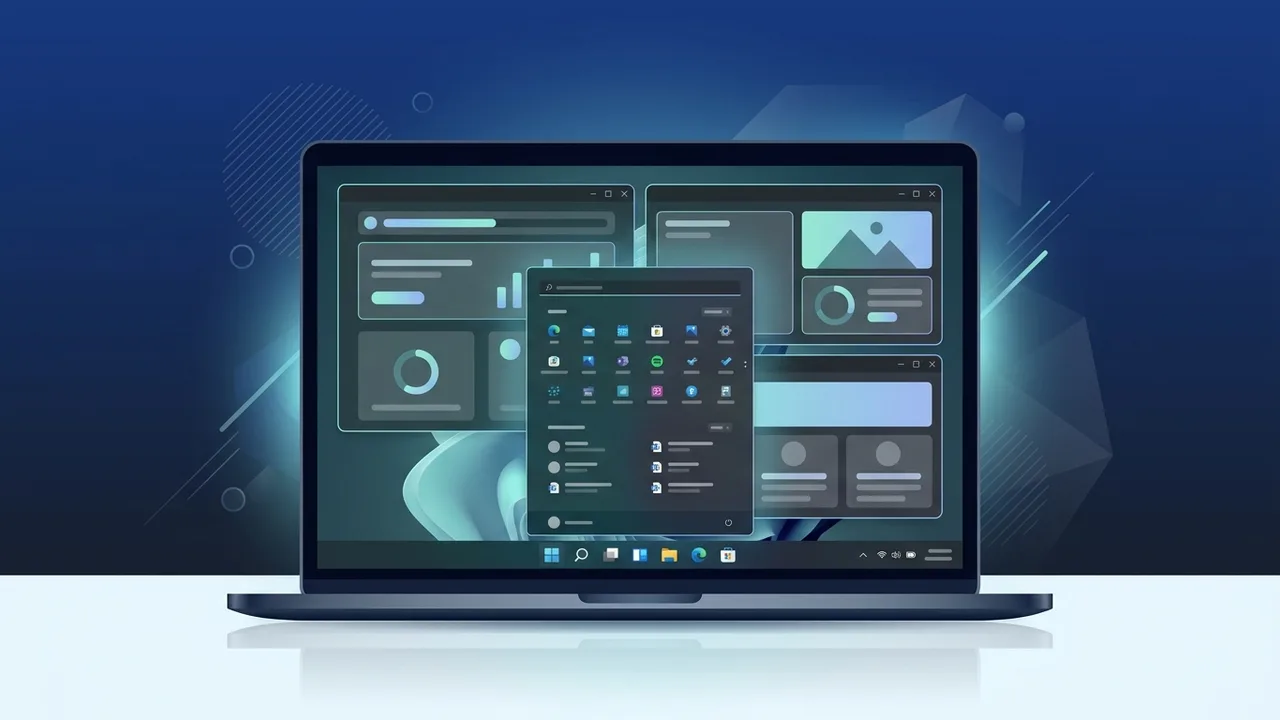
Overview of windows 11 update
Upgrading your operating system is a crucial step to ensure the security, stability, and speed of your device. Installing the latest windows 11 update brings a wealth of improvements designed to streamline your daily tasks. In Saudi Arabia, where digital transformation is accelerating rapidly across both the public and private sectors, having a modern, secure, and highly efficient desktop environment is no longer a luxury—it is an absolute necessity.
The transition to this operating system is not merely a superficial facelift. Microsoft has engineered this version from the ground up to address modern hybrid work demands, cloud resource management, and advanced cybersecurity threat mitigation. Users will experience noticeable enhancements in system responsive times, battery life management for portable laptops, and overall processing optimization.
Key Features
The system introduces a broad array of novelties that distinguish it from its predecessors. Understanding these features can help users maximize their productivity and enjoy a smoother computing experience:
- Refreshed User Experience: The taskbar and Start menu are centrally positioned, establishing an intuitive focus. Clean layouts, rounded corners, and soft transparency effects contribute to a visually pleasing work environment.
- Advanced Snap Layouts: This feature allows you to snap multiple active windows into predefined configurations on your monitor. It boosts multi-tasking capabilities significantly for professionals managing complex projects.
- Hardware-Based Security: By enforcing strict hardware standards such as Trusted Platform Module (TPM 2.0) and Secure Boot, this version proactively blocks sophisticated malware and unauthorized firmware tampering.
- Direct Microsoft Teams Integration: Chatting, calling, and collaborating with team members is now deeply integrated into the operating system's core interface, offering zero-latency access to online meetings.
- Gaming Innovations: Features like Auto HDR and DirectStorage ensure that gamers experience rich visuals and incredibly short loading screens, aligning desktop PCs with next-generation console capabilities.
How to Use
Applying the windows 11 update securely and correctly requires an organized, step-by-step approach. Here is how you can perform the upgrade seamlessly:
- Perform a Compatibility Check: Download and execute the official PC Health Check utility from Microsoft. This small application will verify if your CPU, RAM, and motherboard support the stringent requirements, especially the active TPM 2.0 chip.
- Secure a Complete Backup: Before modifying your system partition, back up critical documents and projects to an external drive or use cloud services like OneDrive to safeguard against unforeseen hardware issues.
- Access the Update Module: Open the 'Start' menu, navigate to 'Settings', and select 'Update & Security' from the main interface panel.
- Trigger the Update Search: Click on 'Check for updates'. If your computer satisfies the official criteria, the option to execute the windows 11 update will display immediately on your dashboard.
- Initiate Download and Installation: Click on 'Download and install'. Keep in mind that this process may take some time depending on your current internet speed and drive performance.
- Finalize with a System Reboot: Once the installation files are processed, the system will prompt you to reboot. This final phase configures the update and boots you into your brand-new system interface.
Common Questions
As individuals and businesses evaluate this upgrade path, various inquiries frequently arise. Here are some of the most critical questions resolved:
Is the transition to the new operating system free?
Yes, the upgrade is entirely free of charge for users currently running a fully licensed and activated copy of Windows 10, provided that their hardware meets the necessary specifications.
Will my personal files and software remain intact?
Under standard upgrading procedures, your applications, documents, and personal preference profiles are preserved. However, generating an independent backup remains an indispensable safety protocol.
What if I prefer to return to my previous system version?
You have a built-in grace period of 10 days post-installation to roll back the upgrade. This is easily completed through the recovery settings, returning you to Windows 10 without data loss.
Important Tips
To secure a trouble-free experience when implementing the windows 11 update, pay close attention to the following expert recommendations:
- Maintain Uninterrupted Power: Ensure that your laptop is connected to a reliable power source throughout the installation. Unintentional power cuts can disrupt file writes and damage your boot partition.
- Allocate Generous Storage Space: Ensure your system drive (C:) has at least 64GB of unallocated space. This is required to store downloaded files, temporary system structures, and roll-back archives.
- Update Device Drivers: Before triggering the upgrade, visit the manufacturers' websites to obtain the newest drivers for your graphics cards, network chips, and audio peripherals.
- Ensure Valid Licensing: Operating with an authentic, genuine product key guarantees continuous access to security patches, monthly cumulative updates, and official technical support.
Conclusion
Adopting the latest operating system is a highly strategic initiative for keeping your digital assets safe and enhancing daily operational efficiency. The advanced feature set, combined with fortified security controls, ensures a superior computing standard for both corporate and home environments.
If you need a genuine Windows 11 Pro Lifetime license, you'll find it at ABMKeys at a fair price with instant WhatsApp delivery.
Frequently Asked Questions
Is the Windows 11 update free?
What are the core requirements to install the update?
How can I roll back to Windows 10 after upgrading?
Can I install the update on unsupported hardware?
You can get a genuine license from ABMKeys at a competitive price with instant WhatsApp delivery.
Buy Now