
Windows 11 Screen Recording from Zero to Pro
Learn the most reliable methods to record your screen in Windows 11 using built-in utilities like the Snipping Tool and Xbox Game Bar. This practical step-by-step guide covers audio configuration, third-party apps, and vital legal regulations for screen recording in Saudi Arabia.
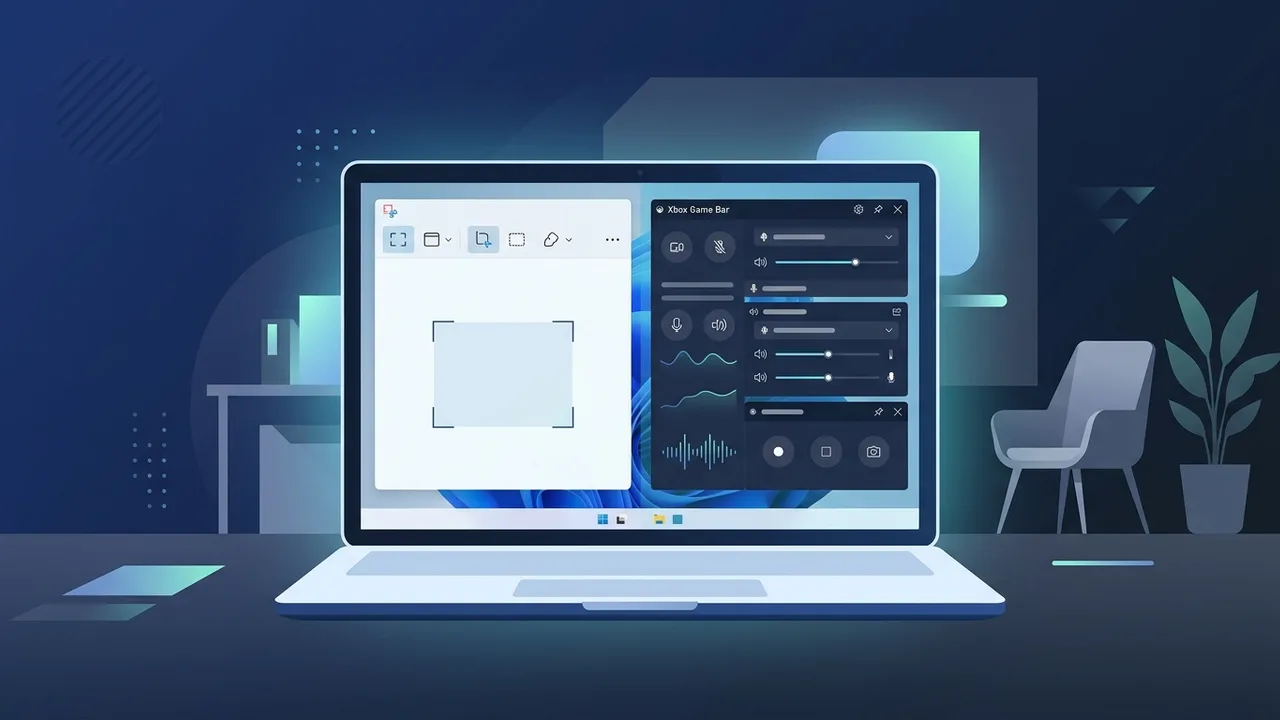
The digital transformation in Saudi Arabia has significantly altered how we work and learn. With remote work and distance education platforms like Madrasati and Blackboard becoming standard, knowing how to record screen on Windows 11 has evolved from a useful trick into an essential professional skill. Fortunately, the latest operating system comes equipped with robust built-in features that allow users to capture their screens seamlessly without needing complex software.
How to Record Windows 11 Screen Using Snipping Tool
The Snipping Tool has long been a staple for capturing static images. However, with recent system updates, it has evolved into a fully-fledged Windows 11 screen recorder. It offers a clean interface and lets you capture exactly what you need by choosing specific regions of your desktop.
To execute a Snipping Tool screen record, follow these steps:
- Open the Start menu, search for "Snipping Tool", and launch the application.
- In the toolbar at the top, switch the mode from the camera icon (Screenshot) to the video camera icon (Screen Record).
- Click on the "New" button. Your screen will dim, and your cursor will turn into a crosshair (+).
- Click and drag to select the specific area of your screen you wish to capture, or select your entire desktop.
- Click the "Start" button that appears in the top control bar. A 3-second countdown will begin, and then your recording starts.
- Once finished, click the red stop button. The recorded video will open in a preview window where you can play, trim, and save it as an MP4 file.
Using Xbox Game Bar for Screen Recording in Windows 11
If you want to capture a specific application window quickly without capturing your desktop background, the Xbox Game Bar is an excellent option. This utility is pre-installed on your system and is highly reliable for saving high-quality footage of active apps.
To use this method, you will need the dedicated Xbox Game Bar Windows 11 shortcut:
- Open the application, document, or browser window you want to record (note: Game Bar does not record the Windows desktop or File Explorer).
- Press the
Win + Gshortcut keys on your keyboard to open the overlay overlay. - Look for the "Capture" widget. If it is not active, click the webcam icon on the top widget bar to display it.
- To start recording instantly, click the Record button (the circle icon) or press
Win + Alt + R. - A small floating recording status bar will appear on your screen. To stop recording, click the square stop button on this bar. The file will be automatically saved in your user "Captures" folder.
Steps to Record Windows 11 Screen with Internal and External Audio
For educational tutorials or professional demonstrations, simply capturing video is often not enough. You will need to record laptop screen with audio to capture both the system sounds and your voiceover.
To achieve this, you need to configure your Windows 11 screen recording settings correctly:
- Connect your external microphone and make sure Windows recognizes it by checking Settings > System > Sound.
- Before starting a Snipping Tool recording, click the microphone and system audio icons in the recording control bar to toggle them on. Ensure they are not muted.
- When using Xbox Game Bar, adjust the audio balance within the "Audio" widget. This allows you to mix the output levels of your background system applications and your microphone input to prevent background noise from overpowering your speech.
- Test your setup with a short 5-second recording to ensure your voice is clear and the system volume is balanced before proceeding with a long presentation.
Best Third-Party Screen Recording Apps Compatible with Windows 11
While the built-in operating system tools are convenient, professionals, content creators, and corporate users in Saudi Arabia might require advanced features such as web camera integration, annotations, or direct live streaming. If this applies to you, seeking a specialized free screen recorder Windows 11 option is a great step forward.
Some of the most popular and highly compatible third-party applications include:
- OBS Studio: A leading, open-source program that is completely free. It provides advanced scene management, audio mixers, and is highly favored by professional educators and streamers for its versatility.
- ShareX: A lightweight, open-source tool that is perfect for capturing rapid screen recordings, creating quick GIFs, and automating file sharing after recording.
- Camtasia: A premium, paid software package that combines screen recording with a powerful, user-friendly video editor. It is widely used by corporate training departments to create high-end tutorials.
Troubleshooting Common Screen Recording Issues in Windows 11
Even with a robust system, you might encounter technical glitches. Here is how to troubleshoot the most common issues:
1. Audio fails to record or mic is muted
If you experience silent recordings, navigate to Settings > Privacy & security > Microphone. Ensure that "Microphone access" is switched on and that the specific application (such as Snipping Tool or Xbox Game Bar) has permission to access your audio hardware.
2. The recording button is greyed out in Game Bar
This occurs when your active window is the desktop or File Explorer, which the Game Bar does not support. Launch a browser or an application like PowerPoint first, and then activate the capture panel.
3. Lag, stuttering, or choppy video quality
High-resolution screen recording demands processing power. If you experience lags, close any heavy background applications and ensure your graphics card drivers are updated to their latest Windows 11 compatible versions.
Legal Regulations for Screen and Meeting Recording in Saudi Arabia
In the age of remote education and virtual corporate meetings, staying compliant with local regulations is of utmost importance. If you plan to record Teams meeting Windows 11 or save a Zoom lecture, you must understand the legal framework of the Kingdom of Saudi Arabia.
Under the Saudi Anti-Cybercrime Law, recording virtual meetings, classes, or private audio/video calls without the explicit, prior consent of all participants is illegal. Doing so violates personal privacy laws and can lead to severe penalties, including heavy fines and imprisonment. To ensure safe and ethical compliance, always adhere to the following guidelines:
- Always request verbal or written consent from all participants before hitting the record button.
- Do not share, publish, or upload recorded educational lectures or professional corporate meetings to social media or public drives without official, written authorization from the intellectual property owners or your institution.
- Use recorded material strictly for permitted personal review or authorized archiving purposes.
By keeping these simple technical and legal practices in mind, you can utilize the powerful screen-capturing tools in Windows 11 confidently, professionally, and responsibly.
If you need a genuine Windows 11 Pro Lifetime license, you'll find it at ABMKeys at a fair price with instant WhatsApp delivery.
Frequently Asked Questions
Can I record my computer screen in Windows 11 without third-party software?
What is the direct shortcut to start screen recording in Windows 11?
How do I fix microphone or audio recording issues in Windows 11?
Is it legal to record a virtual meeting or lecture in Saudi Arabia without consent?
You can get a genuine license from ABMKeys at a competitive price with instant WhatsApp delivery.
Buy Now