
Windows 11 Pro Step by Step: The Right Way to Get Started
This practical guide walks you through everything you need to know about Windows 11 Pro — from system requirements and installation to activation and optimization. Discover its key features and how to use them effectively.
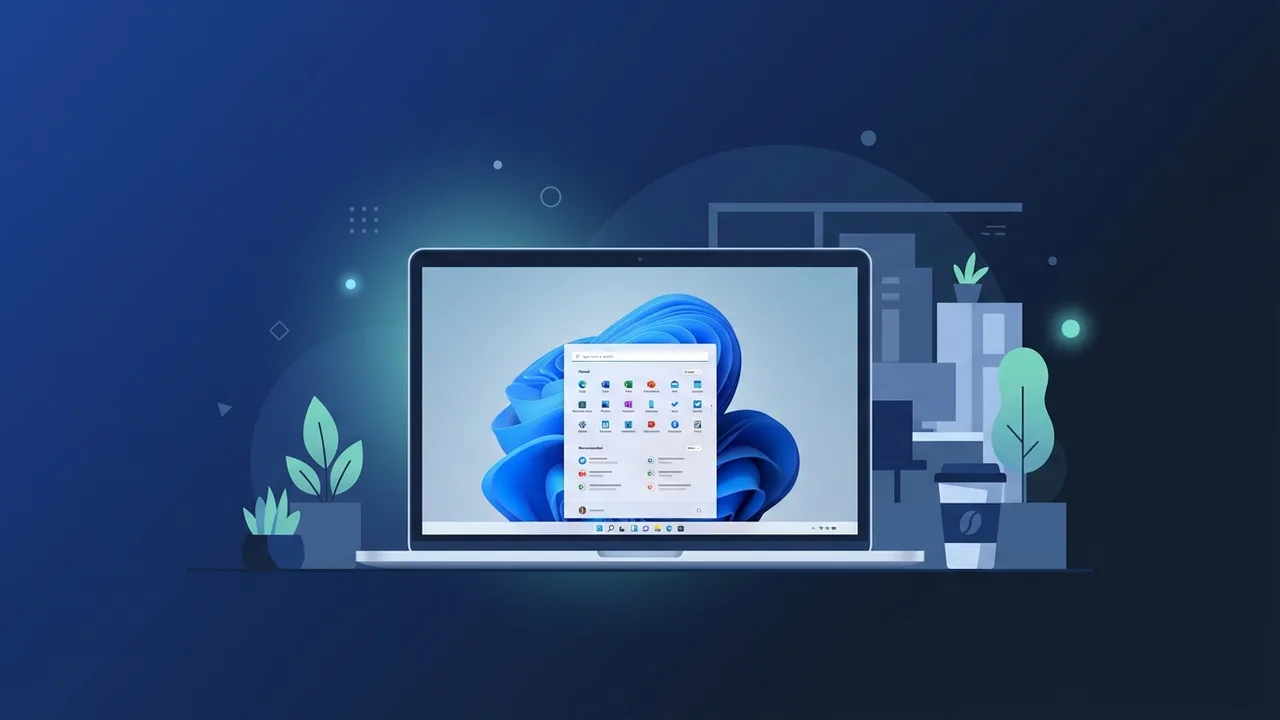
Overview of Windows 11 Pro
Windows 11 Pro is Microsoft's most advanced desktop operating system to date, designed to meet the demands of both individual power users and professional business environments. Released as an evolution of Windows 10, it introduces a completely refreshed user interface alongside a host of enterprise-grade features that set it apart from the standard Home edition. In Saudi Arabia, adoption of Windows 11 Pro has grown significantly across both corporate and individual users, driven by the country's expanding digital infrastructure and the growing need for secure, high-performance computing. Whether you're running a small business, managing IT infrastructure, or simply want the best Windows experience available, this guide walks you through everything you need to know about Windows 11 Pro — step by step.
Key Features of Windows 11 Pro
Windows 11 Pro goes beyond cosmetic upgrades. Here are the standout features that make it a compelling choice for professionals:
- BitLocker Drive Encryption: A built-in full-disk encryption tool that protects sensitive data from unauthorized access — an essential feature for businesses handling confidential information.
- Windows Sandbox: Allows users to run untrusted applications in a completely isolated, temporary environment. Once you close the sandbox, all traces of the application are removed.
- Hyper-V Virtualization: Enables you to run multiple operating systems simultaneously on a single machine. Ideal for developers, IT professionals, and testers who need to work across different environments.
- Remote Desktop: Provides full remote access to your PC from any location, making it a vital tool for remote work and IT support.
- Azure Active Directory and Microsoft Intune: Seamlessly integrates with enterprise identity management and mobile device management (MDM) solutions — features exclusive to the Pro and Enterprise editions.
- Snap Layouts and Snap Groups: An enhanced multitasking system that allows you to organize open windows into predefined layouts for better productivity.
- DirectStorage and Auto HDR: Technical improvements that significantly boost gaming performance and visual quality, particularly on modern NVMe drives and HDR-capable monitors.
- TPM 2.0 Security: Hardware-based security that underpins many of Windows 11's security features, including Secure Boot and credential protection.
How to Use Windows 11 Pro: A Step-by-Step Guide
Getting the most out of Windows 11 Pro starts with a proper setup. Follow these steps carefully:
Step 1: Check System Requirements
Before installing Windows 11 Pro, verify that your device meets the minimum hardware requirements. You'll need a processor running at 1 GHz or faster with at least two cores on a compatible 64-bit processor, 4 GB of RAM, 64 GB of storage, a DirectX 12 compatible graphics card, and — critically — TPM version 2.0. Microsoft provides a free tool called PC Health Check that scans your system and confirms compatibility in seconds.
Step 2: Obtain a Genuine License
A valid product key is required to fully activate Windows 11 Pro and unlock all its features. Using a genuine license ensures you receive ongoing security updates, technical support from Microsoft, and access to the full feature set. Avoid unverified sources, as counterfeit keys can result in deactivation or security vulnerabilities.
Step 3: Install the Operating System
There are two primary installation methods. If you're upgrading from Windows 10, you can do so directly through Windows Update — it's the simplest path and preserves your files and settings. Alternatively, use Microsoft's Media Creation Tool to create a bootable USB drive for a clean installation. A clean install is recommended for new devices or when you want a fresh start.
Step 4: Complete the Initial Setup
After installation, Windows 11 Pro guides you through the Out-of-Box Experience (OOBE). You'll select your region and language, connect to a network, and sign in with a Microsoft account or create a local account. Signing in with a Microsoft account is recommended, as it enables cloud sync, backup, and seamless integration with Microsoft 365 services.
Step 5: Activate Your License
Navigate to Settings → System → Activation and enter your product key. Once activation is confirmed, you'll see a message indicating that Windows 11 Pro is activated. Activation links your license to your hardware, ensuring continuity even if you reinstall the OS later.
Step 6: Install Updates and Drivers
Head to Windows Update and install all available updates immediately after activation. Keeping your system updated is the single most effective way to protect against security threats. Also update your device drivers — particularly graphics, network, and chipset drivers — for optimal stability and performance.
Step 7: Customize and Optimize Your Workspace
Explore Snap Layouts to organize your workflow, enable BitLocker to protect your drive, and configure Remote Desktop if you need off-site access. Visit the Privacy settings panel to review and limit application permissions according to your preferences. You can also set up Virtual Desktops to separate work projects, personal tasks, and other activities into distinct workspaces.
Common Questions About Windows 11 Pro
Many users in Saudi Arabia have similar questions when considering or setting up Windows 11 Pro. The FAQ section below addresses the most frequently raised points to help you make informed decisions and troubleshoot common issues.
Important Tips for Windows 11 Pro Users
- Never skip security updates: Microsoft releases regular patches that address vulnerabilities. Configure Windows Update to install updates automatically to stay protected at all times.
- Use a Microsoft account for sync: Signing in with a Microsoft account allows your settings, browser data, and preferences to sync across multiple devices — a major time-saver for professionals who work on more than one machine.
- Enable BitLocker early: Don't wait until a security incident to encrypt your drive. Set up BitLocker during initial configuration and store your recovery key securely — ideally in your Microsoft account or a printed copy in a safe place.
- Leverage Virtual Desktops: This underused feature lets you maintain separate workspaces for different projects, dramatically reducing desktop clutter and improving focus.
- Review app permissions regularly: Over time, installed applications accumulate permissions they may no longer need. Periodically review privacy settings to ensure no app has unnecessary access to your camera, microphone, or location.
- Test app compatibility before upgrading: If you're upgrading a business machine, verify that all mission-critical applications are compatible with Windows 11 Pro before committing to the upgrade. Most Windows 10 apps work without issues, but enterprise software may require updates.
Conclusion
Windows 11 Pro represents a meaningful step forward in desktop computing — combining a polished, modern interface with powerful professional tools that address real-world needs in security, productivity, and remote work. For users and businesses in Saudi Arabia, it offers a reliable, future-proof platform that aligns with the country's rapidly evolving digital landscape. By following the steps and tips outlined in this guide, you can set up and use Windows 11 Pro efficiently, confidently, and securely — making the most of everything this operating system has to offer.
If you need a genuine Windows 11 Pro Lifetime license, you'll find it at ABMKeys at a fair price with instant WhatsApp delivery.
Frequently Asked Questions
What is the difference between Windows 11 Pro and Windows 11 Home?
Can I upgrade from Windows 10 to Windows 11 Pro for free?
What are the minimum system requirements for Windows 11 Pro?
Is Windows 11 Pro suitable for small businesses?
You can get a genuine license from ABMKeys at a competitive price with instant WhatsApp delivery.
Buy Now