
Windows 11 laptop: The Right Way to Do It
Discover a practical step-by-step guide to setting up and customizing your new Windows 11 laptop. Learn about its key features and how to optimize its performance and security.
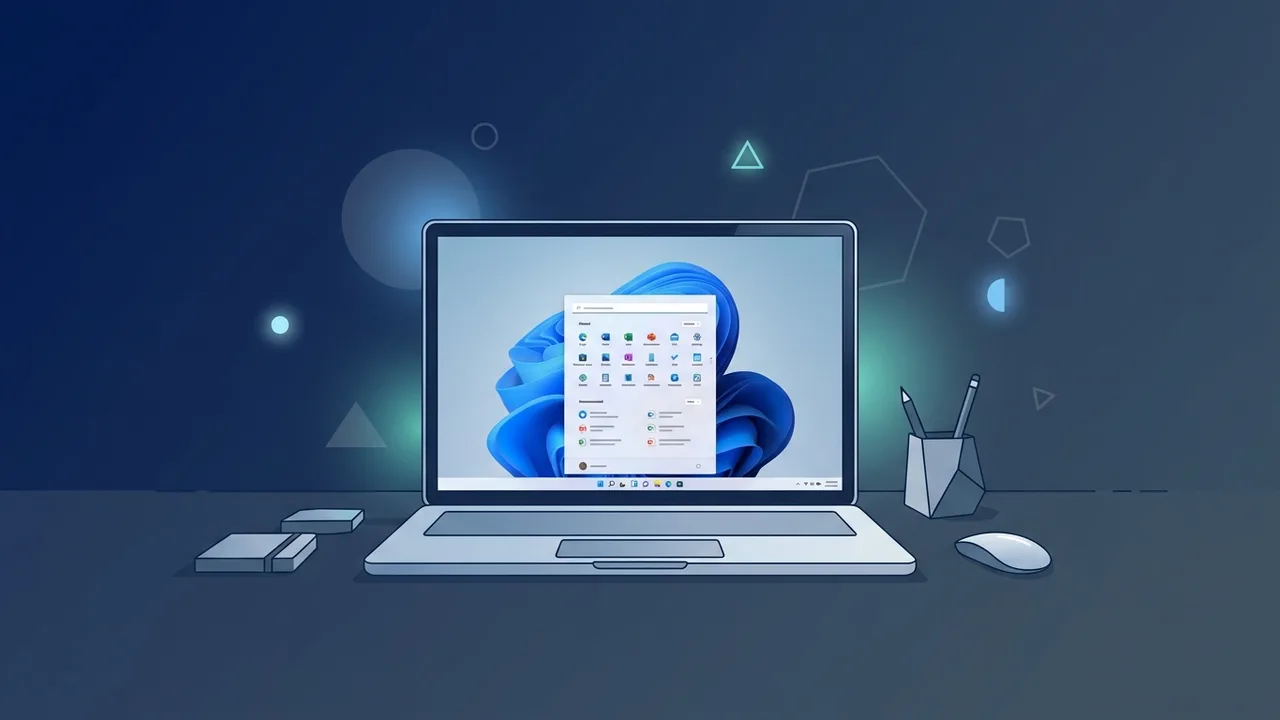
Acquiring a new personal computer is an exciting milestone for boosting your productivity and accomplishing daily tasks with high efficiency. If you have recently purchased a new Windows 11 laptop, setting it up correctly is vital to ensuring optimal performance and securing your valuable data. In this practical guide, we will walk you through a step-by-step process to configure your device for peak efficiency in both professional and educational environments.
Overview of Windows 11 laptop
Owning a modern Windows 11 laptop represents a major leap forward in the world of personal computing. Designed to meet modern demands for speed, security, and cloud integration, this operating system boasts a completely redesigned user interface that focuses on simplicity and clean visuals. With the Start menu newly centered on the taskbar, accessing your most critical files and programs is quicker than ever. Microsoft built this ecosystem to foster a flexible, high-productivity workspace tailored to modern users and businesses navigating today's hybrid work demands.
Key Features
Operating a Windows 11 laptop brings a wealth of advanced capabilities right to your fingertips. Some of the most notable features include:
- Modern Aesthetic Interface: A clean, glass-like design with rounded corners that reduce visual fatigue and deliver a sleek, premium experience.
- Snap Layouts: An intuitive multitasking feature that lets you organize open application windows into grid layouts with a single click.
- Deep Microsoft Teams Integration: Built directly into the taskbar, making it effortless to start chats or join video calls instantly with colleagues and family.
- Chip-to-Cloud Security: Advanced security requirements, including TPM 2.0, shield your hardware from malicious software and unauthorized access.
- Enhanced Gaming Capabilities: Features like Auto HDR and DirectStorage optimize visual performance and asset loading times for general users and gaming enthusiasts alike.
How to Use
To extract maximum value from your Windows 11 laptop, follow this structured, step-by-step onboarding guide to get everything configured perfectly:
Step 1: First Boot and Regional Setup
Plug in the power adapter and press the power button. Once the setup assistant loads, select your geographic region and preferred keyboard language layout to ensure seamless typing and search functionality.
Step 2: Connect to a Wi-Fi Network
Choose your local wireless network and input the security password. An active internet connection is essential at this stage to fetch vital system updates and authenticate your account.
Step 3: Sign in with a Microsoft Account
Log in with your Microsoft credentials. This links your device to OneDrive, allowing automatic settings synchronization and cloud storage access, while enabling biometric login options via Windows Hello.
Step 4: Execute Essential Windows Updates
Head to Settings, navigate to Windows Update, and click on "Check for updates". Installing the latest security patches and hardware drivers is critical to ensuring baseline system stability.
Step 5: Personalize Your Taskbar and Start Menu
Right-click the taskbar to tailor its layout. Pin your most-used productivity tools and web browsers while unpinning unwanted bloatware to streamline boot times and clarify your workspace.
Step 6: Configure Cloud Backup Solutions
Set up automatic syncing for key directories like Documents, Pictures, and Desktop using OneDrive. This guarantees your important work remains protected if your hardware ever encounters an unexpected failure.
Step 7: Install Crucial Applications and Activate Your System
Install your primary web browser, office applications, and preferred security programs. Always verify that your operating system is fully activated with a genuine license to receive uninterrupted developer support.
Common Questions
Here are clear answers to some of the most frequent queries regarding these modern laptops:
What are the minimum hardware requirements for Windows 11?
Your hardware must feature a compatible 64-bit processor, at least 4 GB of RAM, 64 GB of storage space, and TPM 2.0 support to enable the built-in system security features.
How do I upgrade an older computer to Windows 11?
You can download the PC Health Check tool from Microsoft's official website to confirm hardware compatibility. If compatible, the free upgrade option will appear directly in your updates panel.
What is the difference between Home and Pro editions?
The Pro edition contains enterprise-grade management features, such as BitLocker device encryption, remote desktop support, and virtual machine management tools suited for corporate environments.
Does this operating system support running Android apps?
Yes, it supports running Android applications natively in supported regions through the Amazon Appstore integrated directly within the Microsoft Store.
Important Tips
To maintain peak performance on your Windows 11 laptop over its operational lifespan, keep these practices in mind:
- Avoid Untrusted or Pirated Software: Utilizing cracks or unverified activation tools bypasses core system defenses and opens your personal data to cybersecurity risks.
- Leverage Built-In Clean-Up Tools: Utilize Storage Sense to automatically identify and safely delete temporary system files that congest your hard drive.
- Optimize Power Settings: Tailor power plans to balanced or battery saver modes when disconnected from the outlet to preserve battery life.
- Maintain External Backups: Complement your cloud backups by storing irreplaceable files on a physical external hard drive at regular intervals.
Conclusion
Investing in a modern portable computer running this advanced operating system is a smart choice to elevate your daily productivity and secure your workspace. By following proper setup protocols and implementing routine maintenance, you ensure a fast, robust, and highly secure digital experience.
If you need a genuine Windows 11 Pro Lifetime license, you'll find it at ABMKeys at a fair price with instant WhatsApp delivery.
Frequently Asked Questions
What are the minimum hardware requirements for Windows 11?
How do I upgrade an older computer to Windows 11?
What is the difference between Home and Pro editions?
Does this operating system support running Android apps?
You can get a genuine license from ABMKeys at a competitive price with instant WhatsApp delivery.
Buy Now