
Windows 11 Laptop from Zero to Pro
Discover the easiest way to configure and customize your Windows 11 laptop. A practical guide covering key features, initial setup steps, and performance maintenance tips.
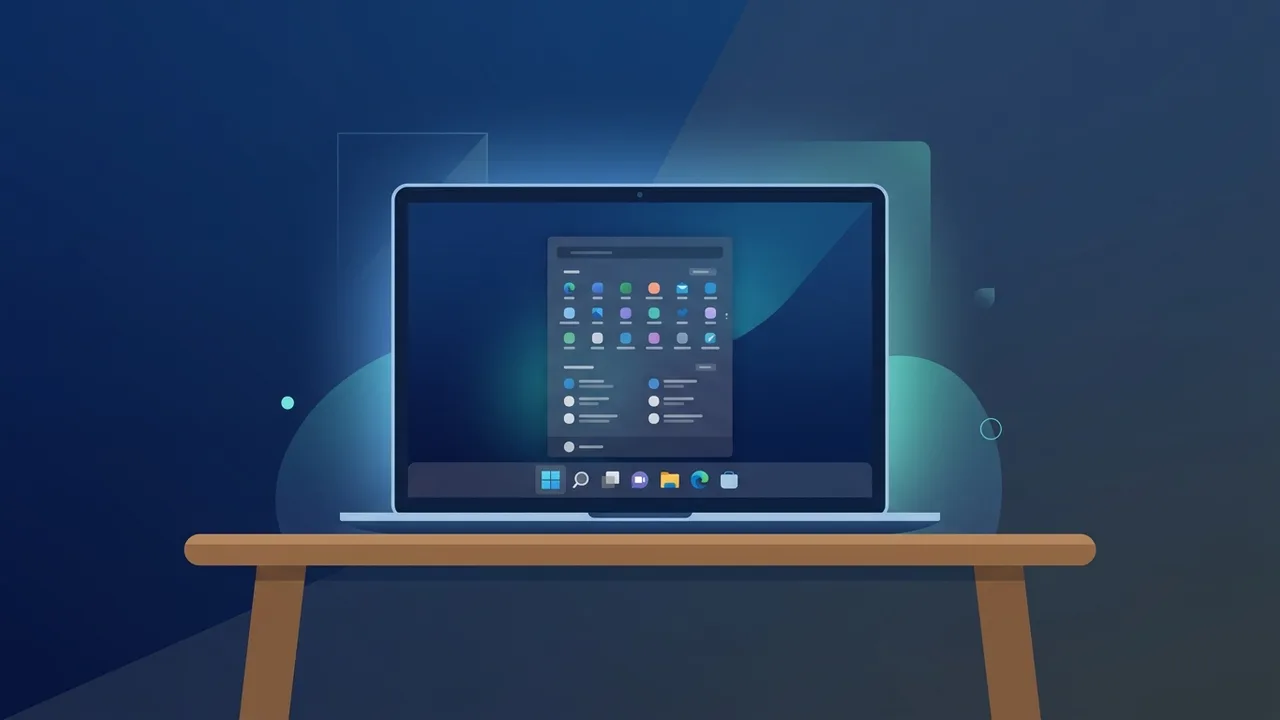
Overview of windows 11 laptop
Owning a windows 11 laptop is a great step toward modern productivity, offering a refined user interface, enhanced security, and seamless multitasking. Designed to adapt to the diverse needs of professionals, students, and businesses in Saudi Arabia, this operating system redefines the computing experience with a clean visual design and a highly intuitive layout. With modern hardware requirements such as TPM 2.0, it ensures your data remains highly secure against modern digital threats.
A windows 11 laptop is not just a standard computing device; it is a complete platform for creativity and efficiency. The operating system supports both Arabic and English seamlessly, adapting perfectly to various screen resolutions, touchscreen devices, and hybrid form factors. Understanding how to configure and utilize this system properly is key to unlocking its full potential and streamlining your daily workflows with minimal effort.
Key Features
Every windows 11 laptop comes packed with intelligent features and visual enhancements designed to make your daily tasks smoother. Here are the most notable capabilities:
- Modern Centered Interface: The redesigned Start Menu and Taskbar are centered by default, giving you quick access to your most important apps. The subtle glass-like translucent effects and rounded corners provide a clean, modern aesthetic.
- Snap Layouts and Snap Groups: This feature allows you to arrange multiple open windows into pre-designed grid templates on your screen. It is perfect for multitasking, enabling you to work on several documents or applications side by side effortlessly.
- Advanced AI Integration: The system incorporates smart search assistants and automated widgets, helping you organize your daily schedule, check regional weather, and retrieve vital information instantly.
- Immersive Gaming Technologies: With Auto HDR and DirectStorage, compatible laptops deliver richer graphics and significantly faster load times, elevating the overall gaming experience.
- Robust Built-in Security: Hardware-based security protocols, including secure boot and Windows Hello facial or fingerprint recognition, safeguard your system from unauthorized access right from startup.
How to Use
Setting up your windows 11 laptop correctly from the first boot ensures that you enjoy optimal speed, stability, and personalized comfort. Follow these practical steps to configure your system properly:
Step 1: Initial Boot and Regional Settings
Turn on your laptop to display the setup assistant. Choose your preferred language (Arabic or English) and set your region to "Saudi Arabia". This configuration automatically syncs your local time zone (Riyadh), currency formatting, and regional calendar preferences.
Step 2: Keyboard Layout and Network Setup
Select your primary keyboard layout, and add a secondary layout (such as Arabic or English) if you type in multiple languages. After that, connect to a secure Wi-Fi network to enable the device to download critical setup files and security patches during the initial configuration phase.
Step 3: Log In with Your Microsoft Account
Logging into a windows 11 laptop with a Microsoft account is highly recommended. If you do not have one, you can easily register a new account. This links your device to OneDrive cloud storage, syncs personal settings, and allows you to access free Microsoft services instantly.
Step 4: Configure Security Options (Windows Hello)
Secure your device by setting up Windows Hello. Depending on your laptop hardware, you can enroll your fingerprint, set up facial recognition, and establish a secure numeric PIN as a fast and highly secure alternative to traditional passwords.
Step 5: Install System and Driver Updates
Once you reach the desktop screen, open Settings, navigate to Windows Update, and click Check for updates. Installing the latest official patches and hardware driver updates ensures system stability and resolves potential compatibility issues immediately.
Common Questions
Here are some of the most frequent questions from users looking to understand or optimize their laptop experience:
What are the minimum hardware requirements for Windows 11?
The system requires a compatible 64-bit dual-core processor (8th Generation Intel or equivalent AMD), at least 4GB of RAM, 64GB of available storage, and hardware support for Secure Boot and TPM 2.0.
Can I run Android applications on my laptop?
Yes, the platform supports Android apps via the Amazon Appstore integrated within the Microsoft Store. This may require turning on virtualization settings in your BIOS and using a compatible region setting.
Is the upgrade from Windows 10 free?
Yes, if your current machine meets the minimum system requirements, you can upgrade to Windows 11 for free through the standard Windows Update menu without losing your personal files.
How does the Voice Typing feature work in Arabic?
The system features a highly advanced voice-to-text dictation tool. Simply press the Windows Key + H, select your language, and start speaking. It recognizes Arabic dialects accurately to write hands-free documents.
Important Tips
To keep your windows 11 laptop performing at its peak over the long run, make sure to implement these essential maintenance habits:
- Enable Automatic Cloud Backup: Set up OneDrive backup for your critical documents and pictures. This ensures your vital files are securely mirrored in the cloud and recoverable if your device is damaged or lost.
- Manage Startup Applications: Use the Task Manager to disable heavy applications from launching automatically during startup, which noticeably decreases the time your laptop takes to boot up.
- Utilize Storage Sense: Enable the Storage Sense feature in your system settings to automatically delete temporary system files, empty the recycle bin, and free up valuable space on your solid-state drive.
- Rely on Windows Security: The built-in Windows Security suite provides robust, continuous protection against viruses and malware without bogging down your laptop resources like heavy third-party antivirus software.
- Maintain Proper Ventilation: Avoid placing your device on soft surfaces like beds or carpets during heavy use. Keep vents clear to prevent overheating, ensuring thermal efficiency and extending battery health.
Conclusion
A windows 11 laptop offers a highly modern, secure, and productive environment tailored for contemporary workflows. By taking the time to set up your device correctly and practicing basic system maintenance, you can enjoy a fast and dependable computing experience for years to come.
If you need a genuine Windows 11 Pro Lifetime license, you'll find it at ABMKeys at a fair price with instant WhatsApp delivery.
Frequently Asked Questions
What are the minimum hardware requirements for Windows 11?
Can I run Android applications on my laptop?
Is the upgrade from Windows 10 free?
How does the Voice Typing feature work in Arabic?
You can get a genuine license from ABMKeys at a competitive price with instant WhatsApp delivery.
Buy Now