
Windows 11 Home Lifetime How To: The Right Way to Do It
Learn how to install and activate Windows 11 Home Lifetime with simple, step-by-step instructions. Discover its key features and how to secure a genuine lifetime license.
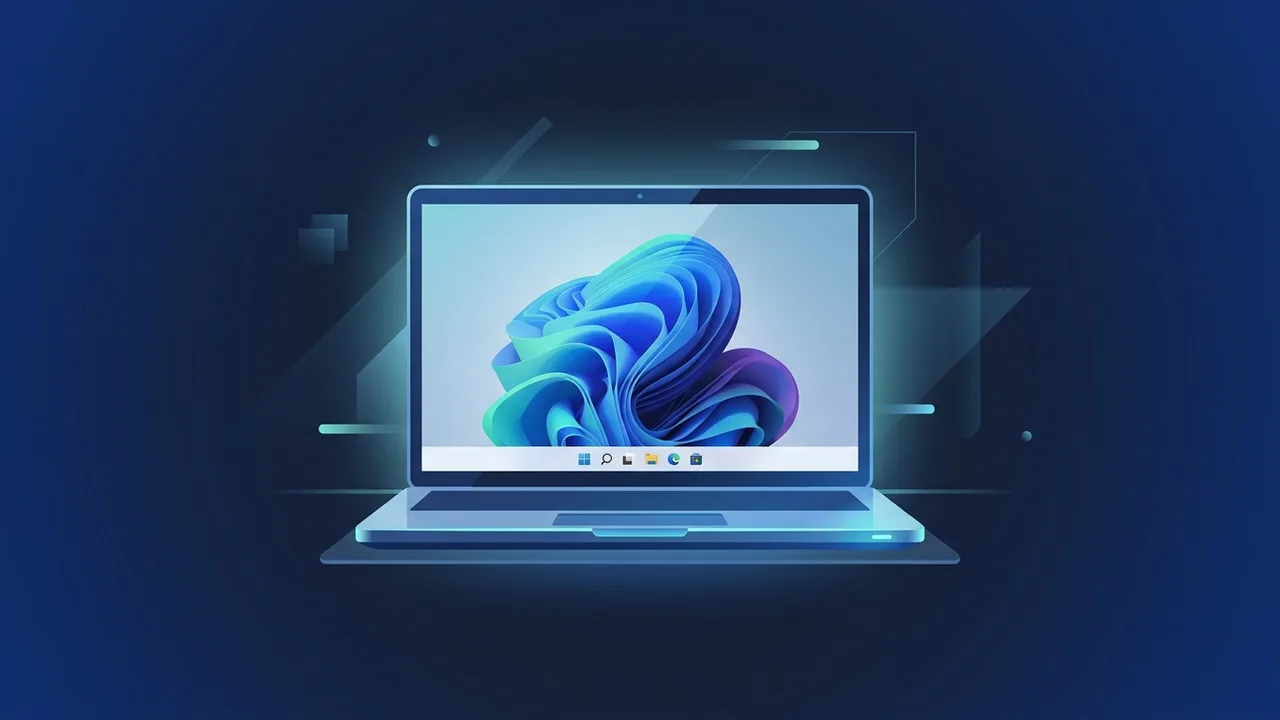
Many users and businesses in Saudi Arabia look for an operating system that delivers top performance, robust security, and a sleek, modern layout. This is why securing a genuine Windows 11 Home Lifetime license is so essential. It grants you access to all the modern features developed by Microsoft without the constant worry of subscription fees or unexpected OS lockouts. This practical guide is designed to walk you through the correct installation and activation steps to ensure your PC remains safe and stable.
Overview of Windows 11 Home Lifetime
When choosing a Windows 11 Home Lifetime license, you are making a one-time purchase that keeps your operating system activated for the lifespan of your machine. Unlike trial versions or temporary licenses, a lifetime product key provides long-term peace of mind and continuous security updates directly from Microsoft. The system boasts an entirely redesigned interface, centering the Start menu and introducing clean, rounded windows that help users organize tasks easily and complete daily projects efficiently.
Key Features
This operating system offers a wide range of technical advancements tailored for individual users and families. Here are some of the standout features:
- Modern Design: A simplified and elegant user interface that boosts daily productivity and keeps your favorite apps easily accessible.
- Snap Layouts: An intuitive way to organize open windows on your screen in various layouts, making multitasking a breeze.
- Advanced Security: Strong integration with physical computer hardware through mandatory security protocols like TPM 2.0 and Secure Boot, shielding your data from malware.
- Optimized Gaming: Built-in gaming technologies like Auto HDR and DirectStorage that dramatically reduce load times and deliver stunning visual performance.
- Microsoft Teams Integration: Seamlessly pinned to the taskbar, letting you start chats or online meetings with friends and colleagues instantly.
How to Use
To experience the full capability of the system and activate it legitimately, follow these straightforward steps for installation and activation:
Step 1: Check System Compatibility
Before installing, confirm that your computer meets the official requirements. You will need a compatible 1 GHz or faster dual-core processor, at least 4 GB of RAM, 64 GB of available storage space, and TPM 2.0 enabled in your motherboard BIOS settings.
Step 2: Download the Official Media Creation Tool
Head to the official Microsoft website and download the Media Creation Tool. Use this tool to download the ISO file and write it onto a USB flash drive with a capacity of at least 8 GB.
Step 3: Install the Operating System
Plug the bootable USB drive into your computer, restart, and boot from the USB. Follow the on-screen prompts, select your preferred language and region settings, and complete the installation process until you reach the desktop.
Step 4: Activate Windows 11 Home Lifetime
Once the installation is complete and you are connected to the internet, you can activate your system using your digital product key. Follow these steps:
- Open the Settings app from the Start menu.
- Select System from the left sidebar.
- Click on the Activation option.
- Click Change product key, enter your genuine 25-character digital product key, and click activate.
Common Questions
In this section, we address the most common inquiries from users looking to buy lifetime licenses:
Can I transfer my lifetime license to another computer?
This depends on the license type. Retail licenses can be transferred to another computer, provided you deactivate the license on the old device first. OEM licenses are tied permanently to the computer motherboard and cannot be transferred.
What happens if I do not activate the operating system?
You will not be able to customize system aesthetics like wallpapers or colors. An activation watermark will appear on your desktop, and you might miss out on critical security updates in the future.
Important Tips
To ensure your PC operates at peak performance and remains secure, keep these expert tips in mind:
- Avoid using illegal activation software or cracks. These tools present massive security risks, potentially exposing your personal files and online banking credentials to malicious hackers.
- Keep automated updates turned on to receive the latest security patches directly from Microsoft.
- Save a copy of your product key in a secure location for future reinstalls or system recovery.
- Always buy licenses from reputable sources that offer active customer support to assist you with any issues during the activation process.
Conclusion
Investing in an authentic operating system like Windows 11 Home Lifetime is the most reliable way to secure your personal data and maintain a smooth computer experience. By executing the proper setup and activation steps covered in this guide, you will enjoy all the latest features and continuous support from Microsoft.
You can get a genuine Windows 11 Home Lifetime license from ABMKeys at a competitive price with instant WhatsApp delivery.
Frequently Asked Questions
Can I upgrade from Windows 10 Home to Windows 11 Home Lifetime for free?
What is the main difference between the Home and Pro versions?
How can I verify that my Windows 11 Home Lifetime version is successfully activated?
Does Windows 11 require a constant internet connection to stay active?
You can get a genuine license from ABMKeys at a competitive price with instant WhatsApp delivery.
Buy Now