
Windows 11 Drivers: Everything You Need to Know
Learn about the importance of Windows 11 drivers and how to install and update them using safe, official methods to ensure system stability and performance.
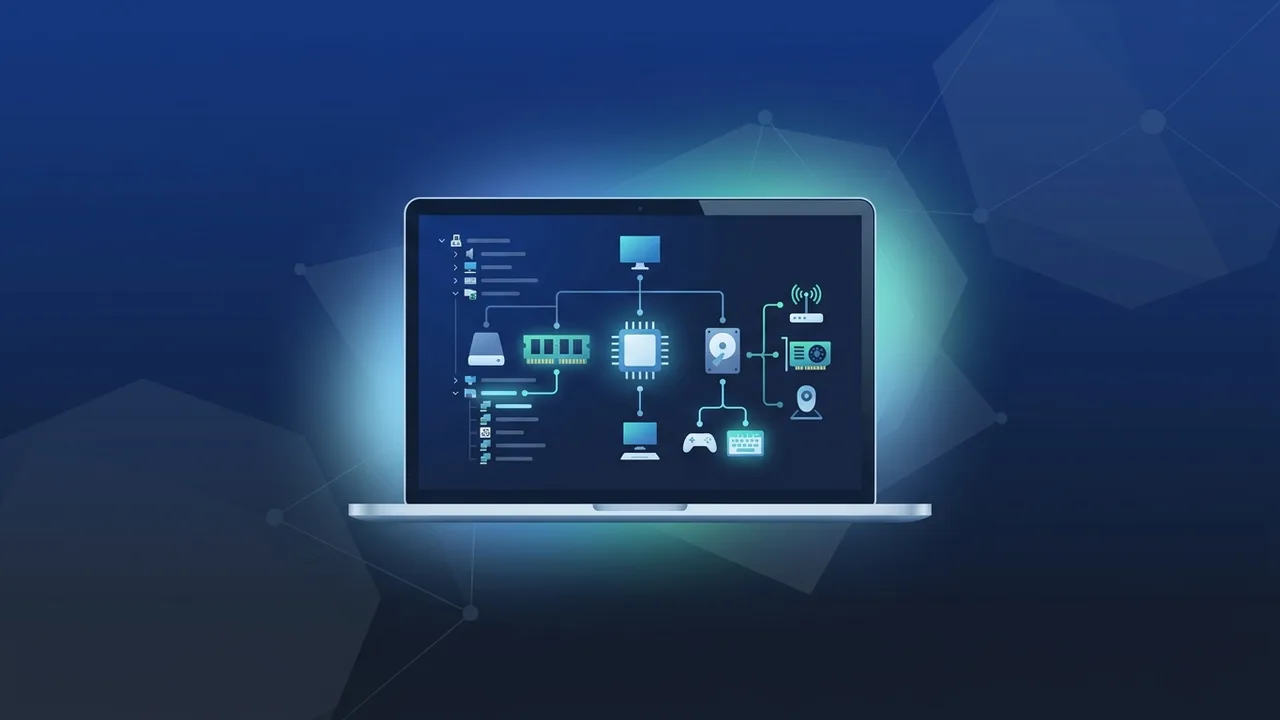
Overview of windows 11 drivers
Operating systems serve as the foundational brains of our computers, but this digital brain cannot interact or communicate with the physical hardware components without a specialized translator. This is where windows 11 drivers come into play. They act as the essential, low-level software bridge between the operating system and various hardware devices like graphics processing units (GPUs), integrated audio chips, high-speed network adapters, and external printers. When you upgrade your desktop or configure a brand-new laptop, securing compatible and stable windows 11 drivers is the single most important task to guarantee that your machine runs at peak efficiency.
For users in the Saudi Arabian market—where business enterprises, remote education, and elite PC gaming are growing at an unprecedented pace—maintaining absolute system stability is paramount. Drivers operate within a highly sensitive area of the operating system known as the Kernel space. This means that a corrupted or outdated driver can instantly lead to severe system-wide failures, sluggish response times, or random reboots. Understanding how to locate, configure, and maintain these software packages is a core computing skill in the modern digital era.
Furthermore, hardware support in Microsoft's latest operating system adheres to extremely strict guidelines called Windows Hardware Quality Labs (WHQL) testing. This certification ensures that the drivers you download have been rigorously evaluated by Microsoft to verify they do not introduce kernel panic or security vulnerabilities, resulting in a significantly more stable operating environment compared to older OS platforms.
Key Features
Modern windows 11 drivers introduce a wealth of innovative features designed to maximize system security, hardware integration, and overall user productivity:
- Smart Automated Deployment: The operating system leverages Microsoft's massive, cloud-integrated hardware catalog to automatically detect newly connected devices and pull the most reliable, certified driver without requiring user intervention.
- Robust Security Architecture: Drivers built for Windows 11 are designed around advanced security mandates like Hypervisor-Protected Code Integrity (HVCI) and Core Isolation. This prevents sophisticated malware or rootkits from hijacking hardware-level permissions.
- Unlocking Next-Gen Hardware Tech: Modern drivers allow users to leverage cutting-edge APIs like DirectX 12 Ultimate, Auto HDR, and DirectStorage. These features are highly sought after by the gaming and creative development communities in Saudi Arabia to get the absolute most out of modern GPUs.
- Optimized Power Management: Enhanced drivers offer precise energy controls, specifically for portable laptops. By utilizing modern standby modes and cutting power to idle hardware lanes, these drivers drastically extend your device's daily battery life.
- Refined System Reliability: Frequent software revisions address edge-case bugs and minimize hardware conflicts, drastically reducing the occurrence of dreaded Blue Screen of Death (BSOD) stop codes.
How to Use
Effectively managing and updating your windows 11 drivers is highly straightforward when using official tools. Here are the three most secure and practical methods to keep your machine updated:
Method 1: Windows Update (The Simplest Path)
For standard users and everyday office tasks, Windows Update remains the absolute safest and most convenient option. To use it, follow these steps:
- Click on the Start menu and open the Settings app.
- Select Windows Update from the left-hand navigation sidebar.
- Click on the Check for updates button.
- To find optional hardware updates, click on 'Advanced options', select 'Optional updates', and manually select any outstanding device driver packages.
Method 2: Using the Device Manager
The Device Manager is a built-in power tool that allows you to inspect and modify every piece of physical hardware connected to your motherboard:
- Right-click the Start menu button and select Device Manager from the power user menu.
- Expand the category corresponding to the component you want to adjust (e.g., Display adapters or Network adapters).
- If you notice a yellow exclamation mark indicating an error, right-click the specific component and choose Update driver.
- Select 'Search automatically for drivers' to let the operating system seek out the best certified software across the web.
Method 3: Direct OEM and Manufacturer Downloads
For specialized hardware, such as dedicated NVIDIA, AMD, or Intel graphics cards, downloading files directly from the manufacturer's website is highly recommended. Simply navigate to their official support portal, input your specific laptop model or GPU name, and download the official setup package to install it like any standard application.
Common Questions
During a system transition, users across Saudi Arabia often voice concerns regarding compatibility with legacy office hardware like older plotters, high-capacity scanners, or legacy receipt printers. A common query is whether one needs to manually update every single component. Fortunately, Windows 11 natively covers nearly all fundamental chipsets automatically. Another frequent concern relates to reverting a faulty update; this can be easily solved by accessing the device's properties in Device Manager and choosing the 'Roll Back Driver' option, immediately restoring your system's previous state without needing a complete OS reinstallation.
Important Tips
To preserve your computer's health, prevent boot loops, and maximize overall performance, always keep these expert tips in mind:
- Steer Clear of Third-Party Driver Updaters: There are countless software tools on the web promising to speed up your system by batch-updating all drivers. Avoid them entirely, as they frequently install incorrect files, corrupted versions, or hidden malware.
- Always Create a System Restore Point: Prior to installing major hardware updates, particularly graphics or motherboard chipset drivers, take a moment to establish a restore point so you can rollback instantly if an error occurs.
- Do Not Neglect Chipset Drivers: Motherboard chipsets govern the vital pathways between your processor, high-speed NVMe storage, and USB ports. Keeping chipset drivers updated can resolve underlying latency and boost system responsiveness.
- Verify Your Architecture: Remember that Windows 11 operates exclusively on 64-bit architectures. Attempting to install legacy 32-bit drivers will cause stability issues or installation failure.
- Run a Fully Licensed OS: A secure and stable experience starts with using a genuine product license. Counterfeit or cracked systems frequently block essential Windows and driver updates, leaving you vulnerable to exploits.
Conclusion
Properly managing your windows 11 drivers is the cornerstone of keeping any desktop or laptop computer running smoothly, securely, and efficiently over its lifetime. By relying strictly on official update methods and certified manufacturer files, you protect your system from stability issues and enjoy a seamless digital experience.
If you need a genuine Windows 11 Pro Lifetime license, you'll find it at ABMKeys at a fair price with instant WhatsApp delivery.
Frequently Asked Questions
How do I update my graphics card driver in Windows 11?
Can an outdated driver cause a Blue Screen of Death (BSOD)?
How do I fix a yellow exclamation mark in Device Manager?
Are third-party driver updater tools safe to use?
You can get a genuine license from ABMKeys at a competitive price with instant WhatsApp delivery.
Buy Now