
Windows 10 Screen Brightness Step by Step
This guide walks you through every available method to adjust Windows 10 screen brightness step by step, from system settings and the Action Center to keyboard shortcuts and power plans. Discover the key features and practical tips to protect your eyes and extend your battery life.
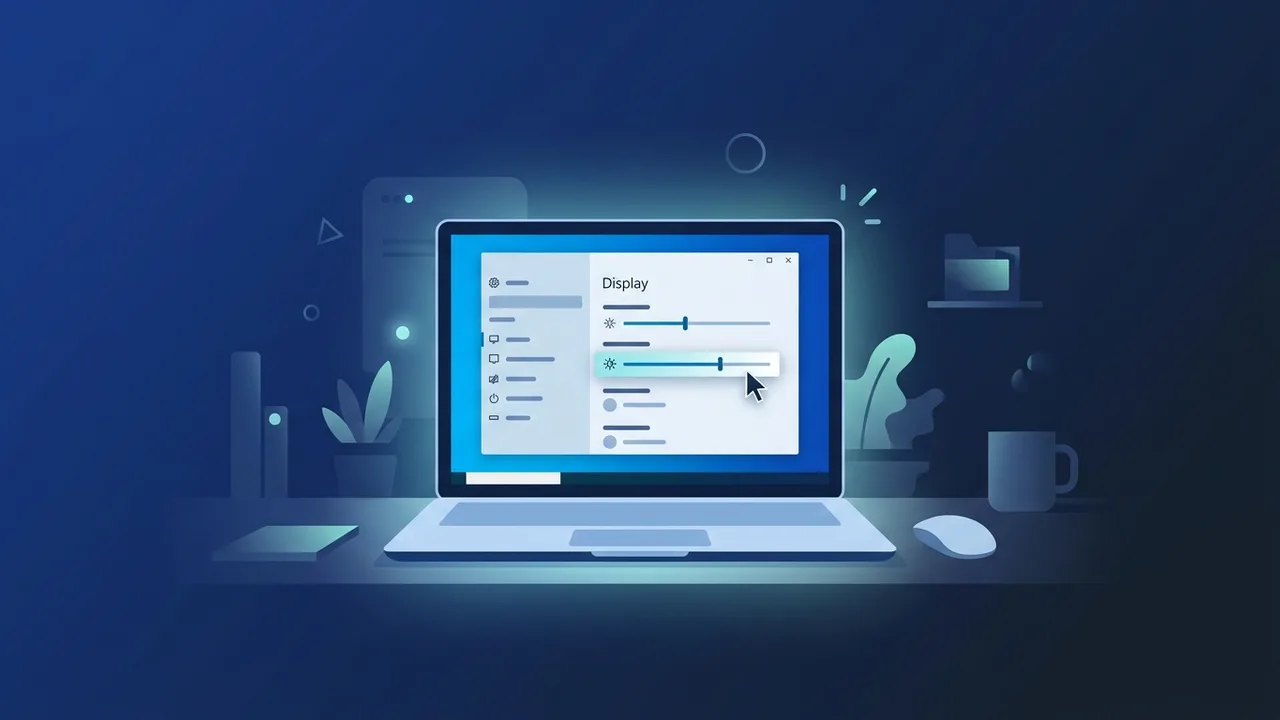
Overview of Windows 10 Screen Brightness
Managing Windows 10 screen brightness is one of the most practical adjustments any user can make to improve their daily computing experience. Whether you are working long hours at a desk, commuting with a laptop, or simply relaxing in a dimly lit room, getting the brightness level right makes a significant difference. Windows 10 offers a variety of built-in tools that allow precise control over display brightness, helping reduce eye strain, conserve battery life on portable devices, and ensure comfortable viewing in any lighting condition.
This step-by-step guide covers every available method to adjust screen brightness in Windows 10, explains the key features the operating system provides in this area, and offers practical tips to help you get the most out of your display settings.
Key Features of Windows 10 Screen Brightness Controls
Windows 10 includes several dedicated features for managing display brightness effectively:
- Manual Brightness Slider: A straightforward slider in the Display settings lets users set their preferred brightness level at any time.
- Automatic Brightness Adjustment: On devices equipped with an ambient light sensor, Windows 10 can automatically adapt the brightness level based on surrounding light conditions.
- Night Light Mode: This feature filters blue light from the screen during evening hours, reducing potential disruption to sleep patterns and lowering eye fatigue.
- Power Plan Integration: Windows 10 allows separate brightness settings for when the device is plugged in versus running on battery, making it easy to optimize power consumption.
- Action Center Quick Access: A brightness slider is available directly in the Action Center panel, enabling instant adjustments without navigating through menus.
How to Use: Step-by-Step Methods to Adjust Windows 10 Screen Brightness
Below are the most reliable methods to control Windows 10 screen brightness, explained step by step:
Method 1: Through System Settings
- Click the Start button and open Settings (the gear icon).
- Navigate to System, then select Display.
- Under the Brightness and color section, drag the slider to the right to increase brightness or to the left to decrease it.
- If your device has an ambient light sensor, you will see an option labeled Change brightness automatically when lighting changes — enable it for automatic adjustment.
Method 2: Through the Action Center
- Click the speech bubble or notification icon in the bottom-right corner of the taskbar.
- The Action Center panel will open, displaying a brightness slider near the bottom.
- Drag the slider left or right to adjust the brightness immediately.
Method 3: Using Keyboard Shortcuts (Laptops)
- Locate the brightness keys on your keyboard — they are typically function keys (such as F5 or F6) marked with a sun icon.
- Press and hold the Fn key, then press the appropriate brightness key to increase or decrease the level.
- The exact key combination varies by manufacturer and model.
Method 4: Through Power Plan Settings
- Type Power plan in the Windows search bar and open Choose a power plan.
- Click Change plan settings next to your active plan.
- Adjust the Adjust plan brightness slider separately for On battery and Plugged in scenarios.
- Click Save changes to apply.
Common Questions About Windows 10 Screen Brightness
Here are answers to some of the most frequently asked questions related to Windows 10 screen brightness:
- Why is the brightness slider missing from Display settings? This usually happens when display drivers are outdated or incorrectly installed, or when using an external monitor that does not support software brightness control. Updating or reinstalling the graphics driver typically resolves this issue.
- Can I control brightness on an external monitor through Windows 10? In most cases, external monitors are adjusted using their built-in physical buttons. However, some monitors support software control through dedicated manufacturer utilities.
- What is the difference between Night Light and brightness adjustment? Brightness controls the overall intensity of the screen's light output, while Night Light filters specifically the blue-wavelength portion of that light to make the display warmer in tone — the two settings work independently and can be used together.
- Does reducing brightness significantly extend battery life? Yes, the display is one of the largest consumers of battery power on a laptop. Reducing brightness by even 20–30% can noticeably increase the time between charges.
Important Tips for Managing Windows 10 Screen Brightness
- Aim for a moderate brightness level: In typical indoor lighting, a brightness level between 40% and 70% is generally comfortable and reduces long-term eye strain.
- Enable Night Light in the evenings: Go to Settings → System → Display, then toggle on Night Light. You can schedule it to activate automatically at sunset or at a specific time each night.
- Keep your display drivers updated: Outdated graphics drivers can prevent brightness controls from functioning correctly. Check for updates regularly through Device Manager or the manufacturer's website.
- Use automatic brightness if available: If your device has an ambient light sensor, enabling automatic brightness adjustment ensures the screen always remains comfortable regardless of where you are.
- Link brightness to your power plan: Set a lower brightness level for battery mode and a higher one when plugged in to balance performance and battery longevity automatically.
- Avoid maximum brightness for extended periods: Running the screen at full brightness continuously accelerates display wear and significantly increases eye fatigue over time.
Conclusion
Understanding and properly configuring Windows 10 screen brightness is a simple but impactful step toward a healthier and more efficient computing experience. From manual sliders to automatic ambient adjustments and Night Light scheduling, Windows 10 provides all the tools needed to tailor your display to any situation. Follow the steps outlined in this guide, apply the recommended tips, and you will immediately notice an improvement in both visual comfort and device performance.
If you need a genuine Windows 10 Pro Lifetime license, you'll find it at ABMKeys at a fair price with instant WhatsApp delivery.
Frequently Asked Questions
How can I quickly adjust screen brightness in Windows 10?
Why is the brightness slider not working in Windows 10 settings?
Does lowering screen brightness save battery on a laptop?
What is the Night Light feature in Windows 10 and how do I enable it?
You can get a genuine license from ABMKeys at a competitive price with instant WhatsApp delivery.
Buy Now