
Windows 10 Laptop Step by Step
A practical step-by-step guide on setting up and optimizing your windows 10 laptop for maximum performance. This article details its key features, optimization tips, and maintenance best practices for Saudi Arabian users.
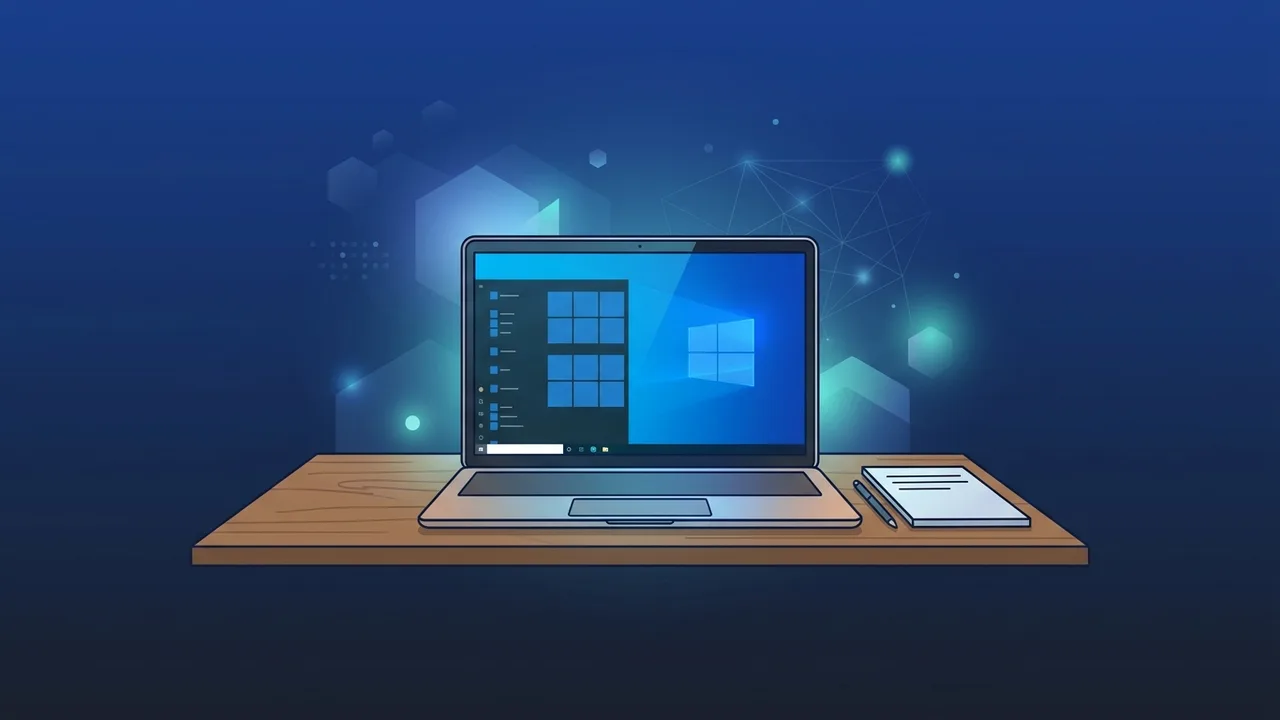
Overview of windows 10 laptop
Choosing a windows 10 laptop is one of the most reliable decisions you can make for your professional, educational, or personal computing needs. In Saudi Arabia, both businesses and individual users appreciate the operating system's adaptability, vast software library, and robust performance. This guide offers a clear, step-by-step approach to setting up, optimizing, and maintaining your device effectively.
Key Features
A modern windows 10 laptop provides an array of functional tools designed to boost productivity and provide maximum efficiency. Here are the core features:
- Microsoft Store: A secure marketplace to download verified applications, ensuring your system remains clean and safe from potential web infections.
- Broad Compatibility: It seamlessly supports older hardware components and legacy enterprise software alongside the latest tech components.
- Windows Defender Security: Built-in, real-time protection against malware, viruses, and phishing threats without slowing down the machine.
- Task View & Virtual Desktops: Allows users to manage multiple workflows efficiently by creating distinct, organized digital workspaces.
- Cortana Integration: Your personal digital assistant that helps search files, manage schedules, and set reminders quickly.
How to Use
Setting up your windows 10 laptop correctly from the start ensures smooth operation and prevents future system bottlenecks. Follow these essential steps:
Step 1: Initial Setup and Account Creation
When you boot up your new machine for the first time, the Windows setup assistant will guide you through the basic configuration. Start by selecting your preferred system language and keyboard layout. Make sure to choose the correct region (Saudi Arabia) to ensure your time zone and local settings are configured accurately. Next, connect to a secure Wi-Fi network. We highly recommend signing in with a Microsoft account. This integration lets you sync settings, passwords, and custom preferences across devices, and automates OneDrive cloud backups for critical files.
Step 2: Run System Updates and Driver Installations
The single most crucial step after initial boot-up is securing and updating the system. Navigate to the Start Menu, click on "Settings," and select "Update & Security." Inside this menu, click on "Check for updates." Your system will automatically search for, download, and install the latest security patches, system improvements, and hardware drivers. Keeping your windows 10 laptop updated ensures maximum compatibility with peripheral devices, optimizes battery usage, and closes vital security vulnerabilities.
Step 3: Install Essential Productivity Applications
Now, it is time to build your virtual workspace. Start by downloading a secure, modern web browser, followed by productive office application suites to handle word processing, spreadsheets, and presentations. Always download software directly from official websites or verified platforms. Avoid installing cracked applications, as they frequently contain embedded malware, spywares, and adware that can slow down your laptop and compromise sensitive corporate or personal data.
Step 4: Personalize the User Interface and Optimize Power Settings
Windows offers rich customization options to make your workspace feel comfortable and efficient. Right-click on your desktop and choose "Personalize" to modify themes, adjust background wallpapers, and set window colors. We suggest enabling "Dark Mode" to minimize eye strain during extended work sessions, and configuring the "Battery Saver" mode to extend runtime when you are traveling or working away from an outlet.
Common Questions
Here are some of the most frequently asked questions about operating and optimizing portable PCs:
How can I boost the performance of my system?
You can optimize a windows 10 laptop by disabling unnecessary startup programs under the Task Manager, using the built-in Disk Cleanup utility, and upgrading hardware components like RAM or SSDs if possible.
Is a genuine operating system license necessary?
Yes, running an authorized operating system guarantees that you receive continuous security patches and customer support, safeguarding your critical personal and business data.
Important Tips
To extend the longevity and maintain the high performance of your windows 10 laptop, consider implementing the following best practices:
- Regular Data Backups: Set up automated backups using OneDrive or an external hard drive to secure your critical business documents and private media files.
- Battery Maintenance: Avoid leaving the laptop plugged into the charger 24/7 once it reaches 100%. Unplugging it occasionally helps maintain long-term battery health.
- Physical and Digital Maintenance: Keep the vents clean from dust to prevent overheating, and run regular security scans using the built-in defender software.
- Avoid Suspicious Downloads: Never install cracked software or click on untrusted email links, as they are primary vectors for ransomware infections.
Conclusion
Ultimately, having a reliable portable computer running on a robust operating system is key to staying productive in today's fast-paced digital world. By following these configuration and maintenance steps, you will enjoy a fast, safe, and highly efficient working environment tailored to your daily needs.
If you need a genuine Windows 10 Pro Lifetime license, you'll find it at ABMKeys at a fair price with instant WhatsApp delivery.
Frequently Asked Questions
What is the best way to speed up a slow Windows 10 laptop?
Is Windows 10 still receiving official security updates?
How do I protect my portable PC from viruses and malware?
Can I permanently activate Windows 10 using an official license key?
You can get a genuine license from ABMKeys at a competitive price with instant WhatsApp delivery.
Buy Now