
Windows 10 Keyboard Shortcuts: The Right Way to Do It
Learn how to use essential Windows 10 keyboard shortcuts with this step-by-step practical guide to boost your daily productivity and simplify system navigation.
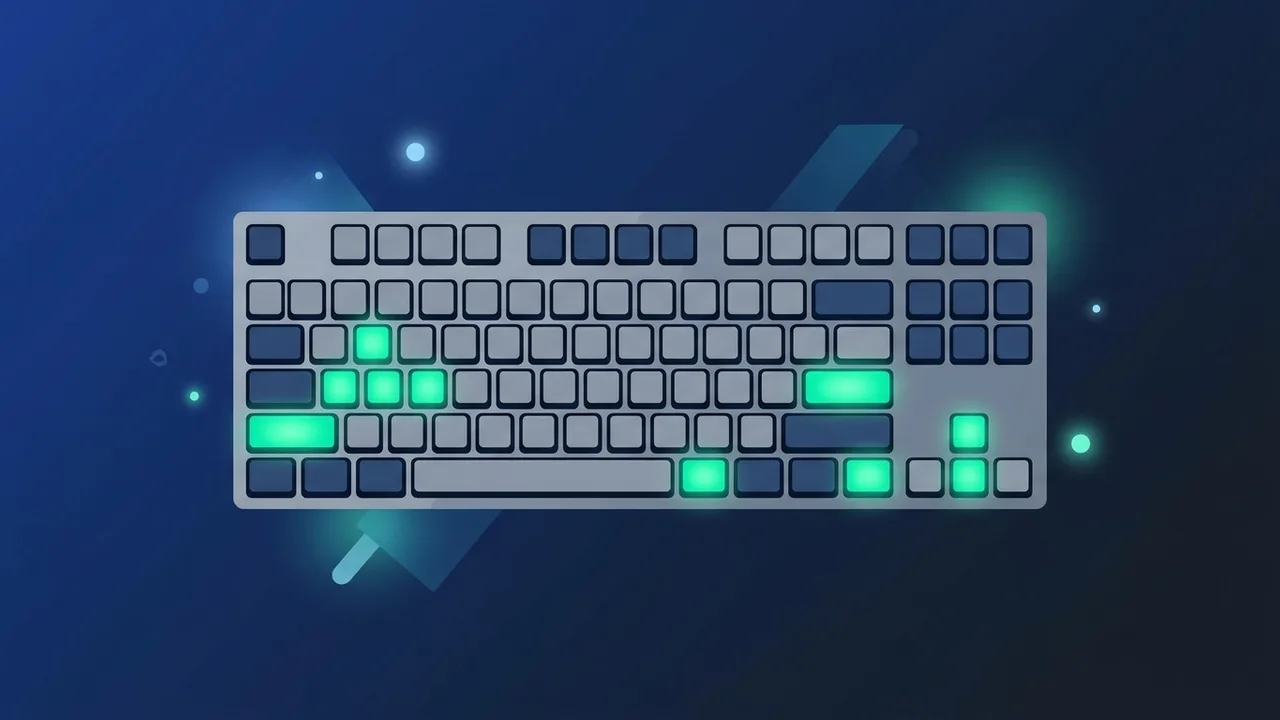
In today's fast-paced digital workspace in Saudi Arabia, efficiency and speed are key drivers of professional and academic success. Navigating your operating system smoothly can save you valuable hours, which is why mastering Windows 10 keyboard shortcuts is highly recommended. These simple key combinations minimize your reliance on the mouse, allowing you to execute system commands instantly, manage your workspace, and streamline your entire daily workflow whether you are a developer, administrator, or student.
Overview of Windows 10 Keyboard Shortcuts
Using Windows 10 keyboard shortcuts refers to pressing specific key combinations on your keyboard to perform actions that typically require several clicks of a mouse. Windows 10 is built with numerous productivity features embedded in its interface, many of which can be triggered in a split second via these shortcuts. For professionals in the Saudi market who handle multiple applications simultaneously, these combinations are crucial for maintaining focus and reducing the constant physical switching between keyboard and mouse. Integrating these tools into your daily routine transforms how you interact with your computer, turning complex multi-step processes into fluid, instantaneous actions.
Key Features
Implementing Windows 10 keyboard shortcuts into your daily computer habits offers major advantages that enhance your general workflow:
- Substantial Productivity Boost: Instantly opening tools, switching windows, and executing commands cuts down repetitive physical actions, saving hours over weeks of work.
- Enhanced Ergonomics: Limiting continuous mouse movement helps reduce strain on your wrists and hands, lowering the risk of joint discomfort during long work hours.
- Optimized Workspace Organization: Split-screen layouts and virtual desktop creation become completely effortless, helping you manage multiple screens with ease.
- Improved Mental Focus: Keeping your hands on the keyboard allows your mind to stay fully immersed in the creative or analytical task at hand, with zero visual distractions.
How to Use
To start using Windows 10 keyboard shortcuts effectively, it helps to practice them in a structured, step-by-step manner categorized by their main purpose:
Step 1: Master Essential System Commands
These core shortcuts are essential for navigating the main system environment efficiently:
- Windows Key + D: Instantly minimizes all open windows to display your desktop. Pressing it again restores your windows to their exact original state.
- Windows Key + E: Launches File Explorer immediately, allowing you to access folders, documents, and downloads without navigating the desktop.
- Alt + Tab: Cycles rapidly through all your open applications and background windows for instant multitasking.
Step 2: Manage Windows and Screen Space
These commands allow you to organize your screen layout and maximize visual efficiency:
- Windows Key + Left or Right Arrow Keys: Snaps your active window to the left or right half of the screen, creating a perfect side-by-side view for research or data entry.
- Windows Key + Up Arrow Key: Maximizes your current active window to fill the entire display instantly.
- Windows Key + Tab: Opens Task View, displaying an organized grid of all active windows and allowing you to set up separate virtual desktops.
Step 3: Access Advanced Productivity Utilities
Use these shortcuts to perform advanced actions, text operations, and system monitoring:
- Ctrl + Shift + Esc: Launches the Task Manager directly, allowing you to monitor system performance or close unresponsive applications immediately.
- Windows Key + V: Accesses your advanced Clipboard History, letting you view and paste items you copied earlier in your session, rather than just the last copied item.
- Windows Key + . (Period Key): Opens the integrated Emoji Panel, making it quick and easy to add symbols and emojis to your documents and chats.
Common Questions
This section addresses the most frequent inquiries from computer users in the Saudi region regarding setting up, configuring, and troubleshooting these shortcuts for a seamless operating experience.
Important Tips
To integrate these key combinations into your routine without feeling overwhelmed, keep these practical guidelines in mind:
- Learn in Small Batches: Do not try to memorize all keyboard commands at once. Select three or four commands that align with your daily tasks, use them until they become second nature, and then gradually adopt more.
- Maintain an Authentic System: A genuine, fully updated version of the operating system ensures that all built-in services, keyboard inputs, and background utilities run stably without lag or freezing.
- Configure Custom App Keys: Many professional productivity software programs allow you to modify keyboard layouts, so feel free to tailor them to your personal ergonomic preferences.
Conclusion
Ultimately, learning and utilizing Windows 10 keyboard shortcuts is an exceptional way to elevate your computer literacy and optimize your work efficiency. By making these quick inputs a part of your daily activities, you will enjoy a faster, more productive, and much more comfortable computing experience.
If you need a genuine Windows 10 Pro Lifetime license, you'll find it at ABMKeys at a fair price with instant WhatsApp delivery.
Frequently Asked Questions
How can I fix Windows 10 keyboard shortcuts when they stop working?
Can I customize or create new keyboard shortcuts in Windows 10?
What is the fastest shortcut to take a screenshot in Windows 10?
Does the keyboard language affect how Windows 10 keyboard shortcuts function?
You can get a genuine license from ABMKeys at a competitive price with instant WhatsApp delivery.
Buy Now