
Windows 10 Audio Driver Explained Simply
An easy-to-understand educational guide on managing your Windows 10 audio driver. Learn how to fix audio distortion, update drivers safely, and ensure peak performance.
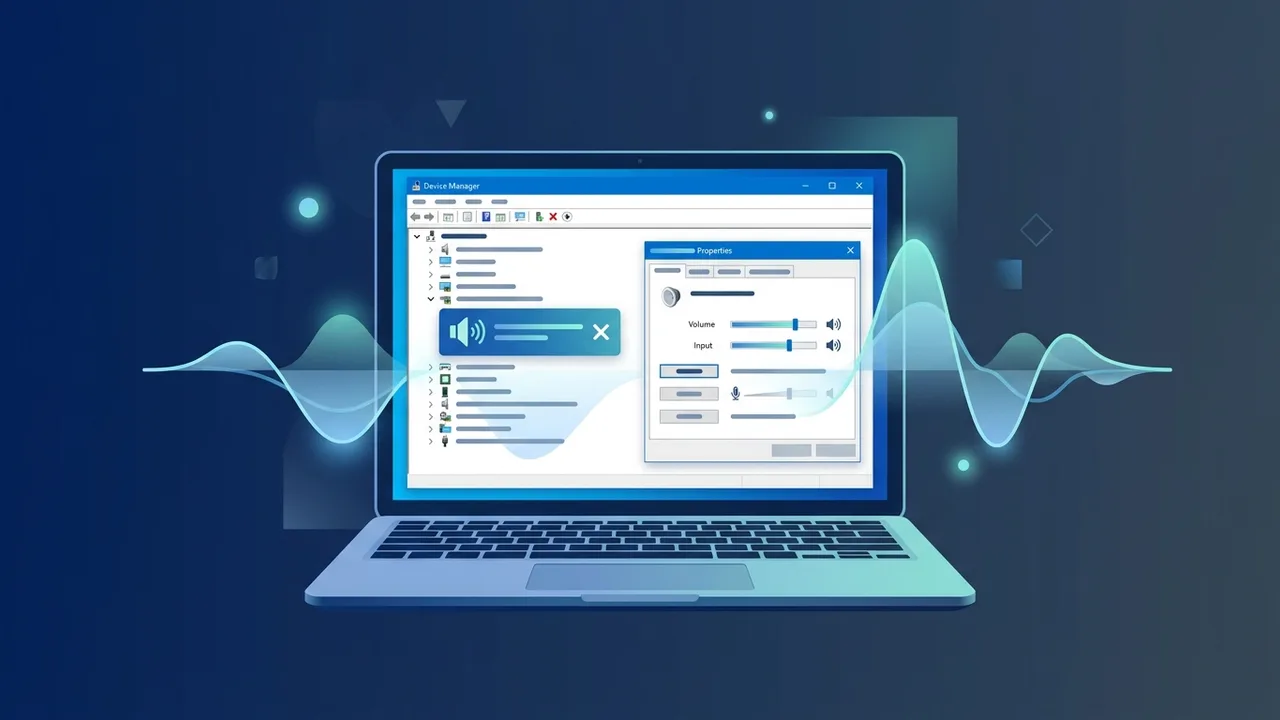
Overview of Windows 10 Audio Driver
The Windows 10 operating system is highly popular among businesses and individual users throughout Saudi Arabia. With its widespread adoption, users occasionally run into minor technical hurdles that can disrupt their daily activities. Among these issues, sound problems are quite common. Understanding how to manage your Windows 10 audio driver is key to enjoying flawless, uninterrupted sound quality on your PC.
Put simply, an audio driver is a specialized software component that bridges the communication gap between your Windows 10 operating system and your computer's physical sound card. Without a proper and updated driver, the system cannot translate digital commands into clear sound output, resulting in distorted audio, stuttering, or no sound at all.
For users in the Saudi market, audio clarity is vital for productivity. Whether you are participating in distance learning through platforms like Madrasati, joining professional Microsoft Teams meetings, or enjoying immersive gaming sessions, keeping your Windows 10 audio driver in top shape prevents unexpected disruptions and ensures communication remains crystal clear.
Key Features
Installing and updating the official Windows 10 audio driver unlocks crucial benefits that enhance your overall computing experience. Here are the primary advantages of keeping your audio software updated:
- Enhanced Audio Fidelity: A properly configured driver processes signals accurately, eliminating static, hums, and background distortion.
- Support for Advanced Technologies: Official drivers unlock support for surround sound systems and immersive audio technologies like Dolby Atmos or DTS.
- Peripheral Compatibility: Consistent updates ensure seamless integration with external accessories, including USB microphones, studio headsets, and Bluetooth speakers.
- Improved System Stability: Outdated or corrupted drivers are a common cause of unexpected system crashes (such as the Blue Screen of Death). Up-to-date drivers ensure stability during heavy multimedia workloads.
How to Use
Configuring and troubleshooting your Windows 10 audio driver does not require deep technical expertise. You can easily manage it using built-in tools or official manufacturer resources. Here is a step-by-step breakdown:
Method 1: Update Driver via Device Manager
This is the safest and most reliable built-in method for quick updates:
- Right-click on the Start button and select Device Manager from the quick access menu.
- Locate the Sound, video and game controllers category and double-click to expand it.
- Right-click on your primary audio device (usually labeled as Realtek High Definition Audio or High Definition Audio Device).
- Select Update driver from the context menu.
- Click Search automatically for drivers. Windows will scan the web and install the most compatible version.
Method 2: Run Windows Update
Microsoft frequently bundles certified driver updates with regular system patches:
- Open Settings by pressing the Windows Key + I shortcut.
- Click on Update & Security.
- Click on Check for updates. If an audio patch is available, the system will download and install it automatically.
Method 3: Direct Download from Official Manufacturers
If automated methods fail, you can visit the support site of your computer manufacturer (such as HP, Dell, Lenovo, or Asus) or chipmaker (Realtek). Enter your specific model number, download the latest Windows 10 audio driver package, and run the installation wizard manually.
Common Questions
Here are some of the most frequent questions asked by computer users in Saudi Arabia regarding audio performance and driver management on Windows 10.
Why does my computer lose sound after a Windows 10 update?
This issue often occurs when a system update overwrites your existing audio configurations with generic drivers that do not fully support your specific sound card. Reinstalling the official manufacturer's driver usually resolves the issue instantly.
How do I know if my audio driver is corrupted?
You can check the status in the Device Manager. If you see a yellow exclamation mark next to your audio hardware list, it indicates a critical driver error, meaning a fresh reinstall or update is required.
Important Tips
To keep your system's sound working perfectly and avoid future problems, consider these essential technical recommendations:
- Avoid Third-Party Driver Installers: Avoid software that claims to update all your drivers with a single click. These tools often bundle malware or install incorrect versions that cause instability. Stick to official methods.
- Back Up Stable Drivers: Once your system is running smoothly, keep a backup of the installation files on an external drive. This is highly useful after a clean system installation.
- Check Default Playback Devices: Sometimes, the driver is working fine, but Windows is routing audio to the wrong device (like an HDMI monitor instead of external speakers). Double-check your output settings in the taskbar.
Conclusion
Maintaining a fully functional Windows 10 audio driver is essential for seamless entertainment, efficient work, and clear communication. By applying the straightforward methods described above, you can confidently troubleshoot and resolve most sound-related issues on your computer.
If you need a genuine Windows 10 Pro Lifetime license, you'll find it at ABMKeys at a fair price with instant WhatsApp delivery.
Frequently Asked Questions
How can I update the Windows 10 audio driver for free?
What should I do if the audio driver does not work after installation?
Are external automatic driver updater programs safe to use?
How can I fix the missing sound icon from the Windows taskbar?
You can get a genuine license from ABMKeys at a competitive price with instant WhatsApp delivery.
Buy Now