
What is PowerPoint Explained Simply
Discover what is PowerPoint and how it can help you design professional, eye-catching presentations. A detailed beginner-friendly guide covering key features, usage steps, and design tips.
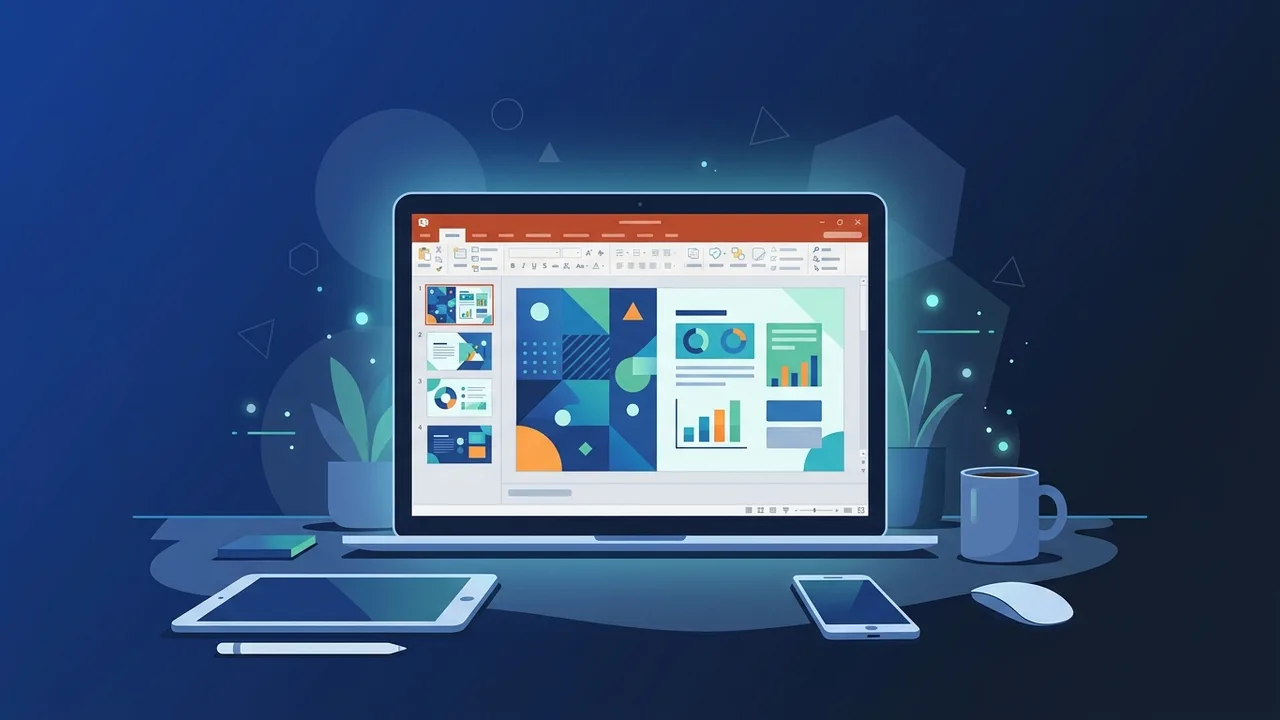
In today's fast-paced digital world, visual presentations have become an indispensable tool for communication and sharing ideas. Whether you are in a university lecture hall or a corporate boardroom, visual aids help bridge the gap between complex data and audience understanding. If you are wondering What is PowerPoint and how this industry-standard software can help you structure, design, and deliver your ideas in a compelling format, this guide is crafted specifically for you. We will walk you through a simple and comprehensive educational journey to explore its key elements and help you master its usage.
Overview of What is PowerPoint
Microsoft PowerPoint is a highly popular, slide-based presentation program developed by Microsoft as a core component of its office productivity suite. It enables users to create highly customized, dynamic slideshows containing rich text, high-resolution images, descriptive charts, videos, and professional animations to convey stories, reports, and strategies to an audience.
When studying the fundamentals of What is PowerPoint, it is clear that the software goes far beyond simple digital flashcards. It serves as an integrated visual platform engineered to facilitate learning, enhance retention, and drive engagement. Developed in the late 1980s and subsequently acquired by Microsoft, it has evolved into a global standard. Today, millions of professionals, educators, and students in Saudi Arabia and around the world rely on PowerPoint daily to pitch business ideas, run corporate training sessions, and deliver academic research with absolute clarity.
Key Features
PowerPoint features an extensive suite of tools designed to transform dry data into stimulating visual narratives. Below are the most prominent and useful features of the software:
- Professional Themes and Templates: Access to a massive library of pre-designed layouts suitable for business, education, technology, and creative projects, allowing users to build polished slides in minutes.
- Transitions and Animations: Fluid motion effects that dictate how slides transition from one to another and how text or images enter the screen, keeping the audience highly engaged.
- Rich Multimedia Integration: Support for embedding audio clips, high-definition videos, interactive charts, 3D models, and smart diagrams that bring your data to life.
- Cloud Collaboration: Real-time co-authoring capabilities powered by OneDrive, allowing multiple team members to edit, review, and comment on the same presentation simultaneously from different devices.
- Presenter View Mode: A unique dual-screen setting where the speaker can view private notes, timers, and upcoming slides while the audience sees only the clean, full-screen presentation.
- AI Design Ideas: An artificial intelligence helper that automatically analyzes slide content and suggests modern, visually balanced layouts to instantly improve aesthetics.
How to Use
Getting started with PowerPoint is highly intuitive, making it accessible to beginners without any formal design background. You can create your first presentation by following these simple steps:
Step one: Launch the application and select a starting layout. You can opt for a completely blank presentation to build your design from scratch, or choose a pre-made visual template that aligns with your topic's theme.
Step two: Add and arrange slides. You can easily add a new slide with a single click. Utilize the "Layout" drop-down menu to choose from specific slide templates, such as double-column comparisons, title pages, or media-rich layouts.
Step three: Populate your slides with content. Enter clear, descriptive headers and keep body text brief and concise. Use the "Insert" tab to add relevant photos, icons, tables, and graphs to back up your facts visually.
Step four: Apply subtle transitions and animations. Go to the "Transitions" menu to select a clean transition effect between slides. Next, head over to "Animations" to control the arrival sequence of your key bullet points to guide the audience’s attention step-by-step.
Step five: Review, preview, and save. Play the entire slide deck in full-screen mode to verify visual timing and look for formatting errors. Finally, save the document in the standard (.pptx) format, or export it to PDF for easy sharing across platforms.
Common Questions
Beginners often search for answers regarding system compatibility, free web alternatives, and safe file sharing methods. In this section, we address these practical matters to help you understand the technical versatility of PowerPoint, ensuring your presentation looks great on any screen or operating system you choose to use during your events.
Important Tips
To design a presentation that leaves a lasting impact on your audience, consider these essential and practical design rules:
- Embrace Minimalism: Do not crowd slides with blocks of heavy text. Use short, impact-driven bullet points and speak naturally to fill in the elaborate details.
- Maintain Visual Consistency: Limit your design to two primary fonts and a balanced palette of three complementary colors to maintain a clean, professional look throughout.
- Avoid Low-Quality Visuals: Avoid pixelated or generic graphics. Use high-resolution stock images and professional icons to elevate your work's credibility.
- The 6x6 Rule: Try to keep a maximum of six bullet points per slide and no more than six words per line to ensure instant legibility from the back of the room.
- Practice Timing: Rehearse your delivery several times beforehand to check slide timing and ensure a smooth, confident delivery in front of your audience.
Conclusion
In conclusion, understanding What is PowerPoint reveals that it is much more than a typing tool; it is a vital communication asset. It empowers individuals and businesses in Saudi Arabia to convert raw thoughts and numbers into highly visual and persuasive experiences. Mastering this classic office application is a highly valuable asset in today's digital economy.
If you need a genuine Office 2021 Pro Plus Lifetime license, you'll find it at ABMKeys at a fair price with instant WhatsApp delivery.
Frequently Asked Questions
Can I use PowerPoint for free?
What file formats does PowerPoint support?
Can I run PowerPoint presentations on Mac devices?
How can I prevent losing my PowerPoint file while working?
You can get a genuine license from ABMKeys at a competitive price with instant WhatsApp delivery.
Buy Now