
VMware Workstation Pro 17 Step by Step
A practical step-by-step guide explaining how to set up and manage virtual environments using VMware Workstation Pro 17, along with optimization tips for performance.
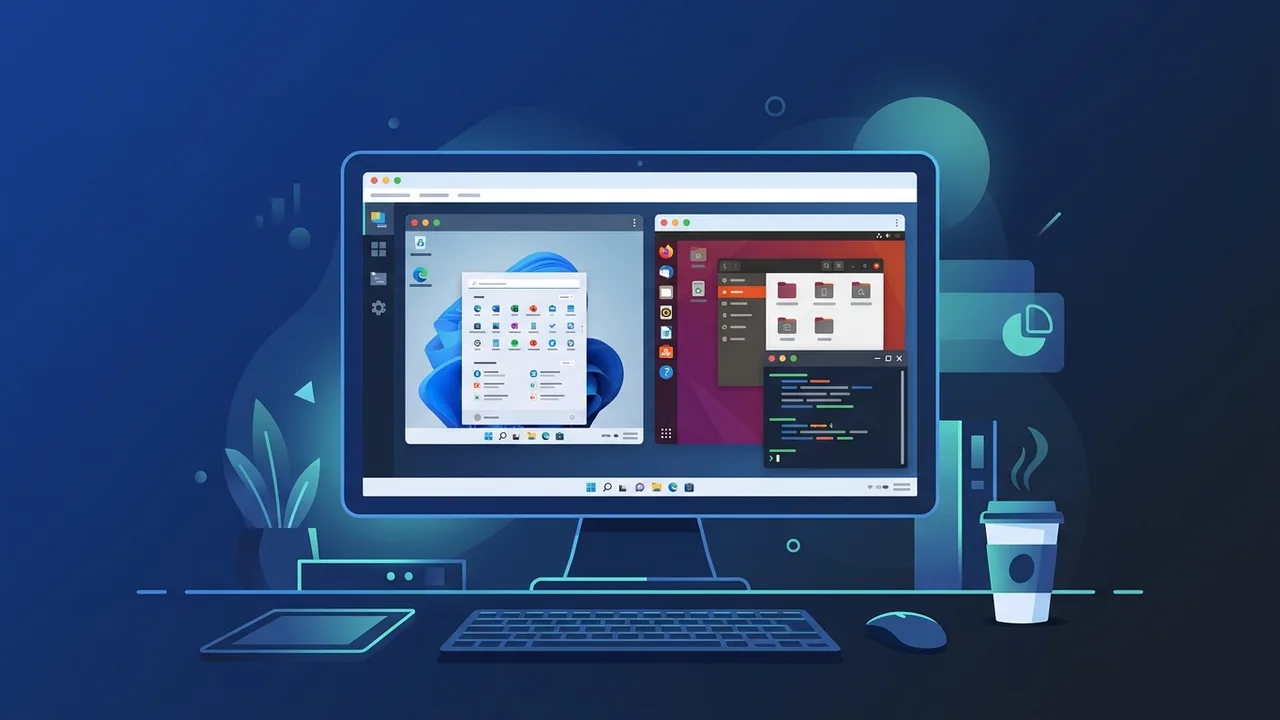
Virtualization technology has become an indispensable asset for developers, network engineers, and IT professionals across Saudi Arabia. The robust environment offered by VMware Workstation Pro 17 allows users to run, test, and develop multiple guest operating systems on a single physical host without affecting their primary environment. In this comprehensive step-by-step guide, we will walk you through setting up and utilizing this powerful software to maximize your productivity and laboratory configuration.
Overview of VMware Workstation Pro 17
VMware Workstation Pro 17 is an industry-leading Type-2 hypervisor designed to run on top of Windows and Linux operating systems. By creating fully isolated, secure virtual machines (VMs), it enables IT administrators, developers, and QA teams to simulate various production environments easily. In the Saudi technical market, where cloud migration and secure network configurations are growing rapidly, this software provides a highly reliable, cost-effective platform to build offline sandboxes, test software patches, and simulate complex network deployments without purchasing expensive physical hardware.
Key Features
When evaluating virtualization solutions, VMware Workstation Pro 17 stands out due to its technical superiority and rich feature set. Here are the main highlights of this release:
- Virtual TPM 2.0 (vTPM): This feature provides the essential hardware-based security emulation required to install and run Windows 11 as a guest operating system smoothly, eliminating the need for registry workarounds.
- Advanced 3D Graphics Support: With full integration for DirectX 11 and OpenGL 4.3, users can experience high-performance rendering for 3D modeling tools, engineering software, and testing graphical applications inside virtual machines.
- Sophisticated Virtual Networking: Administrators can design custom virtual networks with fully customizable subnets, DHCP settings, and NAT setups. You can even simulate packet loss, network latency, and bandwidth restrictions.
- Snapshots and Cloning: Take instant snapshots of a virtual machine's current state to revert back to it if a trial update or script fails. Additionally, you can create linked or full clones to deploy duplicate machines instantly.
- Robust Encryption and Security: Restrict unauthorized access to proprietary corporate code or confidential client projects by encrypting your virtual machines with custom passwords.
How to Use
Setting up your first virtual machine using VMware Workstation Pro 17 is a straightforward process. Follow these structured instructions to build a fully functional virtual environment:
- Download and Installation: Obtain the official installation executable. Double-click the file and proceed through the setup wizard. After installation, launch the program and enter your legitimate license key to unlock its advanced capabilities.
- Initiate Virtual Machine Creation: Open the home interface and click on "Create a New Virtual Machine". This opens the wizard, where you can select either "Typical" configuration for standard workloads or "Custom" for precise adjustments.
- Select the Operating System Source: Choose "Installer disc image file (iso)" and browse to locate your downloaded ISO file for the operating system you wish to install (such as Windows Server, Windows 11, or Red Hat Linux).
- Configure Virtual Hardware Resources: Assign a safe name and disk capacity for the VM. Next, click "Customize Hardware" to allocate system memory (RAM) and processor cores. For general systems, allocating 4GB of RAM and 2 processor cores is usually sufficient.
- Execute the Installation: Click "Finish" to power on the virtual machine. The VM will boot directly into the installation media. Proceed through the operating system's standard setup prompts until you reach the desktop environment.
- Install VMware Tools: Navigate to the top menu bar, select "VM", and click "Install VMware Tools". This package deploys essential video drivers, mouse synchronization, and file-sharing capabilities (such as drag-and-drop between host and guest), maximizing your user experience.
Common Questions
Virtualization newcomers and professional developers often run into similar issues regarding performance tuning and compatibility. Below we cover the most frequent queries to help optimize your virtualized architecture.
Important Tips
To ensure top-tier performance and prevent host machine degradation while utilizing VMware Workstation Pro 17, consider the following technical advice:
- Always Use Solid-State Drives (SSDs): Storing virtual hard disks (.vmdk files) on traditional mechanical drives (HDDs) leads to extreme performance lag. Running them on an NVMe or SATA SSD provides immediate responsiveness and faster boot times.
- Avoid CPU and RAM Over-allocation: Do not assign more virtual cores or memory than your host system can easily spare. Leaving at least 4GB of RAM and 2 physical CPU cores dedicated strictly to your host OS ensures overall system stability.
- Implement Snapshot Hygiene: While snapshots are highly useful for quick recovery, a long chain of snapshots can slow down disk read-write speeds and consume massive storage space. Regularly delete or merge obsolete snapshots.
- Enable VT-x/AMD-V in Host BIOS: Hardware virtualization must be enabled in your computer’s motherboard BIOS settings for the hypervisor to execute guest instructions efficiently.
Conclusion
Implementing VMware Workstation Pro 17 within your technology workflow provides an isolated, secure, and incredibly powerful workspace for experimentation, network architecture simulation, and application development. Utilizing the correct settings and acquiring a legitimate activation key guarantees a stable system capable of executing modern virtualization tasks seamlessly.
You can get a genuine VMware Workstation Pro 17 license from ABMKeys at a competitive price with instant WhatsApp delivery.
Frequently Asked Questions
Can I run Windows 11 as a guest OS on this software?
Does running virtual machines slow down my primary computer?
What is the purpose of installing VMware Tools?
Does the software require a paid license for professional use?
You can get a genuine license from ABMKeys at a competitive price with instant WhatsApp delivery.
Buy Now