
Understanding Windows 10 Audio Drivers and Their Key Uses
Windows 10 audio drivers are the software programs that allow the operating system to recognize and communicate with your sound card. This article explains the concept, installation methods, and key tips for handling audio drivers correctly.
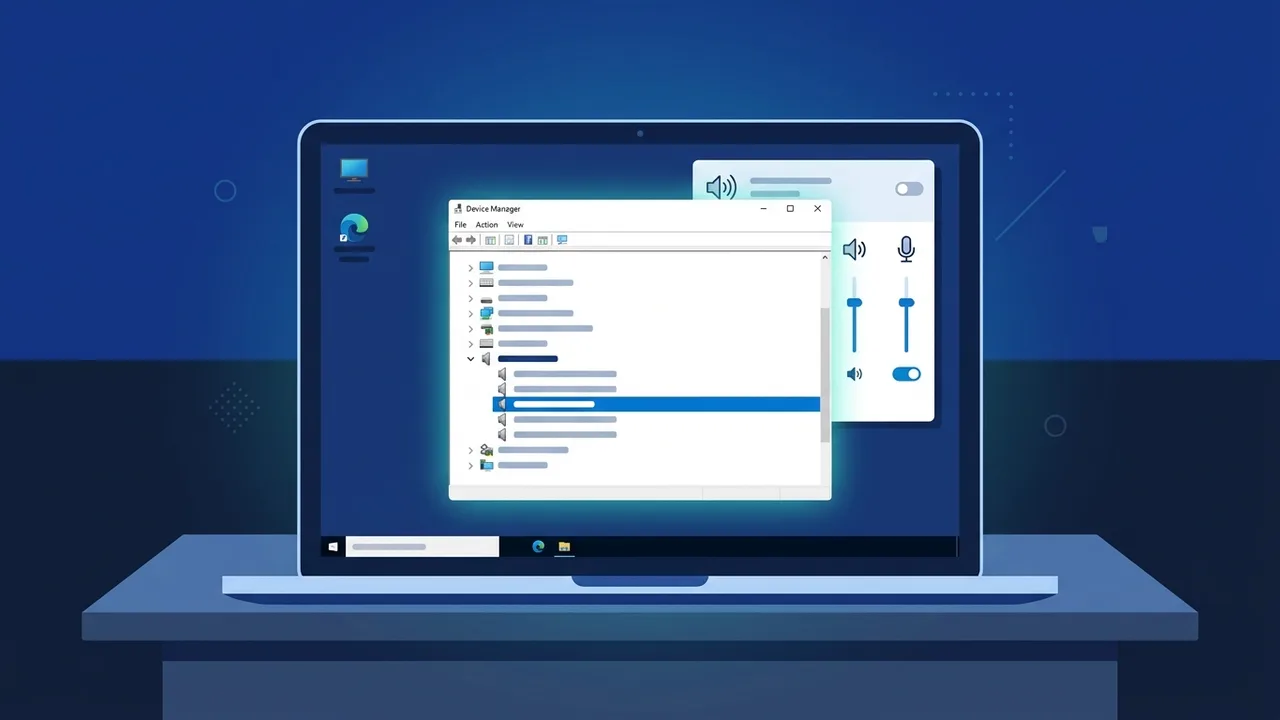
Overview of Windows 10 Audio Drivers
Windows 10 audio drivers are among the most frequently searched topics by computer users, whether they are complete beginners or experienced professionals. Whenever Windows 10 is freshly installed or when sound suddenly stops working, users find themselves needing to understand what audio drivers are and how to handle them correctly.
In simple terms, an audio driver is a small software program that acts as a bridge between the operating system and the sound card installed in your device. Without this driver, Windows 10 cannot recognize the audio hardware, which means no sound output from speakers or headphones. Windows 10 audio drivers are therefore not optional — they are a technical necessity for ensuring your device works as intended.
This topic is of great interest to users across various environments, from home setups to professional offices, making it essential knowledge for anyone working with a Windows 10 machine.
Key Features of Windows 10 Audio Drivers
Windows 10 audio drivers come with several important characteristics that make them a cornerstone of a proper sound experience:
- Wide Compatibility: Most modern drivers support a broad range of both integrated and dedicated sound cards.
- Automatic Updates: Windows 10 offers automatic driver updates through Windows Update, keeping your audio drivers current without manual effort.
- Advanced Audio Technology Support: Specialized drivers can support technologies such as Dolby Audio and DTS Sound to significantly improve audio quality.
- Multiple Output Device Management: A single driver can manage several audio output devices simultaneously, including speakers, headphones, and monitor speakers.
- Customizable Settings: Many drivers come with a dedicated control panel that allows users to adjust the equalizer, volume levels, and output settings per device.
How to Install and Use Windows 10 Audio Drivers
There are several methods available to install or update Windows 10 audio drivers. Here are the most reliable approaches:
Method 1: Update via Windows Update
Open the Settings menu, navigate to Update & Security, and click Check for Updates. Windows will automatically search for and install the appropriate audio driver for your hardware.
Method 2: Device Manager
Right-click on This PC and select Manage, then go to Device Manager. Locate the section labeled Sound, Video and Game Controllers, right-click on your sound card, and select Update Driver.
Method 3: Download Directly from the Manufacturer
If the above methods do not resolve the issue, visit the official website of your device manufacturer or sound card manufacturer and download the driver that matches your specific model and your version of Windows 10.
Verifying a Successful Installation
After installation, return to Device Manager and confirm there are no warning icons next to the sound card entry. You can also right-click the sound icon in the taskbar and select Test Sound to confirm everything is functioning correctly.
Common Questions About Windows 10 Audio Drivers
The following are answers to questions frequently asked about Windows 10 audio drivers:
- Why did my sound disappear after a Windows update? Updates can sometimes conflict with the existing driver. The solution is to reinstall the driver or roll it back to the previous version.
- Are Realtek drivers the best option? Realtek is among the most widely used audio drivers in both laptops and desktops, and it performs reliably in most standard use cases.
- Can I run multiple audio devices at the same time? Yes, Windows 10 allows you to manage multiple audio output devices simultaneously through the Sound settings in the Control Panel.
Important Tips When Working with Audio Drivers
The following practical tips will help you avoid common issues related to Windows 10 audio drivers:
- Always download drivers from official sources to avoid counterfeit or malware-infected driver files.
- Do not remove the old driver before installing the new one unless you are experiencing a clear conflict, as doing so may leave your device with no sound at all.
- Restart your device after every driver installation to ensure changes are fully applied.
- Check your default audio output settings; sometimes the issue is simply that the default playback device is set to a disconnected or incorrect device.
- Use the built-in Windows Troubleshooter: Go to Settings, then Update & Security, then Troubleshoot, and select Playing Audio for an automatic diagnosis.
Conclusion
Windows 10 audio drivers are far more than obscure technical files — they are the essential link between your operating system and your device's audio hardware. Understanding this concept empowers you to troubleshoot sound issues confidently and saves you significant time and effort. Whether you are reinstalling Windows from scratch or investigating why your sound has suddenly stopped, knowing how to install and update audio drivers is the first step toward a reliable solution.
If you need a genuine Windows 10 Pro Lifetime license, you'll find it at ABMKeys at a fair price with instant WhatsApp delivery.
Frequently Asked Questions
What are Windows 10 audio drivers and why are they important?
How do I know if an audio driver is not installed on my device?
Does Windows 10 install audio drivers automatically?
What should I do if sound stops working after a Windows 10 update?
You can get a genuine license from ABMKeys at a competitive price with instant WhatsApp delivery.
Buy Now