
The Easiest Way to Windows 11 Wallpapers
Learn how to find and customize windows 11 wallpapers step by step. Discover the default system folder path and essential tips to maintain a clean, high-resolution desktop experience.
Overview of windows 11 wallpapers
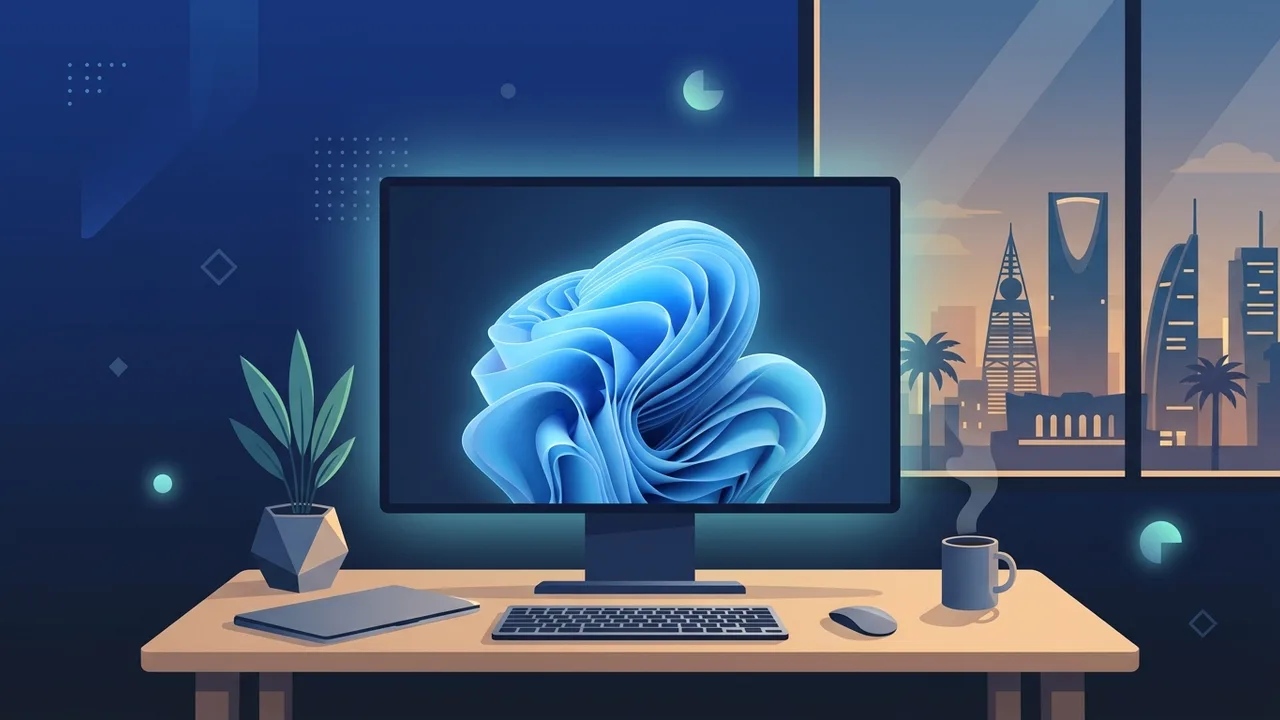
The visual overhaul in Microsoft's latest operating system has introduced a modern aesthetic centered around Fluent Design principles. At the heart of this visual transformation are the official windows 11 wallpapers. Designed to convey light, depth, and fluid motion, these backgrounds represent a massive leap forward from older versions. The signature default wallpaper, known as "Bloom," features a beautiful, abstract digital flower-like structure that symbolizes growth and creative renewal.
In the Saudi market, where modern workstations and professional digital setups are expanding rapidly in cities like Riyadh, Jeddah, and Dammam, users highly value customized and clean desktop environments. Beautiful backgrounds not only make your workspace look highly professional but also improve daily productivity by offering a soothing visual experience during long hours of work or study.
Key Features
The collection of official wallpapers built into the operating system offers unique features that cater to modern displays and various user preferences:
- Ultra-High Resolutions: All official assets are designed to scale flawlessly on 4K, 5K, and even 8K monitors, ensuring sharp details and rich colors on any panel.
- Optimized Dark and Light Variants: The default backgrounds come in both dark and light mode versions, allowing your desktop style to shift seamlessly according to your environment and light conditions.
- Thematic Diversity: The standard library includes diverse art styles, ranging from abstract geometric patterns (Glow, Captured Motion) to organic landscape photographs (Sunrise).
- Dynamic Updates: With Windows Spotlight integration, the system fetches breathtaking new photographs daily directly from Bing to keep your screen looking fresh without manual effort.
How to Use
To configure and use windows 11 wallpapers on your computer, follow these simple and official steps:
Step 1: Access Personalization Settings
Right-click on any empty area of your desktop and select "Personalize" from the context menu. Alternatively, you can open the Settings application by pressing the Windows + I shortcut on your keyboard and clicking on the "Personalization" category on the left sidebar.
Step 2: Choose Background Type
Within the Personalization window, click on the "Background" option. Here, you will see a dropdown menu that lets you choose between a single Picture, a Solid color, a Slideshow of folder images, or the dynamic Windows Spotlight feature.
Step 3: Browse System Wallpapers
If you wish to explore the default high-resolution files, you can access the system's storage folder directly. Copy and paste this path into your File Explorer: C:\Windows\Web\Wallpaper. You will find several categorized subfolders containing the original high-resolution design files.
Step 4: Align Accent Colors
For a fully unified appearance, go back to the Personalization menu, click on "Colors", and toggle on "Choose an accent color automatically from my background". The taskbar, Start menu, and window accents will automatically adapt to match your current desktop image.
Common Questions
Where can I find the default system wallpaper directory on my PC?
All default files are stored in the local disk directory at the path: C:\Windows\Web\Wallpaper. Inside this directory, you will find organized folders like Bloom, Glow, Sunrise, and Captured Motion containing the original high-resolution images.
Do high-resolution wallpapers impact system performance?
Static high-resolution pictures do not affect system speed on modern hardware. However, if you are running an entry-level PC, using a static image instead of a heavy slideshow or dynamic live-wallpaper software can help conserve system memory (RAM).How can I get official windows 11 wallpapers in high quality?
You can use the built-in Windows Spotlight feature to receive official high-quality images directly on your lock screen and desktop, or browse the Microsoft Store for official theme packs curated by Microsoft.
Why are my personalization settings grayed out or locked?
This issue occurs if your operating system copy is not activated with a genuine product key. Microsoft restricts visual personalization features, including the ability to change the desktop background, on non-activated installations.
Important Tips
To get the most out of your windows 11 wallpapers and maintain a secure, healthy display setup, keep the following tips in mind:
- Match Aspect Ratio and Resolution: Always choose wallpapers that match your screen’s native resolution (e.g., 1920x1080 or 3840x2160) to prevent the image from being stretched, blurred, or distorted.
- Protect Your Eyes in Low Light: Use darker wallpapers and enable dark mode if you work at night. This significantly reduces blue light exposure and minimizes eye strain.
- Avoid Untrusted Download Websites: When searching for custom wallpapers online, only download files from highly reputable platforms. Avoid websites that require you to run executable files (.exe) to apply backgrounds, as they may contain adware or malware.
- Keep Your License Active: Ensure your OS is activated with a genuine product key so you can easily switch themes, customize accent colors, and enjoy full personalization features without restriction.
Conclusion
Customizing your desktop with high-quality wallpapers is an excellent way to elevate your computer experience, express your personal style, and establish a productive workspace. Whether you prefer clean, abstract vectors or gorgeous landscapes, the system offers plenty of elegant options that make your screen look absolutely stunning.
If you need a genuine Windows 11 Pro Lifetime license, you'll find it at ABMKeys at a fair price with instant WhatsApp delivery.
Frequently Asked Questions
Where can I find the default system wallpaper directory on my PC?
How can I get official windows 11 wallpapers in high quality?
Do high-resolution wallpapers impact system performance?
Why are my personalization settings grayed out or locked?
You can get a genuine license from ABMKeys at a competitive price with instant WhatsApp delivery.
Buy Now