
The Easiest Way to windows 10 wallpapers for pc
Learn the easiest way to customize and set windows 10 wallpapers for pc with this step-by-step guide, including tips on choosing the perfect resolution to boost productivity.
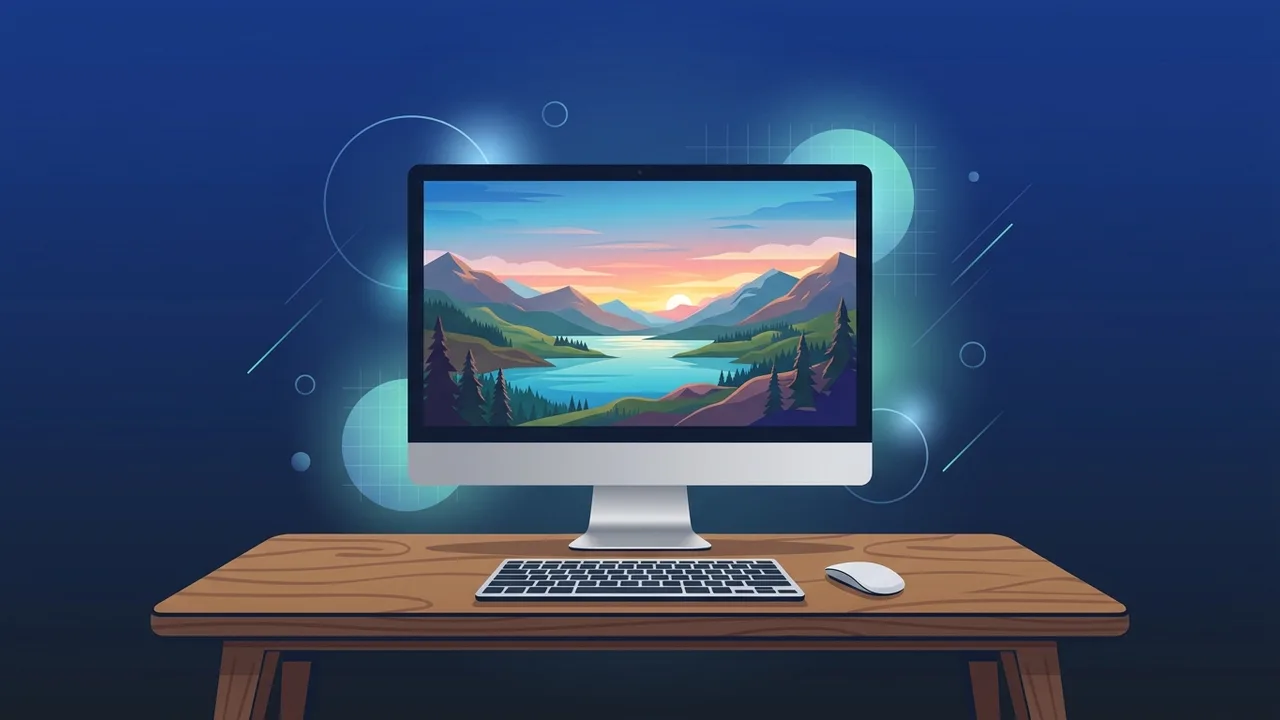
The look of your operating system defines your daily interaction with your device, which is why choosing the right windows 10 wallpapers for pc can make a significant difference in your daily workflow. Personalizing your digital workspace is not merely an aesthetic choice; it is a highly effective way to create a visually comfortable environment that reduces eye strain and boosts your focus throughout the day. In this detailed guide, we will walk you through the practical steps of choosing and setting up the perfect backgrounds for your computer.
Overview of windows 10 wallpapers for pc
When customizing your desktop layout, Windows 10 offers unparalleled flexibility to adapt the system to your unique preferences. Finding high-quality windows 10 wallpapers for pc is essential, especially with the widespread use of high-resolution displays such as Full HD and 4K screens among professionals, designers, and students in the Saudi market.
These background images vary widely, ranging from breathtaking natural landscapes and minimalist geometric designs to dark-themed patterns preferred by software developers to minimize screen glare during night hours. Regardless of your daily activities, Windows 10 allows you to control how these images are displayed and sync them across all your devices connected to your Microsoft account.
Key Features
Customizing your desktop background in Windows 10 is more than just a cosmetic change. It brings several practical advantages that elevate your overall desktop experience:
- Enhanced Focus and Mood: Selecting soothing colors or inspiring nature photography can significantly lower stress levels and increase concentration during long working sessions.
- Multi-Monitor Support: The system allows you to assign unique wallpapers to each connected monitor, or span a single panoramic high-resolution image seamlessly across multiple screens.
- Dynamic Slideshows: You can select a folder containing multiple images and set them to rotate automatically at specified intervals, keeping your workspace fresh and dynamic.
- Automatic Color Matching: Windows 10 can automatically detect the primary color of your current wallpaper and apply it as an accent color to your taskbar, Start menu, and window borders for a unified look.
How to Use
To easily apply and configure windows 10 wallpapers for pc on your system, follow these straightforward step-by-step instructions:
Step 1: Open Personalization Settings
Right-click on any empty space on your desktop and select Personalize from the context menu. Alternatively, you can go to Settings, then choose Personalization.
Step 2: Choose Your Background Type
Under the "Background" dropdown menu on the left pane, you will find three distinct display options:
- Picture: To select a single, static image as your main desktop background.
- Solid Color: Perfect if you prefer an ultra-minimalist, distraction-free setup with a plain color block.
- Slideshow: To select a dedicated folder containing a set of pictures that change automatically at intervals of your choice.
Step 3: Browse and Select Your Image
Click the Browse button below the image history list to search your local folders and choose a high-resolution wallpaper that fits your monitor specifications perfectly.
Step 4: Adjust the Fit
From the "Choose a fit" dropdown menu, select the option that best matches your screen. We highly recommend using the Fill option to ensure the image covers the entire display area without any black borders, or Fit to display the original image dimensions without cropping.
Common Questions
How can I find wallpapers that match my monitor resolution?
It is best to download images from trusted wallpaper platforms that provide high-definition content. Ensure you look for resolutions like 1920x1080 (Full HD) or 3840x2160 (4K UHD) to keep your desktop sharp and professional.
Does a desktop slideshow impact laptop battery life?
Yes, but the impact is minimal. However, if you are working remotely on a laptop and need to maximize your battery life, choosing a single static picture instead of a continuous slideshow is highly recommended to save processing cycles.
How do I enable dark mode to match a dark wallpaper?
In the Personalization menu, click on Colors in the left sidebar. Under "Choose your color", select Dark. This matches your menus and windows with dark backgrounds, protecting your eyes in low-light environments.
Why does my desktop wallpaper look stretched or pixelated?
This typically occurs when the aspect ratio or resolution of the image does not match your display settings. Always check that your source images have a 16:9 aspect ratio, which is the standard widescreen format for most modern computer screens.
Important Tips
When selecting windows 10 wallpapers for pc from third-party sources, keep these practical optimization tips in mind to achieve the best results:
- Consider Screen Brightness: Avoid overly bright or white wallpapers in low-light office environments. Instead, opt for softer tones like deep blues, forest greens, or charcoal grays to reduce visual fatigue.
- Keep Room for Desktop Icons: Choose wallpapers that feature clean or empty areas (often called negative space) on one side of the screen. This allows your desktop shortcuts and folders to remain highly visible.
- Avoid Low-Quality Images: Do not use low-resolution images (such as 800x600) as they will appear highly pixelated and unprofessional when stretched across a modern display.
- Corporate Branding: For business environments in Saudi Arabia, consider using a standardized wallpaper featuring the official company logo or brand colors to present a unified and highly professional image to visiting clients.
Conclusion
In conclusion, the process of selecting windows 10 wallpapers for pc helps you transform a standard computer into a personalized, motivating, and highly productive workspace. By implementing the steps and guidelines detailed in this guide, you can easily elevate your visual workspace to stay focused and productive throughout your daily computer tasks.
If you need a genuine Windows 10 Pro Lifetime license, you'll find it at ABMKeys at a fair price with instant WhatsApp delivery.
Frequently Asked Questions
How can I find wallpapers that match my monitor resolution?
Does a desktop slideshow impact laptop battery life?
How do I enable dark mode to match a dark wallpaper?
Why does my desktop wallpaper look stretched or pixelated?
You can get a genuine license from ABMKeys at a competitive price with instant WhatsApp delivery.
Buy Now