
The Easiest Way to Fix Windows 11 Slow Performance
Learn how to speed up Windows 11 and fix system lag with simple, practical steps. This guide covers disk cleanup, disabling startup apps, and adjusting power plans for optimal performance.
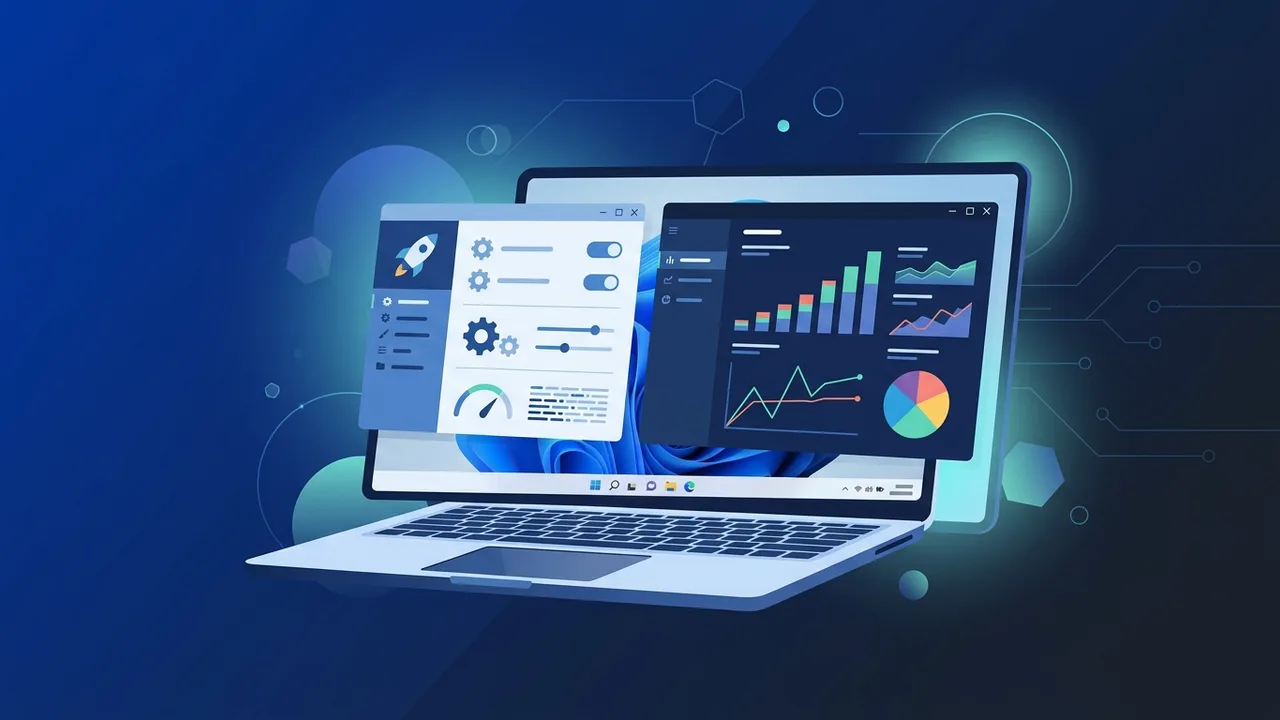
What are the main reasons behind Windows 11 running slow?
Many PC users struggle with performance drops after upgrading to Microsoft's latest operating system, constantly searching for a Windows 11 lag fix. To effectively optimize Windows 11 performance, we must first understand the root causes of these slowdowns, which are often influenced by local usage patterns and environmental factors.
In regions with hot climates like Saudi Arabia, high ambient temperatures frequently trigger thermal throttling. When hardware components overheat, the system automatically slows down its clock speeds to prevent physical damage, mimicking a severe operating system lag. Additionally, running resource-heavy local educational and work platforms, such as Microsoft Teams and the Madrasati platform, puts a continuous load on the CPU and RAM.
Another major culprit is the use of non-genuine or cracked operating systems. These unofficial builds bypass vital Microsoft services, preventing users from receiving the latest security patches and quality improvements that resolve known performance bugs and optimize system stability.
Step-by-step: Cleaning temporary and unnecessary files to speed up the system
Over time, cached data and temporary system logs accumulate, cluttering your primary drive. When storage runs low, system responsiveness drops. Follow this simple Windows 11 debloat guide section to clear cache Windows 11 files and reclaim your speed:
- Run Disk Cleanup: Type "Disk Cleanup" in the Start menu search bar, select your C: drive, and check the boxes for Temporary Files, Delivery Optimization Files, and Recycle Bin. Click OK to safely delete them.
- Empty the Temp Folders: Press
Windows Key + R, type%temp%, and press Enter. Select all files in the directory and press Shift + Delete to permanently remove them. Repeat the same process by running thetempcommand. - Enable Storage Sense: Navigate to Settings > System > Storage, and toggle on Storage Sense. This feature automatically deletes temporary setup files and recycles system waste behind the scenes, helping to speed up Windows 11 effortlessly.
How to disable startup apps to reduce boot time
When too many applications launch the moment you turn on your PC, it results in Windows 11 high memory usage right from boot. To resolve this and lower your boot times, you should disable startup programs Windows 11 via the built-in management console:
- Open the Task Manager by pressing the shortcut
Ctrl + Shift + Esc. - Click on the "Startup apps" icon on the left sidebar.
- Sort the list by "Startup impact" to identify the heaviest programs running in the background.
- Right-click on any non-essential software (such as game launchers, third-party update assistants, or messaging apps) and select "Disable".
Restricting these background services frees up precious CPU cycles and RAM, giving your computer a much faster startup sequence.
Adjusting power and performance options in Windows 11 for maximum speed
By default, Windows 11 is configured to use a balanced power plan to save electricity. However, this setting can restrict your processor from reaching its maximum speed. If you want to unleash your system's full power for heavy workloads or gaming, adjust your power plan settings:
- Go to Settings > System > Power & battery.
- Locate the "Power mode" dropdown menu.
- Change the setting from Balanced to "Best performance".
- For desktop PCs, you can open the classic Control Panel, go to Power Options, and select the "High Performance" plan.
Important Note: Running your computer on High Performance mode increases energy usage and generates more heat. Ensure your cooling system and fans are clean of dust to prevent thermal throttling, especially during the hot summer months.
Disabling visual effects and transparency to free up CPU and RAM resources
Windows 11 features fluid animations, drop shadows, and acrylic transparency effects. While visually pleasing, these graphic demands consume valuable memory and GPU cycles, especially on mid-range laptops and budget desktop PCs. You can disable them to instantly boost responsiveness:
- Search for "Adjust the appearance and performance of Windows" in the Start menu and press Enter.
- In the Performance Options window, under the Visual Effects tab, choose "Adjust for best performance" to turn off all animations.
- Alternatively, select "Custom" and keep only the essential boxes checked, such as "Smooth edges of screen fonts".
- To remove transparency, navigate to Settings > Personalization > Colors, and toggle off "Transparency effects".
The importance of upgrading to genuine licenses and updating drivers for stable performance
Optimizing settings can only do so much if your base operating system is unstable. Using modified, cracked versions of Windows exposes you to severe security exploits and malware that run hidden mining scripts or adware, significantly draining your system resources. Obtaining a genuine Windows 11 key Saudi Arabia is the only secure way to guarantee uninterrupted performance and access to critical bug fixes.
In addition to using a genuine license, always keep your hardware drivers up to date. Installing the latest official drivers for your motherboard, chipset, and graphics card directly from manufacturers (like AMD, Nvidia, or Intel) prevents system crashes, resolves compatibility errors with remote-work software, and ensures your hardware operates at peak efficiency.
If you need a genuine Windows 11 Pro Lifetime license, you'll find it at ABMKeys at a fair price with instant WhatsApp delivery.
Frequently Asked Questions
How can I speed up Windows 11 for gaming?
Does a full C drive slow down Windows 11?
Why does PC performance drop during summer in Saudi Arabia?
Do non-genuine Windows versions cause Windows 11 to run slow?
You can get a genuine license from ABMKeys at a competitive price with instant WhatsApp delivery.
Buy Now