
The Easiest Way to download whatsapp for pc windows 10
Learn the detailed step-by-step process to download and run WhatsApp on Windows 10 securely. Discover key features and how to link your device to enhance your daily productivity.
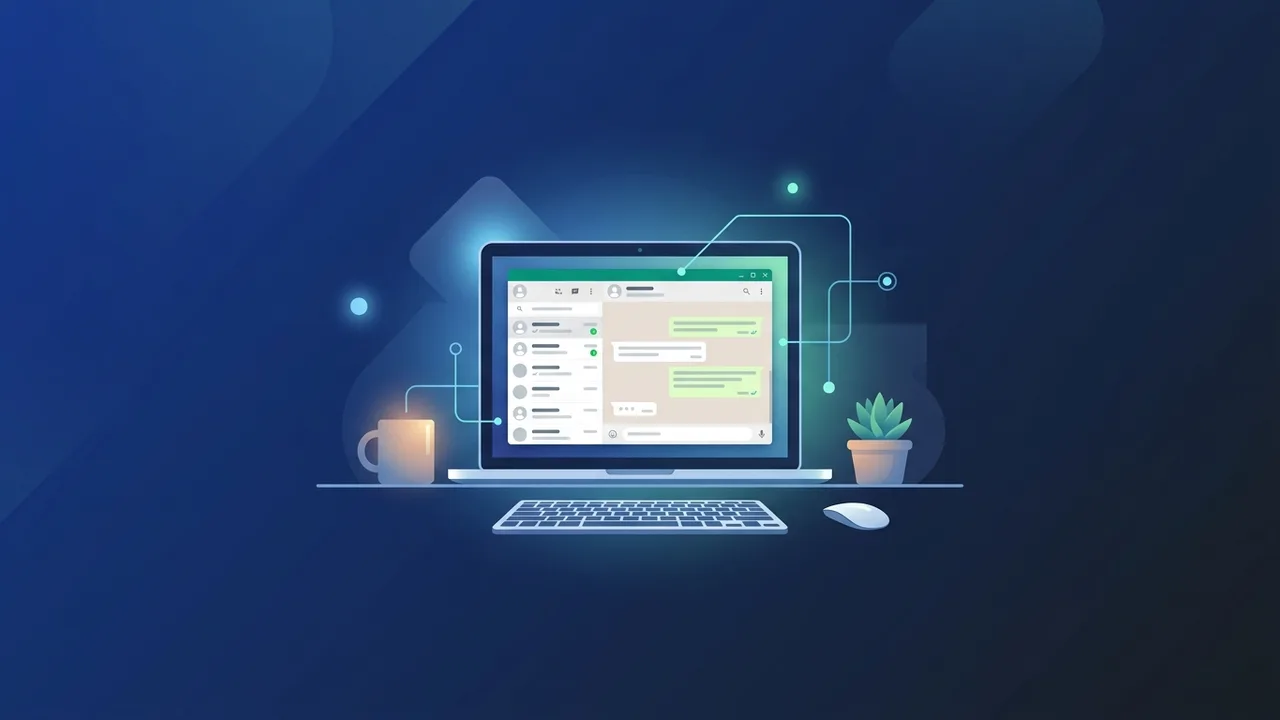
Overview of download whatsapp for pc windows 10
Deciding to download whatsapp for pc windows 10 is one of the best steps to improve your productivity and streamline daily communication. In today's fast-paced digital environment in Saudi Arabia, relying solely on mobile phones can slow down your workflow. Having a reliable communication channel directly on your desktop allows for a seamless transition between writing emails, managing sheets, and replying to clients.
When you download whatsapp for pc windows 10, you no longer need to constantly check your smartphone, which minimizes distractions and increases focus. Whether you are running a business, coordinating with your remote team, or simply staying in touch with family, installing this official app on a stable operating system like Windows 10 offers a solid, high-performance messaging interface tailored to your daily routine.
Key Features
Using the native desktop application on Windows 10 offers distinct advantages over the browser-based WhatsApp Web version. Here are the most prominent features:
- Native Windows Notifications: Stay informed with push notifications appearing directly on your desktop tray, even when the application window is minimized or closed.
- Enhanced Typing Experience: Write detailed responses, reports, or customer follow-ups quickly and comfortably using your physical keyboard.
- Effortless File Sharing: Easily send files, images, videos, and documents by dragging and dropping them from any desktop folder straight into the chat box.
- Voice and Video Calls: Make and receive high-definition individual or group calls using your computer's built-in or external microphone and webcam.
- Full Synchronization: Enjoy complete synchronization of your messages and media across all linked devices, backed by secure end-to-end encryption.
How to Use
Setting up the application is straightforward. Below is the step-by-step guide to help you install and configure the program properly.
Method 1: Via the Microsoft Store
This is the most secure and recommended way to get the app, ensuring automatic background updates:
- Open the pre-installed Microsoft Store app on your Windows 10 PC.
- Use the search bar at the top right to search for "WhatsApp".
- Select the official app published by WhatsApp Inc. and click on the "Get" or "Install" button.
- Once installed, launch the application from the Start Menu.
Method 2: Direct Download from the Official Website
If you prefer a standalone installer file, follow these steps:
- Open your web browser and navigate to the official WhatsApp download page.
- Click the download button for Windows (choosing either 32-bit or 64-bit depending on your system specifications).
- After the .exe installer downloads completely, double-click to run it and complete the fast installation process.
Linking Your Phone to Windows 10
When you launch the app for the first time, a QR code will be displayed on your screen. To link your account:
- Open WhatsApp on your mobile phone (Android or iPhone).
- Tap the Settings or Menu icon and select "Linked Devices".
- Tap "Link a Device" and scan the QR code shown on your computer screen using your phone's camera.
- Your chats will automatically sync, and you will be ready to communicate from your PC.
Common Questions
Here are some of the most frequently asked questions regarding the use of the app on a desktop computer:
Does my phone need to be online to use the PC app?
No. Thanks to the multi-device feature, once linked, you can use the desktop app to send and receive messages even if your phone is turned off or has no active internet connection.
Can I make group video calls on the desktop version?
Yes. The official Windows 10 application supports high-quality group voice and video calls directly from your desktop interface, making online meetings easy.
Is the desktop application free to use?
Yes, downloading and using the desktop app is completely free, with no hidden subscription charges or premium fees.
Important Tips
To ensure a safe, private, and uninterrupted messaging experience, keep the following security tips in mind:
- Avoid Unofficial Versions: Never download modified versions of WhatsApp from untrusted websites. These modified apps can compromise your private data and lead to account suspension.
- Log Out from Shared Computers: If you are using a shared computer, always remember to log out of your active session. You can do this from the desktop app settings or directly from your phone under "Linked Devices".
- Keep Windows 10 Updated: Running a licensed, up-to-date operating system is vital to preventing security vulnerabilities and ensuring all system features, including native apps, run smoothly.
Conclusion
To conclude, when you download whatsapp for pc windows 10, you significantly enhance your daily productivity and communication efficiency. By using official channels for installation and following simple setup steps, you can safely connect with clients, colleagues, and loved ones directly from your desk.
If you need a genuine Windows 10 Pro Lifetime license, you'll find it at ABMKeys at a fair price with instant WhatsApp delivery.
Frequently Asked Questions
Does my phone need to be online to use the PC app?
Can I make group video calls on the desktop version?
How do I update the application to the latest version?
Is the WhatsApp desktop app free to use?
You can get a genuine license from ABMKeys at a competitive price with instant WhatsApp delivery.
Buy Now