
The Easiest Way to Convert PDF to Excel
Learn how to convert PDF files to Excel spreadsheets accurately without losing Arabic text formatting. A practical step-by-step guide helping Saudi businesses import data securely in line with NDMO policies.
Why Saudi Businesses Need to Convert PDF to Excel
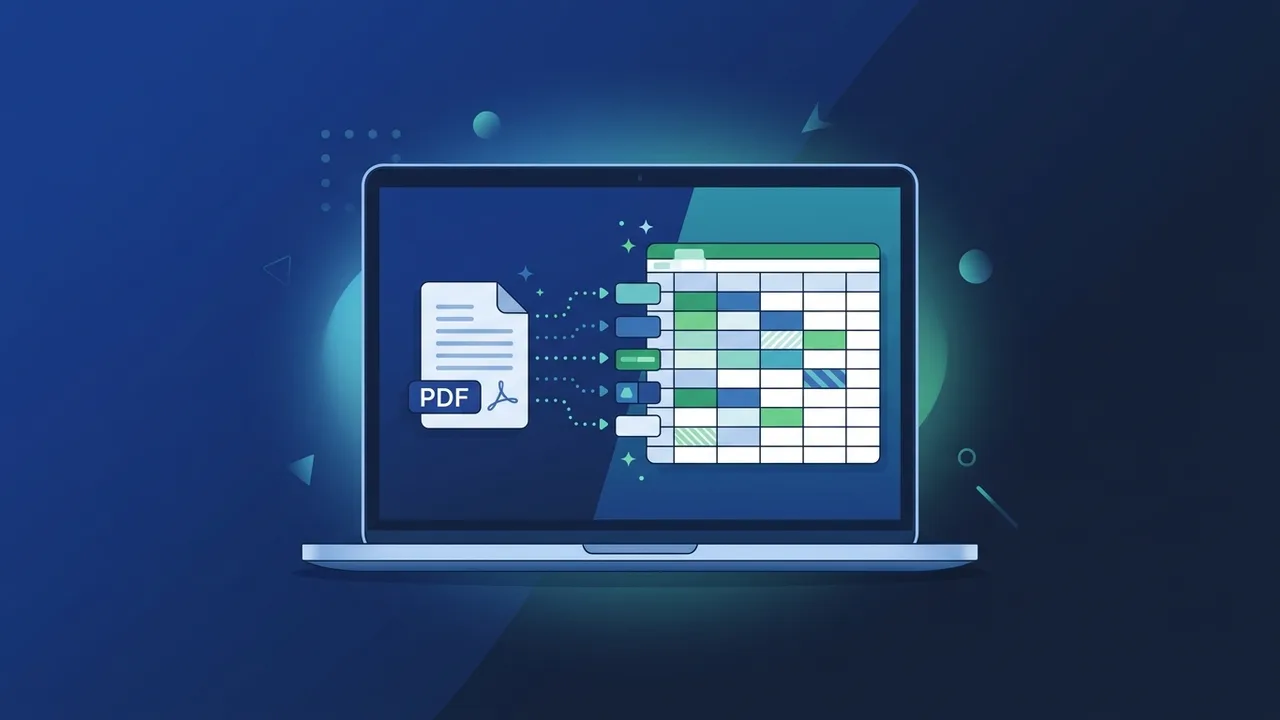
Saudi Arabia is experiencing a massive wave of digital transformation, driven by the ambitious objectives of Saudi Vision 2030. In today's highly digitized marketplace, private enterprises and government entities manage thousands of digital documents on a daily basis. Among these, audited financial sheets, sales reports, and e-invoices compliant with the Zakat, Tax and Customs Authority (ZATCA) are typically shared as PDF files to protect layout integrity. However, static PDFs present a significant challenge when professionals need to perform deep financial audits, budget forecasts, or statistical calculations. To resolve this bottleneck, companies must master the ability to extract table from PDF to Excel. Relying on manual data entry is not only slow and inefficient but also introduces a high risk of critical human errors that can jeopardize strategic decision-making. Developing a streamlined workflow to process these files into editable spreadsheets is key to maximizing operational efficiency.
Step-by-Step Guide to Converting PDF to Excel Directly via Microsoft Excel
The safest and most professional way to extract valuable data is by utilizing the built-in, local features of your spreadsheet software. This offline workflow enables users to import PDF data to Excel securely, helping you convert PDF to Excel without losing formatting or compromising document structure. Follow these precise steps to get started:
- First, launch Microsoft Excel on your computer and open a blank workbook.
- Second, navigate to the top toolbar and click on the "Data" tab.
- Third, look for the "Get Data" button on the left side, select "From File", and then choose the "From PDF" option.
- Fourth, search through your local directory, select the desired PDF file, and click the "Import" button.
- Fifth, a "Navigator" preview window will appear, listing all detected tables and pages. Click on the table name you wish to extract.
- Sixth, click "Load" to place the structured data directly into your active sheet, or select "Transform Data" to clean the records using Power Query before importing.
By using this native feature, you avoid uploading sensitive files to unsafe online tools and keep your business intelligence entirely offline and protected.
Best PDF to Excel Conversion Tools with Accurate Arabic Language Support
While many conversion tools are readily available on the web, finding an Arabic PDF to Excel converter that produces flawless results remains a massive challenge. Standard tools often fail to recognize the complex right-to-left layout of the Arabic alphabet, resulting in disjointed characters and scrambled sentences. To counter this, businesses need specialized solutions with intelligent script reconstruction capabilities.
For high-volume administrative tasks, a specialized workflow such as using Adobe Acrobat PDF to Excel is recognized as the gold standard. Its advanced OCR and layout engines are optimized to recognize complex scripts and align tables properly. Additionally, integrating a robust offline utility or using a free PDF to Excel converter offline can help smaller teams convert standard tables reliably while maintaining full convert PDF to Excel Arabic support.
How to Handle Scanned PDF Files Using OCR Technology
Many organizations frequently receive scanned receipts, hand-signed agreements, or paper invoices saved as PDF documents. Because these files are composed of flat images rather than digital text layers, simple copy-pasting is impossible. To extract the valuable data trapped inside these images, you must employ Optical Character Recognition (OCR).
Converting these static files requires a robust scanned PDF to Excel OCR system capable of identifying complex letterforms and gridlines. This specialized OCR software acts as an intelligent data reader, analyzing every pixel of the document, identifying the characters, and converting them into actual digital text. Once translated, the program organizes the text into active rows and columns, allowing you to easily export the scanned tables to Excel sheets for analysis, saving hundreds of hours of manual typing.
Data Security and Privacy Standards When Using Online Conversion Tools
Data security is a non-negotiable priority for businesses operating in Saudi Arabia, governed closely by the National Data Management Office (NDMO) and local cybersecurity authorities. Many employees make the mistake of uploading proprietary financial records, client details, or tax documents to unsecured online conversion websites for quick results.
Using free online converters exposes your corporate assets to massive risk, as these platforms often store your files on external cloud servers, which can lead to data breaches or regulatory compliance violations. To ensure complete compliance with Saudi data sovereignty laws, companies should restrict the use of cloud-based web tools for sensitive information. Instead, teams should rely strictly on offline desktop applications and licensed software, guaranteeing that confidential corporate intelligence remains within the secure local network infrastructure.
Quick Fixes for Broken Characters and Reversed Text Post-Conversion
When dealing with complex right-to-left scripts, you might occasionally face layout formatting issues after conversion, such as reversed word ordering, isolated letters, or weird spacing. You can fix these bugs quickly using several practical methods:
- Enable Right-to-Left (RTL) Layout: Ensure your worksheet settings are set to the Right-to-Left viewing mode so that the columns and rows align properly with RTL reading directions.
- Use Standard Unicode Fonts: Always make sure that your primary documents utilize universally recognized Unicode fonts to ensure smooth text rendering during the export process.
- Apply Excel's "Text to Columns" Tool: This useful built-in utility lets you re-distribute values, fix spacing anomalies, and reconstruct disconnected words easily.
- Leverage Text-Reversing Scripts: You can apply simple formulas or custom VBA macros specifically designed to re-order reversed sentences and mend broken strings.
If you need a genuine Office 2021 Pro Plus Lifetime license, you'll find it at ABMKeys at a fair price with instant WhatsApp delivery.
Frequently Asked Questions
Can I convert a PDF to Excel directly without using third-party software?
How do I fix broken or reversed Arabic characters after converting to Excel?
Is it safe for Saudi businesses to use free online PDF to Excel converters?
What is OCR technology and how does it help with scanned PDFs?
You can get a genuine license from ABMKeys at a competitive price with instant WhatsApp delivery.
Buy Now