
The Easiest Way: How to Screenshot on Laptop Windows 10
A practical step-by-step guide explaining how to screenshot on laptop Windows 10 using built-in features, shortcut keys, and native applications for maximum productivity.
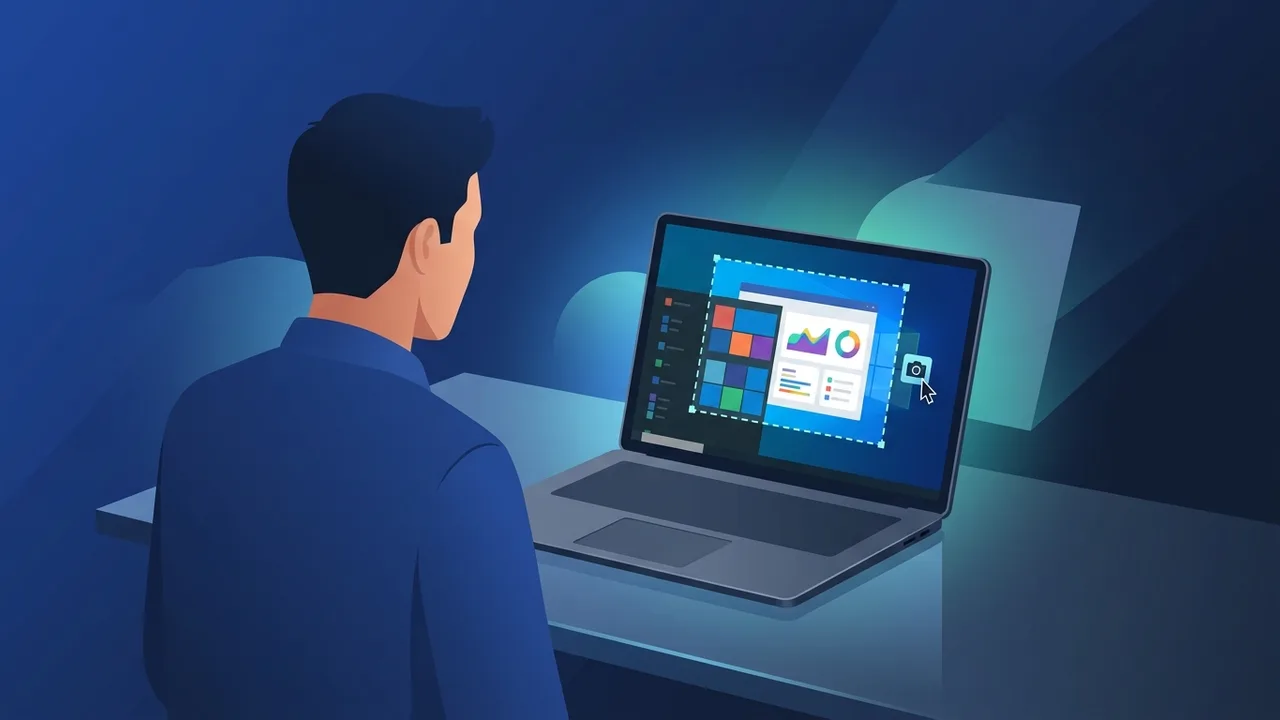
Overview of how to screenshot on laptop Windows 10
Learning how to screenshot on laptop Windows 10 is one of the most fundamental skills for students, professionals, and business owners in Saudi Arabia. Whether you need to capture a receipt, share a software error with your technical support team, or document important research material, taking screenshots is an indispensable part of daily computer usage. Microsoft Windows 10 provides robust, built-in features that make capturing, editing, and sharing your screen dynamic and fast, without requiring the installation of bloatware or third-party applications.
Understanding how to screenshot on laptop Windows 10 allows you to take advantage of integrated utilities that have evolved far beyond the classic "Print Screen" command. Today, Windows 10 offers specialized toolkits that let you snip custom shapes, record active windows, set capture delays, and instantly annotate your captures to emphasize key information.
Key Features
When analyzing how to screenshot on laptop Windows 10, several advanced features stand out, making it an efficient workflow tool for modern productivity:
- Multiple Snapping Modes: You are not limited to full-screen shots. You can choose between rectangular snips, freeform drawing shapes, individual active windows, or full-display capture.
- Instant Annotation and Editing: Built-in tools allow you to highlight specific text, draw diagrams with a touch pen or mouse, crop boundaries, and add handwritten notes immediately after taking a shot.
- Automatic File Saving: You can configure your device to automatically write files to a designated folder, saving precious time by cutting out manual paste-and-save steps.
- Delayed Timer: Perfect for capturing context menus, tooltips, or hover animations that disappear when hotkeys are pressed. The delay timer can be set for 3 or 10 seconds.
How to Use
There are several direct methods on how to screenshot on laptop Windows 10, each suited to different tasks. Here is a step-by-step breakdown of the most practical techniques:
Method 1: Instant Auto-Save via (Windows Key + PrtScn)
If you want to quickly capture everything on your screen and save it immediately as a file without editing:
- Locate the Windows Key and the PrtScn (Print Screen) key on your keyboard.
- Press both keys simultaneously: Windows Key + PrtScn.
- The screen will dim briefly to confirm the action.
- Go to your file explorer, navigate to the "Pictures" folder, and open the "Screenshots" directory to find your newly saved PNG file.
Method 2: Precision Snapping via (Windows Key + Shift + S)
This is the most powerful and versatile method for professional users who want control over the exact capture area:
- Press Windows Key + Shift + S together on your keyboard.
- The screen will freeze with a dark overlay, and a small command bar will appear at the top.
- Select your preferred mode from the top bar (Rectangular, Freeform, Window, or Fullscreen).
- Left-click and drag the cursor over the desired area. Once you release, the snip is copied to your clipboard.
- Click on the popup notification in the bottom right corner to edit, crop, or save the image to your laptop.
Method 3: Capturing a Single Active Window (Alt + PrtScn)
To capture only the application window you are actively working on, while ignoring the desktop background and taskbar:
- Click on the specific application window to ensure it is active.
- Press Alt + PrtScn together.
- The single window image is copied directly to your clipboard. You can paste it (Ctrl + V) into documents, email messages, or image editing software.
Common Questions
To help you navigate this feature effectively, we have compiled answers to some of the most frequent queries from laptop users in Saudi Arabia:
Where do my screenshots go if they are not auto-saved?
If you use basic hotkeys like PrtScn or Alt + PrtScn, the image goes to your system clipboard. To retrieve it, you must paste it (Ctrl + V) into an editor like MS Paint, Word, or an email draft before you can save it as a file.
What if my laptop keyboard does not have a PrtScn key?
Many compact laptops integrate the print screen function into other keys. You might need to press the Fn (Function) key in combination with another labeled key, or you can use the Windows Key + Shift + S shortcut, which does not require a PrtScn key at all.
Important Tips
To ensure you get the best results when mastering how to screenshot on laptop Windows 10, you should optimize your workflow with these best practices:
- Enable Clipboard History: Press Windows Key + V to turn on clipboard history. This feature lets you capture multiple screenshots sequentially and access them from a list without overwriting your previous captures.
- Protect Private Data: Always check your screenshot for visible private data such as passwords, banking credentials, or personal names. Use the built-in pen or highlighter tool to blur or black out sensitive information before sharing.
- Understand File Formats: When saving, choose PNG for high-fidelity images with crisp text, or JPEG if you need a smaller file size for web uploads or email attachments.
- Keep Your OS Updated: Regular updates from Microsoft ensure that your built-in snipping applications remain stable, secure, and equipped with the latest features.
Conclusion
Mastering the art of capturing screens on Windows 10 makes document building, team collaboration, and online studying significantly easier. By implementing these quick shortcuts and utilizing the built-in Snip & Sketch features, you can streamline your daily digital tasks with professional precision.
If you need a genuine Windows 10 Pro Lifetime license, you'll find it at ABMKeys at a fair price with instant WhatsApp delivery.
Frequently Asked Questions
Where are screenshots automatically saved in Windows 10?
How can I capture only a specific part of the screen?
What should I do if the PrtScn key is not working on my Windows 10 laptop?
Can I record my laptop screen as a video without extra software?
You can get a genuine license from ABMKeys at a competitive price with instant WhatsApp delivery.
Buy Now