
SQL Server Management Studio Step by Step
This article provides a practical step-by-step guide to using SQL Server Management Studio, from installation and server connection through to database and user management. Suitable for all skill levels, from beginners to experienced professionals.
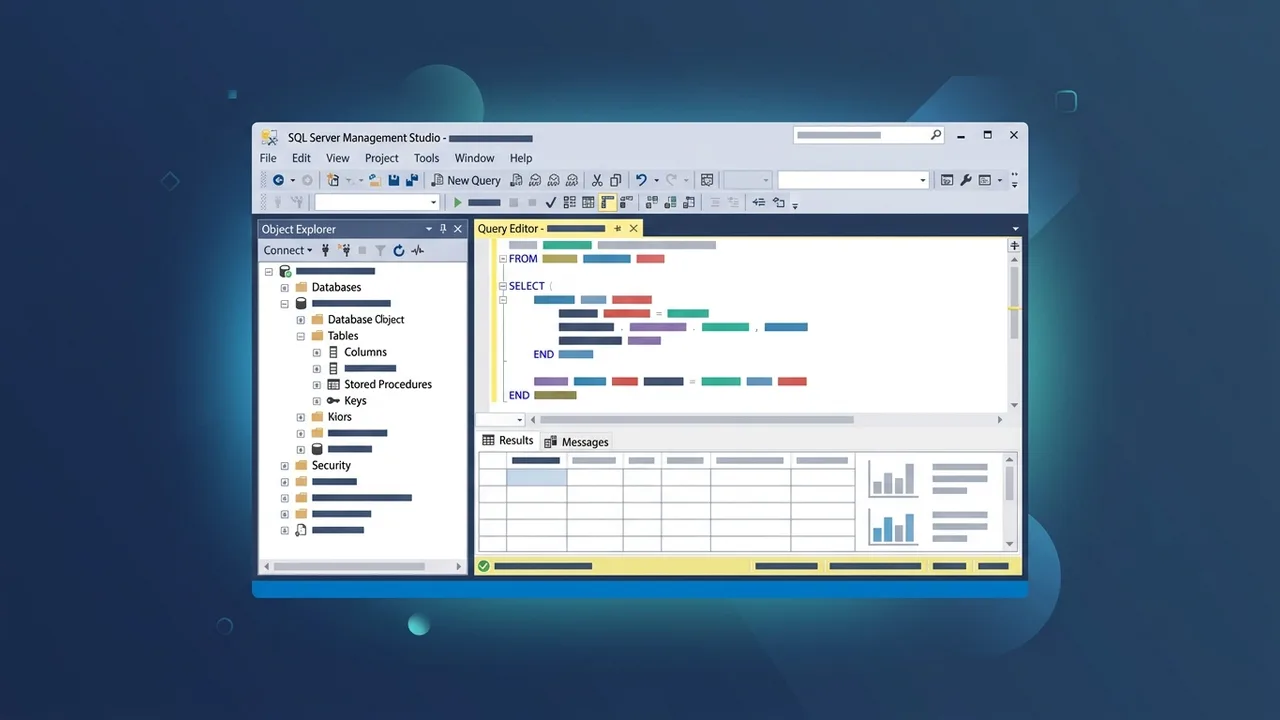
Overview of SQL Server Management Studio
SQL Server Management Studio — commonly known as SSMS — is the official integrated environment developed by Microsoft for managing SQL Server databases. It provides a comprehensive graphical interface that allows users to connect to, manage, and develop database servers without relying solely on command-line tools. SQL Server Management Studio is widely used by software developers, database administrators, and data analysts who need a reliable tool for handling enterprise-level data workloads.
SQL Server Management Studio integrates seamlessly with all versions of SQL Server, from older releases up to SQL Server 2022, and also supports connections to cloud-based databases through Azure SQL Database. It has become the go-to reference tool for any professional working with structured data at scale.
Key Features of SQL Server Management Studio
SQL Server Management Studio stands out due to a rich set of features that make it indispensable in professional environments:
- Query Editor: Write and execute T-SQL queries with built-in IntelliSense, syntax highlighting, and real-time error detection.
- Object Explorer: Browse a hierarchical tree of all database objects including tables, views, stored procedures, and more.
- Visual Query Designer: Build queries visually without needing full SQL expertise, ideal for analysts and business users.
- Security and Permissions Management: Manage users, roles, and permissions at both the server and database level through a clear graphical interface.
- Backup and Restore: Schedule and execute backup and restore operations with a simplified wizard-based approach.
- Performance Monitoring: Access advanced tools to analyze query execution plans and monitor active server processes.
- SQLCMD Support: Execute command-line scripts directly from within the Query Editor window.
How to Use SQL Server Management Studio: A Step-by-Step Guide
Step 1: Download and Install
Visit the official Microsoft website and navigate to the SQL Server Management Studio download page. Select the latest available version and follow the installation wizard to completion. Note that SSMS does not require SQL Server to be installed on the same machine — it can connect to remote servers just as easily.
Step 2: Connect to a Server
When you launch SQL Server Management Studio for the first time, a Connect to Server dialog will appear. Enter the server name or IP address, choose the authentication type (Windows Authentication or SQL Server Authentication), provide your credentials if required, and click Connect.
Step 3: Explore Databases
Once connected, the Object Explorer panel on the left displays a tree view of all available servers and databases. Click on any database to expand its contents and browse tables, views, stored procedures, and other objects.
Step 4: Write and Execute Queries
Right-click on the target database and select New Query. In the editor window, type your T-SQL statement — for example: SELECT * FROM Employees; — then press F5 or click the Execute button. Results will appear in the lower panel of the screen.
Step 5: Create a New Database
Right-click on the Databases folder in Object Explorer and select New Database. Enter a name for the database, configure file size and storage path settings as needed, then click OK to create it instantly.
Step 6: Perform a Backup
Right-click on the database, go to Tasks, then select Back Up. Choose the backup type (Full, Differential, or Transaction Log), specify the destination path, and click OK. It is strongly recommended to schedule this operation on a regular basis.
Step 7: Manage Users and Permissions
Navigate to the Security node in Object Explorer at the server level, then expand Logins to view existing users or add new ones. Roles and permissions can be assigned directly from each login's properties with just a few clicks.
Common Questions About SQL Server Management Studio
Both new and experienced users frequently ask questions about SQL Server Management Studio. The most common topics are addressed in the FAQ section below, covering installation, connectivity, and best practices.
Important Tips for Using SQL Server Management Studio Effectively
- Leverage IntelliSense: The auto-complete feature saves significant time and reduces typos in table and column names.
- Save Frequent Queries: Use the Code Snippets feature to store commonly used queries for quick access.
- Analyze Execution Plans: Press Ctrl+L to view the estimated execution plan and identify performance bottlenecks before running a query.
- Update Regularly: Microsoft releases periodic updates with security patches and performance improvements — always keep SSMS up to date.
- Use Template Explorer: Access a library of pre-built SQL templates for common tasks such as creating tables, indexes, and stored procedures.
- Enable Client Statistics: This feature allows you to compare the performance of different query versions with detailed metrics.
Conclusion
SQL Server Management Studio is the cornerstone tool for managing SQL Server databases with professionalism and efficiency. Whether you are a developer writing daily queries or a database administrator overseeing complex infrastructure, mastering this tool is a genuine investment in your technical career. The step-by-step approach outlined in this guide gives you everything you need to start immediately and progress with confidence.
If you need a genuine SQL Server 2022 Standard license, you'll find it at ABMKeys at a fair price with instant WhatsApp delivery.
Frequently Asked Questions
Is SQL Server Management Studio available for free?
Does SQL Server Management Studio work with all versions of SQL Server?
What is the difference between SQL Server and SQL Server Management Studio?
Does SQL Server Management Studio support cloud databases?
You can get a genuine license from ABMKeys at a competitive price with instant WhatsApp delivery.
Buy Now