
screenshot shortcut Windows 11 from Zero to Pro
Discover the easiest and most practical ways to use the screenshot shortcut Windows 11. Learn step-by-step methods to capture, edit, and save your screen instantly.
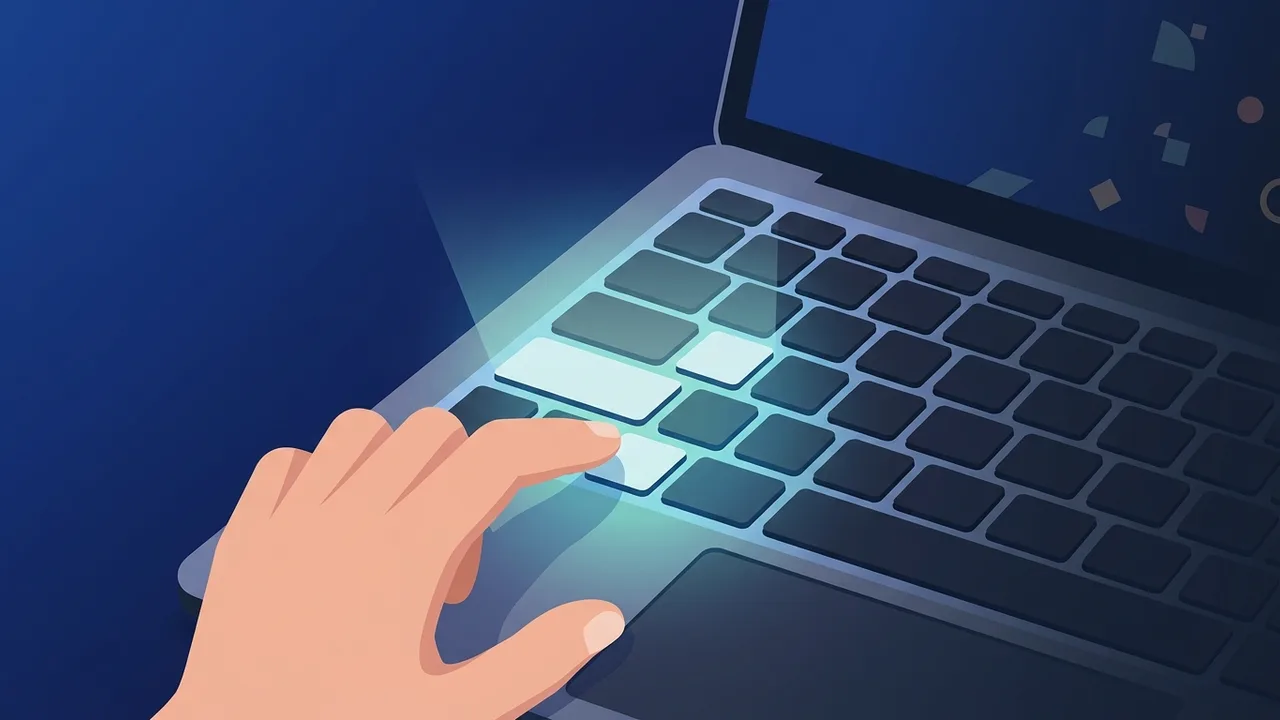
Overview of screenshot shortcut Windows 11
Capturing your computer screen is a fundamental daily task that is indispensable for every user, whether you are an office professional sharing data with colleagues or a university student in Saudi Arabia preparing research and academic reports. In Microsoft's latest operating system, the built-in utilities have been vastly improved to streamline this process. Users no longer need to download heavy, complex, or expensive third-party tools to capture their screens; instead, they can fully rely on the native screenshot shortcut Windows 11 provides, which allows them to execute this task with complete flexibility and speed.
The goal of this practical guide is to help you master these shortcuts efficiently, understand how they function, and customize them to fit your daily workflow. With just a few simple keystrokes, you will be able to capture, edit, and share high-quality images instantly without wasting precious time.
Key Features
When Microsoft updated its operating system, it focused heavily on enhancing user experience and simplifying access to everyday tools. Here are the main benefits of using the default screenshot shortcut Windows 11 configurations:
- Versatile Capture Modes: You can capture the entire screen, a custom rectangular portion, a specific active window, or draw a freeform shape around the exact content you want to save.
- Seamless Snipping Tool Integration: Immediately after capturing, the built-in Snipping Tool interface opens, offering swift utilities to write on the image, highlight important text, or crop further.
- Automatic and Cloud Saving: The operating system lets you save captures directly to a designated folder or sync them with OneDrive to ensure you never lose your files and can access them from any device.
- Smart Clipboard Integration: Captured images are automatically copied to your clipboard. This allows you to paste them instantly into chat applications like WhatsApp, or work software like Word and PowerPoint, without cluttering your drive.
How to Use
To master the screenshot shortcut Windows 11 commands, we have outlined the most practical methods step-by-step so you can easily apply them on your personal laptop or work computer:
Method 1: The Modern Universal Shortcut (Windows + Shift + S)
This is the most common and versatile shortcut in Windows 11, launching the advanced screen capture overlay instantly:
- Press these three keys simultaneously on your keyboard:
Windows Logo Key + Shift + S. - You will notice your screen dim slightly, and a small toolbar containing four capture icons will appear at the top center.
- Select your preferred snipping mode (Rectangular Snip, Freeform Snip, Window Snip, or Fullscreen Snip).
- Use your mouse cursor to drag and select the area you want to capture. Once you release the mouse button, the image is copied to your clipboard, and a notification pop-up will appear in the bottom-right corner, letting you click to edit or save.
Method 2: Immediate Auto-Save to Files (Windows + Print Screen)
If you are in a rush and want to save the screenshot as an independent file directly on your hard drive without opening any editing software:
- Press the Windows Logo key in combination with the Print Screen key:
Windows + PrtScn(On some laptops, you may need to press the function key as well, making itWindows + Fn + PrtScn). - The screen will briefly dim for a split second to confirm the action was successful.
- Navigate to your "Pictures" folder, then open the "Screenshots" directory to find your image saved as a high-quality PNG file.
Method 3: Capturing Only the Active Window (Alt + Print Screen)
In many scenarios, you may want to avoid capturing your taskbar or background browser windows to maintain professional privacy:
- Click on the specific window you wish to capture to make it active.
- Press the following shortcut:
Alt + PrtScn. - Only that active window will be captured and copied to your clipboard. You can now open any app (like Paint or WhatsApp) and press
Ctrl + Vto paste and share it.
Common Questions
Many users in professional environments often raise questions regarding the standard behavior of screenshot utilities and how to address minor system configuration issues. In this section, we cover the most frequent queries to help keep your daily operations running smoothly without interruption.
Important Tips
To optimize your daily workflow and make the most out of your operating system, consider these useful tips:
- Enable Clipboard History: Press
Windows + Vto enable the built-in clipboard history. This allows you to store multiple captured screenshots and retrieve them at any time without losing them when you take a new one. - Remap the Print Screen Key: You can configure the PrtScn key to launch the modern Snipping Tool overlay directly, avoiding the need to press three keys. Go to Settings > Accessibility > Keyboard, and toggle on "Use the Print Screen button to open screen snipping".
- Protect Sensitive Information: Before sharing any screenshot, use the built-in pen or black highlighter tool to obscure personal information, passwords, or financial details to ensure your digital security.
- Utilize the Snipping Delay: If you need to capture a drop-down menu that closes when you click, open the Snipping Tool manually and set a delay timer (3, 5, or 10 seconds). This gives you enough time to open the menu before the screen freezes for the capture.
Conclusion
Mastering the native screenshot shortcut Windows 11 utilizes saves you considerable time and effort while keeping your device free from unnecessary third-party applications. By following the simple steps highlighted in this guide, you can improve your productivity and handle your digital work with ease and professionalism.
If you need a genuine Windows 11 Pro Lifetime license, you'll find it at ABMKeys at a fair price with instant WhatsApp delivery.
Frequently Asked Questions
Where are screenshots automatically saved in Windows 11?
How can I enable the Print Screen key to open the screenshot tool directly?
Why is the screenshot shortcut Windows 11 not working on my device?
Can I record my screen as a video using keyboard shortcuts?
You can get a genuine license from ABMKeys at a competitive price with instant WhatsApp delivery.
Buy Now