
Screen Recorder Windows 10: The Right Way to Do It
Learn how to record your computer screen in Windows 10 step-by-step using built-in tools and professional tips to achieve high-quality video captures.
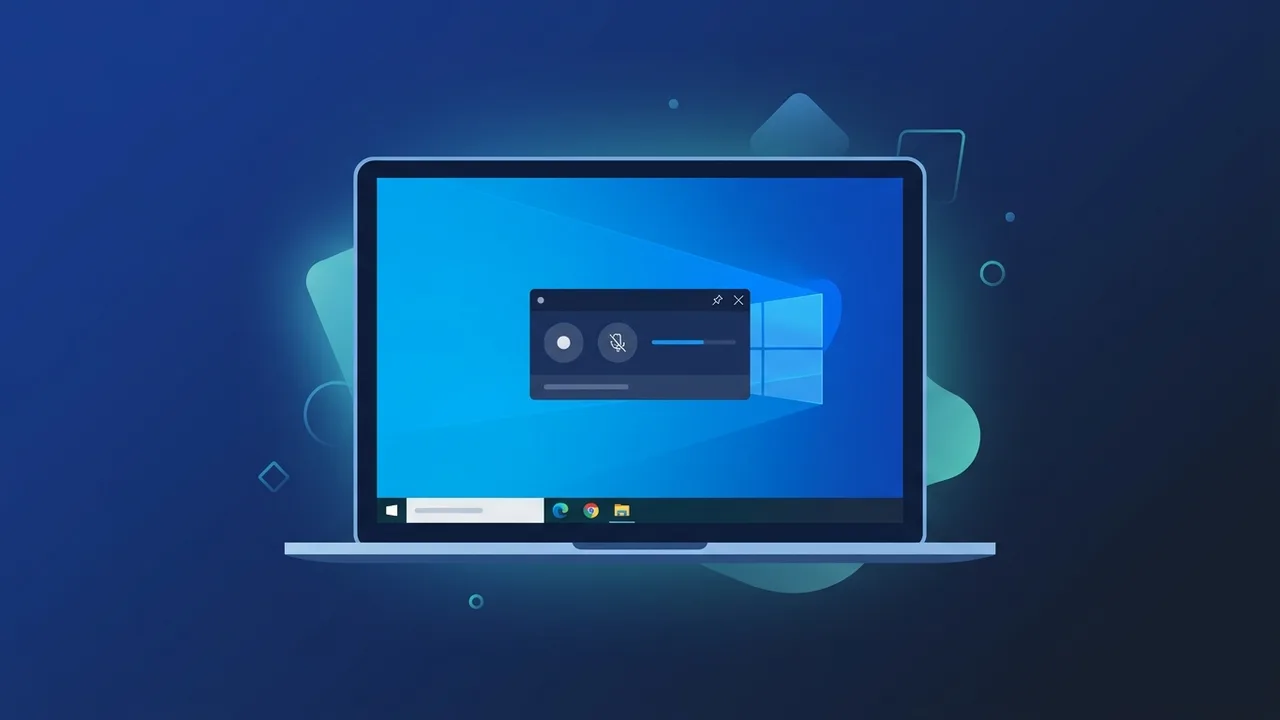
For professionals, educators, and content creators in Saudi Arabia, capturing desktop activity has become an essential requirement for daily operations. Utilizing a reliable screen recorder windows 10 allows you to seamlessly document software workflows, create interactive training materials, and archive online meetings without incurring high licensing costs for complex external tools.
Microsoft Windows 10 offers robust, integrated solutions tailored to provide smooth performance and crisp visual quality. By utilizing these built-in functionalities, users can maintain system stability while capturing high-definition output. This practical guide covers everything you need to know about setting up, configuring, and optimizing your recording sessions to achieve professional results every time.
Overview of screen recorder windows 10
The standard operating system comes equipped with a native recording feature known as the Xbox Game Bar. Originally developed to help gamers capture their gameplay clips, this tool has transitioned into a highly efficient productivity resource for business environments and educational sectors across Saudi Arabia.
As a built-in screen recorder windows 10 utility, it leverages hardware acceleration to minimize CPU and RAM usage during active sessions. This ensures that your system remains responsive even when recording heavy database operations, complex graphic designs, or long business presentations. The application produces standardized high-quality MP4 files that are instantly ready for editing or sharing.
Key Features
Understanding the core features of the native recording tool helps you leverage its full potential for various projects:
- Direct Hardware Integration: Operating directly within the system shell, it requires no third-party installations, ensuring absolute data security and eliminating risks associated with untrusted software.
- Flexible Audio Mixing: Users can capture system audio, application-specific sound outputs, and external microphone narrations simultaneously, with individual volume sliders for perfect balance.
- Customizable Shortcuts: Access recording triggers instantly using global hotkeys, enabling you to start, pause, or save clips without disrupting your ongoing presentation flow.
- Zero Watermarks or Time Limits: Unlike many free external screen recorders, the built-in Windows utility does not overlay promotional logos or impose strict recording duration caps.
- Performance Monitoring: The interface includes modular widgets to monitor CPU, GPU, and RAM usage in real-time, helping you track system load during heavy tasks.
How to Use
Follow these step-by-step instructions to properly configure and use the built-in screen capture features on your system:
Step 1: Enable the Game Bar Settings
Open the Windows Start Menu, click on "Settings" (the gear icon), and navigate to "Gaming" > "Xbox Game Bar". Ensure that the toggle switch at the top is turned "On" to activate the overlay system.
Step 2: Prepare Your Target Application
Launch the specific app or web browser window you wish to capture. Note that the native tool is designed to record active application windows and does not support recording the blank desktop screen or File Explorer due to system architecture constraints.
Step 3: Open the Recording Interface
Press the Windows + G key combination on your keyboard. This shortcut launches the utility overlay, presenting various widgets including Capture, Audio, and Performance monitors.
Step 4: Configure Audio Input Sources
In the "Audio" widget, make sure your external microphone is enabled if you intend to record voice commentary. You can adjust the relative volumes of your system background sounds and mic input here.
Step 5: Start Capturing the Screen
Click the circular "Record" button on the Capture widget, or use the quick key combination Windows + Alt + R. A small timer overlay will appear on the side of your monitor indicating that the recording is in progress.
Step 6: Stop and Retrieve the File
To conclude your recording session, click the blue square "Stop" button on the timer widget or press Windows + Alt + R again. Your high-definition MP4 video file will be automatically saved in the "Videos" directory inside the "Captures" subfolder.
Common Questions
Here are some of the most frequent technical inquiries regarding the native Windows recording features along with their direct solutions:
Why is the record button greyed out on my screen?
The recording button may appear disabled if your active window is the Windows Desktop or File Explorer. To resolve this, simply click inside an active program window (such as a web browser or document editor) and try again.
Can I capture multiple application windows simultaneously?
The built-in utility is optimized to capture one active application window at a time to maintain optimal hardware performance. For multi-window setups, you may need to record each window individually or transition between them during editing.
Where can I adjust the video quality and frame rate settings?
Go to Settings > Gaming > Captures. Here, you can adjust settings such as recording at 30 fps or 60 fps, choosing between Standard and High video quality, and setting the maximum recording duration.
Is my system hardware capable of running the recorder smoothly?
Yes, most modern processors and graphics cards fully support hardware-accelerated encoding, which minimizes performance drops and ensures stable frame rates during capture.
Important Tips
To ensure your screen captures are clean, professional, and free of performance lag, keep the following technical recommendations in mind:
- Keep Your Operating System Updated: Regularly install cumulative Windows updates to ensure your system encoders, graphics drivers, and capture utilities are operating with the latest stability patches.
- Disable Background Notifications: Turn on "Focus Assist" or close unnecessary messaging applications before starting your session to prevent confidential pop-ups from appearing in your video.
- Verify Free Disk Space: Recording high-quality video files can consume significant storage. Ensure your primary storage drive has several gigabytes of free space before starting long capture sessions.
- Use a Dedicated Audio Source: Internal laptop microphones often pick up fan noise and keyboard clicks. Connect an external USB or auxiliary microphone for clearer, more professional vocal tracks.
Conclusion
Capturing video on your computer is a straightforward and efficient process when utilizing the built-in systems available in your operating system. For businesses and individuals in Saudi Arabia, mastering these native tools ensures high productivity, clear communication, and cost savings.
If you need a genuine Windows 10 Pro Lifetime license, you'll find it at ABMKeys at a fair price with instant WhatsApp delivery.
Frequently Asked Questions
Why is the record button greyed out on my screen?
Can I capture multiple application windows simultaneously?
Where can I adjust the video quality and frame rate settings?
Is my system hardware capable of running the recorder smoothly?
You can get a genuine license from ABMKeys at a competitive price with instant WhatsApp delivery.
Buy Now