
Remote Desktop Connection Licenses for 5 Devices — Making the Right Decision
Discover how to choose the right Remote Desktop Connection Licenses for 5 Devices for your business. A comprehensive guide covering features, deployment, and practical usage tips.
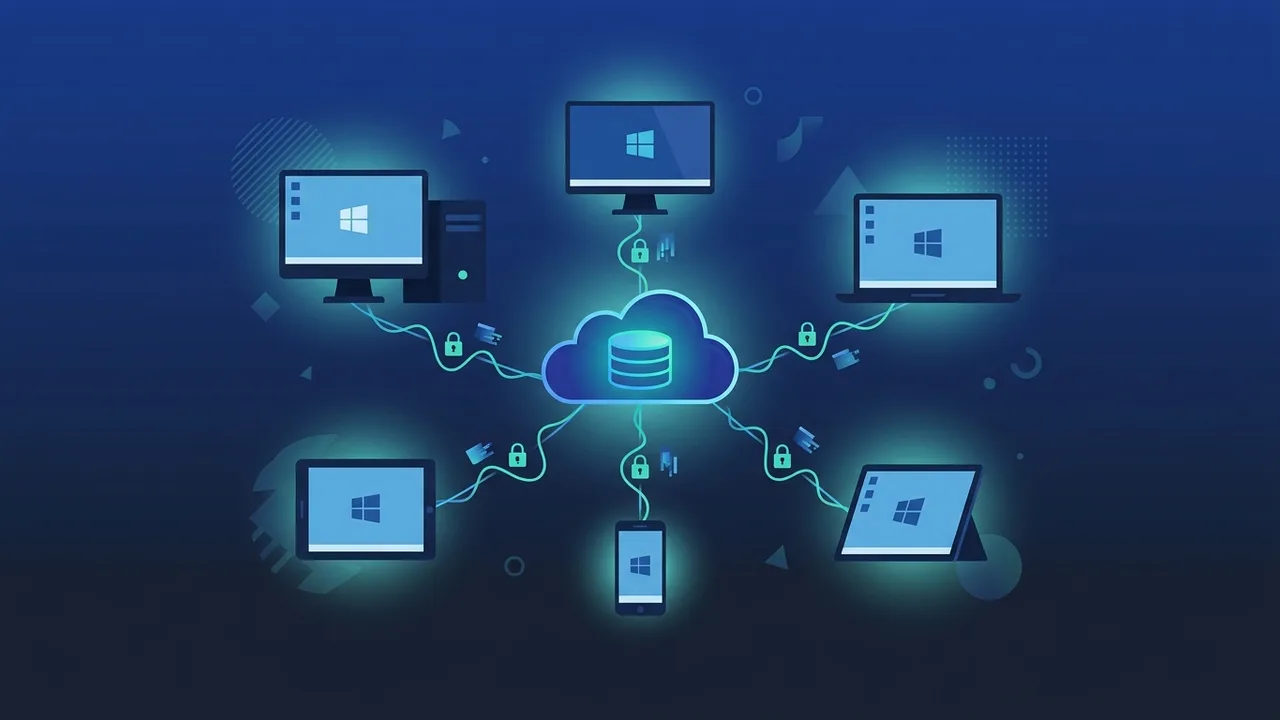
With the rapid digital transformation taking place across Saudi Arabia and companies increasingly adopting remote and hybrid work environments in line with Vision 2030, secure infrastructure has become paramount. When managing a modern digital work environment in the Saudi market, acquiring Remote Desktop Connection Licenses for 5 Devices is a vital step for small and medium-sized enterprises that want to enable their teams to access shared company resources efficiently and securely without incurring massive infrastructure costs.
Overview of Remote Desktop Connection Licenses for 5 Devices
Essentially, Remote Desktop Connection Licenses for 5 Devices, often referred to as RDS CALs, are authorized permissions that allow five distinct users or devices to establish simultaneous desktop sessions on a central Windows Server. This type of licensing does not represent the operating system software itself, but rather the legal and technical authorization granted by Microsoft for clients to connect to the server and utilize its hosted applications and data from any location.
These licenses are split into two primary categories: User CALs and Device CALs. A User CAL assigns the access right to a specific employee, allowing them to connect from various devices such as laptops, home computers, or mobile phones. Conversely, a Device CAL ties the license to a specific physical workstation, enabling multiple employees to share that machine to connect to the server. Understanding this distinction is crucial for Saudi businesses to avoid unnecessary licensing expenditures.
Key Features
By integrating Remote Desktop Connection Licenses for 5 Devices into your server environment, your business gains several strategic advantages that directly enhance daily operational workflow and productivity:
- Enhanced Data Security: Because all application processing and data storage occur centrally on the server, the risk of data leakage due to lost or compromised endpoint devices is drastically reduced.
- Maximum Operational Flexibility: Employees across different regions in Saudi Arabia can perform their tasks seamlessly from any location with a stable internet connection, supporting business continuity.
- Resource Optimization: Instead of purchasing individual software licenses for every single physical workstation, applications can be hosted centrally on the server and shared among authorized remote sessions, saving substantial budget.
- Simplified IT Management: Network administrators can deploy software updates, manage security configurations, and monitor active user sessions from a single dashboard without visiting individual machines.
How to Use
Activating Remote Desktop Connection Licenses for 5 Devices on your Windows Server requires a series of administrative steps to ensure everything runs smoothly without configuration errors:
- Install the RDS Role: Navigate to the Server Manager dashboard, select 'Add Roles and Features', and enable the 'Remote Desktop Services' role, making sure to include 'RD Licensing'.
- Activate the License Server: Open the Remote Desktop Licensing Manager tool, right-click your server host name, select 'Activate Server', and complete the activation wizard via the online connection method.
- Input the Product License Key: Once the server status is activated, choose the 'Install Licenses' option and type in the product key associated with your Remote Desktop Connection Licenses for 5 Devices.
- Set the Proper Licensing Mode: Configure your server's licensing mode (either Per User or Per Device) using the Local Group Policy Editor to ensure it aligns with the license type you purchased.
Common Questions
IT managers frequently ask whether these access licenses can be migrated or upgraded. If you transition to a new server hardware infrastructure, you can indeed migrate your RDS client access licenses by deactivating them on the old machine and rebuilding the licensing database on the new server. Additionally, it is essential to ensure that your licenses match or exceed the version of your active Windows Server operating system, as older client licenses cannot access newer server operating systems.
Important Tips
Before making your final purchase, consider the following best practices to maximize the value of your remote desktop deployment:
- Assess Your User Workflow: Analyze how your team works. If multiple employees share specific office workstations during different shifts, Device CALs are highly efficient. If employees travel or work remotely, User CALs are much more practical.
- Secure the Connection Protocol: Never expose the default RDP port (3389) directly to the public internet. Secure all remote desktop access using a Virtual Private Network (VPN) and require Multi-Factor Authentication (MFA).
- Maintain Compliance Audits: Keep track of your concurrent user counts and license allocations to ensure you remain fully compliant with software licensing regulations and avoid audits issues.
- Acquire from Reputable Sources: Always source your product keys from established partners to ensure you receive fully authentic licenses, reliable product lifecycles, and essential security patches.
Conclusion
Investing in Remote Desktop Connection Licenses for 5 Devices is a strategic move to future-proof your IT infrastructure, enhance remote worker productivity, and secure critical business communication pathways within the Saudi market. By establishing a robust RDS deployment, you gain the agility and stability needed to scale your operations smoothly as your enterprise continues to grow.
You can get a genuine Remote Desktop Connection Licenses for 5 Devices license from ABMKeys at a competitive price with instant WhatsApp delivery.
Frequently Asked Questions
What are Remote Desktop Connection Licenses for 5 Devices and how do they work?
What is the difference between a User CAL and a Device CAL?
Are these licenses compatible with older Windows Server versions?
Do I need these licenses for basic administrative server access?
You can get a genuine license from ABMKeys at a competitive price with instant WhatsApp delivery.
Buy Now