
Project 2021 Pro Lifetime Troubleshooting Guide
Discover the most common issues when using or activating Project 2021 Pro Lifetime and learn practical, step-by-step solutions to ensure smooth project management.
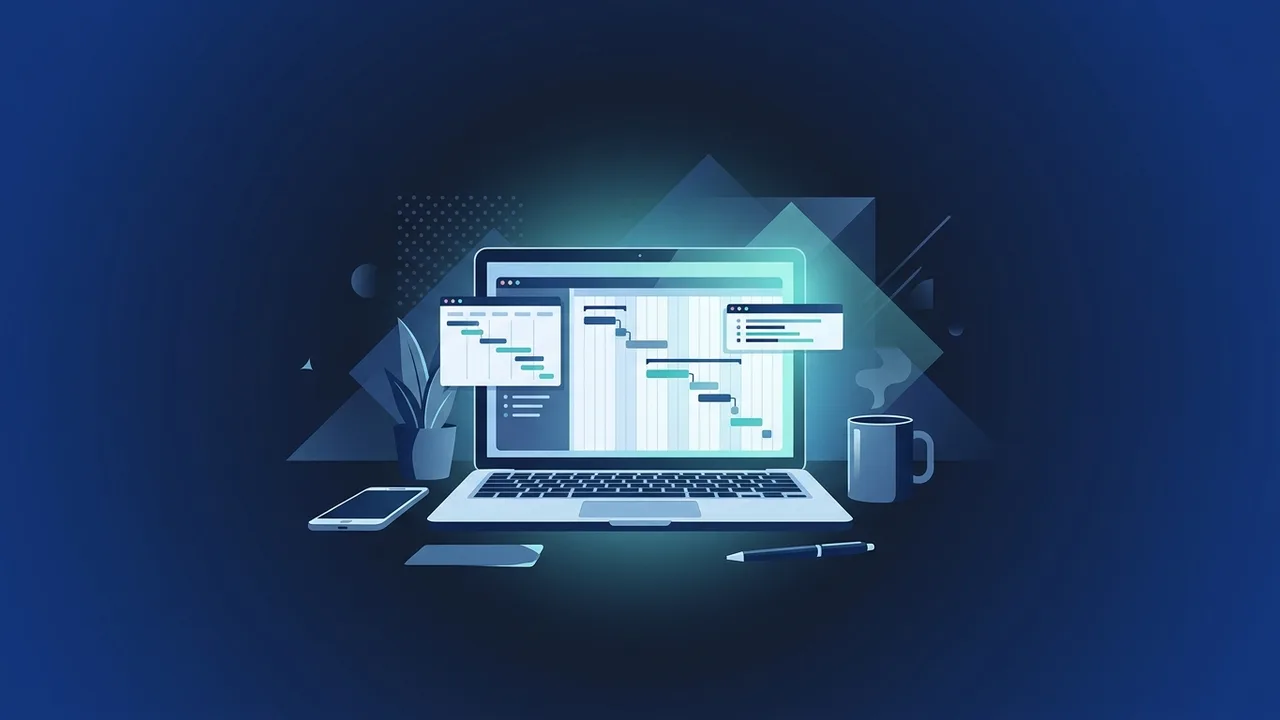
In today's highly competitive business environment, efficient project management is key to success. For many businesses and professionals in Saudi Arabia, Project 2021 Pro Lifetime stands out as a powerful desktop application that provides robust scheduling, resource allocation, and task management. However, users occasionally run into installation, activation, or runtime issues that can slow down productivity and disrupt workflow schedules.
This troubleshooting guide provides practical, actionable solutions to the most common problems associated with this desktop software, helping you resolve technical hurdles quickly and maintain seamless management over all your operations.
Overview of Project 2021 Pro Lifetime
Project 2021 Pro Lifetime is a professional, non-subscription project management desktop software designed for project managers, team leads, and business analysts who prefer a one-time purchase over recurring monthly fees. This software offers complete control over scheduling, visual reporting, and resource management directly from your Windows environment.
Unlike cloud-based subscription models, the lifetime license ensures that you have ongoing access to your project database without worrying about renewal costs. However, maintaining an on-premise installation requires understanding local software dependencies, system compatibility, and regular database upkeep to avoid unexpected software crashes or errors.
Key Features
With its comprehensive feature set, the software helps professionals manage workloads and keep budgets on track. Some of its standout capabilities include:
- Pre-built Templates: Instantly launch new projects using professionally designed schedules that match industry standards.
- Advanced Resource Management: Easily assign team members, equipment, and materials to prevent scheduling conflicts and overallocation.
- Interactive Gantt Charts: Track task relationships, critical paths, and project milestones using highly customizable graphical timelines.
- Seamless Office Integration: Export timeline data, tables, and charts directly into Microsoft Excel or PowerPoint for executive presentations.
- In-depth Visual Reporting: Built-in reports allow you to track real-time resource costs, task completions, and budget burn rates.
How to Use
To ensure a flawless experience, it is vital to follow proper installation and management protocols. Here is a step-by-step breakdown on how to configure and handle the system:
1. Installation Cleanup: Before installing, uninstall any previous standalone versions of Project or conflicting Office suites. This minimizes register conflicts and file corruption during setup.
2. Product Key Registration: Log in to your personal or work Microsoft account, navigate to the official setup page, and bind the 25-digit genuine key to your account. This secures your permanent license for future reinstalls.
Common Problems and How to Solve Them:
- Error Code 0xC004C003 (Activation Error): This typical error occurs when the Microsoft server fails to validate your product key. It can happen due to typing mistakes, regional mismatch, or using a key on too many machines. Double-check your character entry, ensure you are offline from corporate VPNs, and activate while connected to a stable public network.
- Click-to-Run Conflict with Office 365: If you use Office 365 on your machine, you might get an error stating that these products cannot be installed together. To bypass this, make sure both products share the exact same architecture (either both 32-bit or both 64-bit). If they conflict, you may need to utilize the Microsoft Office Deployment Tool (ODT) to coordinate a side-by-side installation.
- Software Freezing or Lagging on Large Files: When managing massive master projects, the software may lag or freeze. This is often resolved by turning off hardware graphics acceleration in the software settings: Go to File > Options > Advanced > Display, and check the option to "Disable hardware graphics acceleration".
Common Questions
Here are answers to the most frequent technical inquiries users face when managing their lifetime licenses:
- Does the lifetime license require an active internet connection to function? No, you only need an internet connection during the initial installation and key activation. Once successfully activated, the software can run entirely offline.
- What can I do if the application crashes during startup? Try starting the software in Safe Mode by holding down the Ctrl key while launching the program. If it works, the crash is likely caused by an outdated third-party add-in that needs to be disabled.
Important Tips
To avoid data loss and enjoy high-performance stability, keep these best practices in mind:
- Keep Windows Updated: Regularly install quality updates on Windows 10 or Windows 11. These updates contain critical system updates and framework compatibility improvements necessary for running modern Office applications.
- Avoid Crack and Activation Hacks: Using unauthorized activation tools exposes your system to malware and ransomware, while violating licensing agreements. Genuine licenses are critical to receiving ongoing security updates.
- Establish Backup Routines: Always save backups of your important project files (.mpp) to OneDrive or secure external hard drives to prevent loss from accidental system failures.
- Perform a Clean Repair: If you encounter weird glitches, go to Windows Settings > Apps > Apps & features, find your product, click Modify, and select "Online Repair" to automatically fix corrupted application files.
Conclusion
Investing in Project 2021 Pro Lifetime offers an outstanding, permanent solution for organizing complex schedules and keeping critical paths on track. By following these practical troubleshooting steps, you can quickly address any performance or activation roadblocks and keep your focus on managing your projects successfully.
You can get a genuine Project 2021 Pro Lifetime license from ABMKeys at a competitive price with instant WhatsApp delivery.
Frequently Asked Questions
How can I resolve error code 0xC004C003 during Project 2021 Pro Lifetime activation?
Can Project 2021 Pro Lifetime run alongside Office 365 on the same computer?
What should I do if the software experiences slowdowns or sudden freezing?
How do I transfer my Project 2021 Pro Lifetime license to a new computer?
You can get a genuine license from ABMKeys at a competitive price with instant WhatsApp delivery.
Buy Now