
PowerPoint online: The Right Way to Do It
Learn how to use PowerPoint online through a practical step-by-step guide tailored for users in Saudi Arabia. Discover 7 simple steps to create, format, and share professional presentations for free.
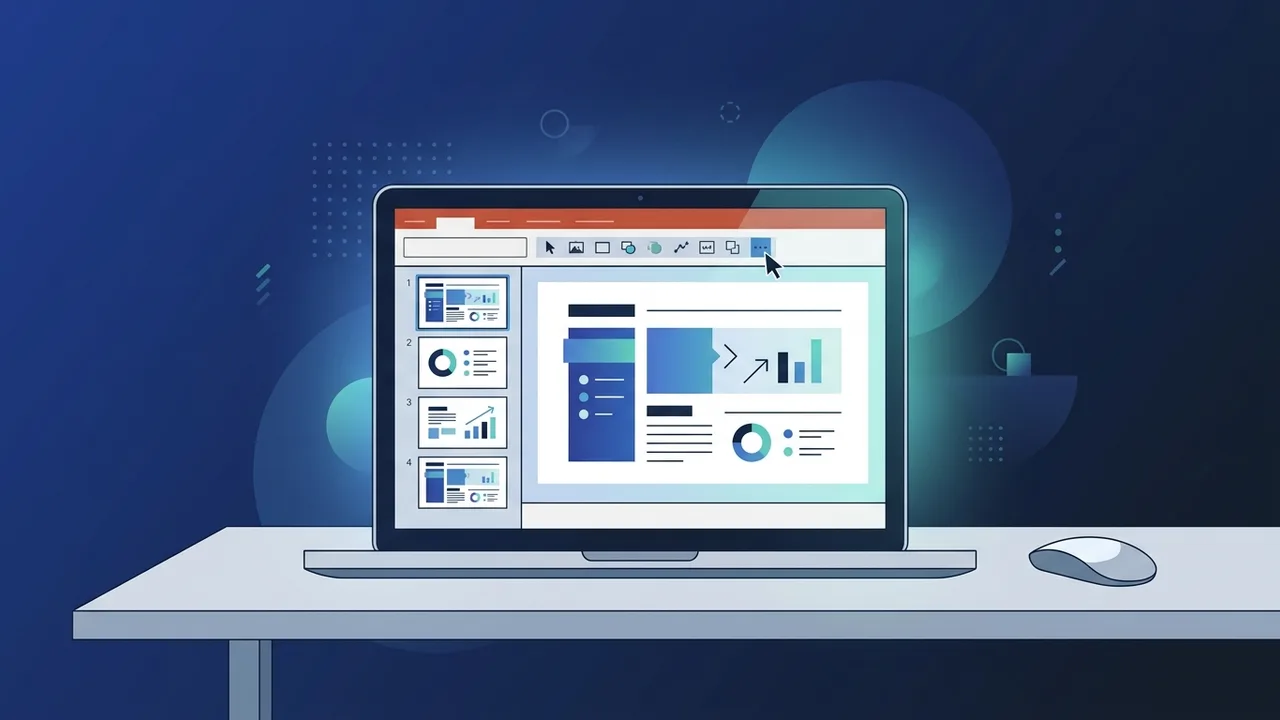
Overview of PowerPoint online
In today's fast-paced digital era, professionals and students across the Kingdom of Saudi Arabia are rapidly adopting cloud-based solutions to enhance productivity and collaboration. This shift aligns closely with the goals of Saudi Vision 2030, which promotes digital transformation across educational and corporate sectors. One tool that has become indispensable in this environment is PowerPoint online. This free cloud-based version of Microsoft’s legendary presentation software allows users in Riyadh, Jeddah, Dammam, and beyond to create, edit, and share high-quality slides directly through a web browser. Without the need to download or install heavy desktop applications, PowerPoint online offers an incredibly flexible and accessible solution for anyone looking to draft an impactful pitch or prepare an academic assignment on the fly.
Key Features
The web-based version of this tool offers a wide array of features that cater to the needs of modern workflows. Some of the standout benefits include:
- Real-time Collaboration: This feature allows multiple team members to work on the exact same presentation simultaneously. This makes group projects and team presentations remarkably seamless, as changes are updated instantly.
- Automatic Cloud Saving: The tool features automatic saving via OneDrive. This eliminates the fear of losing your hard work due to a sudden power outage or browser crash.
- Universal Accessibility: You can open, view, and edit your slides from any connected device—whether a Windows PC, Mac, tablet, or smartphone.
- Rich Templates Library: Access to professionally designed layouts that enable users to jumpstart their design process without starting from a blank page.
How to Use
To get the most out of PowerPoint online, we have compiled this detailed, step-by-step practical guide to help you build stunning presentations from start to finish:
Step 1: Sign In to Your Microsoft Account
Open your preferred web browser and navigate to the official Microsoft Office website. Sign in using your personal Outlook/Hotmail account, or your school/organization credentials. If you do not have an account yet, you can sign up for a free Microsoft account in just a few clicks.
Step 2: Access PowerPoint online
Once signed in, you will be directed to the main Microsoft 365 dashboard. Locate and click on the PowerPoint icon on the left sidebar or within the apps menu to launch the PowerPoint online interface.
Step 3: Choose a Template or Blank Presentation
You will be presented with the choice of starting a blank presentation from scratch or choosing from an array of pre-designed templates. Using templates is highly recommended as they save design time and ensure consistent colors and layout typography.
Step 4: Add and Format Content
Start populating your slides by adding text, images, shapes, and tables. Utilize the web-based toolbar to format your fonts, adjust layouts, and add simple transition effects between slides to make your presentation visually engaging.
Step 5: Collaborate in Real-Time
If you are working with colleagues, click the 'Share' button in the upper-right corner of the interface. Enter their email addresses or generate a shareable link. You can set permissions to either allow editing or restrict access to read-only.
Step 6: Review and Edit
Use the built-in spelling and grammar tools to review your content. You can also add slide notes at the bottom of each slide to serve as cues for yourself during the actual presentation.
Step 7: Save, Export, and Present
Since your changes are saved automatically, you do not need to click a save button. If you need to present offline, navigate to 'File' > 'Save As' and choose to download your presentation as a standard PowerPoint (.pptx) or PDF file directly to your computer.
Common Questions
Is PowerPoint online completely free to use?
Yes, the web-based application is entirely free for anyone who has a registered Microsoft account. This free tier includes access to essential presentation tools and a limited amount of free cloud storage on OneDrive.
Can I work on my presentations offline?
PowerPoint online is designed primarily as a cloud-based application and requires an active internet connection to edit and sync changes. For fully functional offline work, using a desktop version of the software is highly recommended.
Is the online version identical to the desktop application?
While the online version includes most of the essential design and formatting tools, some highly advanced formatting options, heavy animations, and complex add-ins are only available in the full desktop version of PowerPoint.
How do I share my online presentation with others?
Simply click the 'Share' button in the top right corner, configure the link permissions (viewer or editor), and copy the link to send via email, chat, or messaging platforms to your team.
Important Tips
To ensure a seamless, trouble-free experience when using PowerPoint online, keep the following best practices in mind:
- Ensure a Stable Internet Connection: Since the app operates strictly in the cloud, a reliable network connection prevents lag when uploading high-resolution images or syncing large slide decks.
- Use Standard Web Fonts: Stick to universally supported fonts so that your slides retain their exact formatting when opened on different devices and operating systems.
- Leverage Comments for Collaboration: Instead of discussing changes on external chat apps, use the built-in comment section on specific slides to keep feedback organized and context-specific.
- Download an Offline Backup: Always download a local PPTX copy of your slide deck before presenting at major conferences or academic sessions to avoid connectivity issues.
- Upgrade for Pro Business Needs: For businesses in the Kingdom requiring robust offline access, advanced AI features, and unmatched stability, investing in a genuine desktop productivity suite is the ultimate way to achieve complete workflow optimization.
Conclusion
In summary, PowerPoint online is an incredibly powerful, versatile, and cost-effective tool for users in Saudi Arabia. Whether you are collaborating on a joint university project or preparing a corporate presentation, the cloud-based application offers all the tools you need to succeed quickly and collaboratively.
If you need a genuine Office 2021 Pro Plus Lifetime license, you'll find it at ABMKeys at a fair price with instant WhatsApp delivery.
Frequently Asked Questions
Is PowerPoint online completely free to use?
Can I work on my presentations offline?
Is the online version identical to the desktop app?
How do I share my online presentation with others?
You can get a genuine license from ABMKeys at a competitive price with instant WhatsApp delivery.
Buy Now