
PowerPoint online from Zero to Pro
Learn how to use PowerPoint online to design professional presentations and collaborate with your team online step-by-step with ease.
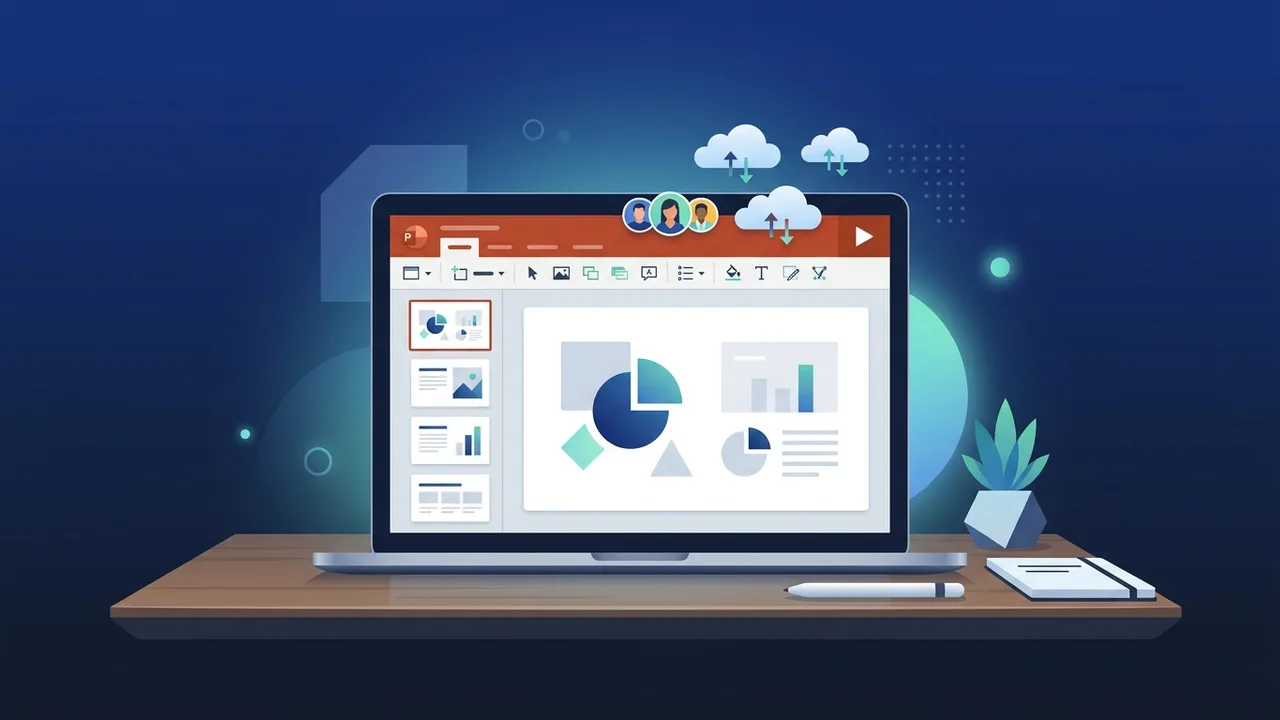
Presentations are a vital cornerstone of modern educational and corporate workflows in Saudi Arabia. With the rising demand for flexibility and remote work capabilities, cloud-based tools have emerged as the ideal solution to complete tasks from anywhere. PowerPoint online stands out as one of the most prominent digital solutions, enabling users to create and edit professional presentations directly within a web browser without needing to install complex desktop software.
Overview of PowerPoint online
The PowerPoint online platform is a free, cloud-based version of the widely popular presentation software developed by Microsoft. This version is designed to run smoothly inside standard web browsers like Google Chrome, Microsoft Edge, and Safari, requiring no high-end system specifications. It aims to empower users to access, view, and modify their presentation files from any internet-enabled device—including PCs, tablets, and smartphones. This aligns perfectly with the rapid digital transformation goals of business environments and educational sectors across the region.
Key Features
By opting for PowerPoint online to draft your slides, you unlock a broad suite of technical advantages that simplify both collaborative and individual workflows. Some of the key features include:
- Real-Time Co-Authoring: Multiple users can work on the exact same presentation file simultaneously. This makes it effortless for teams in different locations to edit slides together and monitor updates instantly.
- Instant Auto-Save: You never have to worry about data loss or power failures, as all modifications are saved automatically to your OneDrive cloud storage.
- Modern Templates & Layouts: The application offers a built-in collection of professional templates and creative layouts to help you compile visually appealing slides quickly.
- Cross-Platform Compatibility: You can open and edit your presentation files across different operating systems (such as Windows, macOS, and Linux) without formatting inconsistencies.
- Free Cloud Access: Anyone with a free Microsoft account can utilize this cloud tool immediately, allowing for the creation of endless presentations without extra subscription fees.
How to Use
To start utilizing PowerPoint online to design your next presentation, you can easily follow these practical steps:
- Access the Platform: Open your web browser and navigate directly to Office.com, then sign in using your free Microsoft account (such as Outlook or Hotmail).
- Open the App: From the applications sidebar displayed on the homepage dashboard, click on the orange PowerPoint icon to launch the cloud interface.
- Create a New File: Choose "New blank presentation" to build your slides from scratch, or browse through the available templates to find a pre-designed layout that fits your topic.
- Design Your Slides: Add text boxes, insert images, shapes, tables, and charts using the simplified navigation toolbar located at the top of the browser page.
- Share and Collaborate: To invite team members to work with you, click the "Share" button in the top-right corner, enter their email address, and select their access permissions (either view-only or editing rights).
- Export and Download: Although saving is automatic, you can always download a offline copy of your file as a PPTX or PDF presentation for offline delivery in meetings.
Common Questions
In this section, we answer some of the most common questions users ask regarding cloud presentation software to help you make the most of your tools:
- Is the online version entirely free? Yes, the basic version of the browser application is completely free and only requires a personal Microsoft account to log in and use.
- Can I open files created in the desktop app? Absolutely. Any files created on the desktop version can be uploaded to OneDrive and opened directly in the browser version for editing.
Important Tips
To ensure a flawless and productive experience when working with PowerPoint online, we recommend implementing these useful tips:
- Maintain a Stable Internet Connection: Because this is a web-based utility, a reliable internet connection is crucial to keep your modifications synced with OneDrive in real-time.
- Utilize the Designer Feature: Take advantage of Microsoft's built-in smart Designer tool, which automatically suggests layout designs based on your slide's text and imagery.
- Master Keyboard Shortcuts: Most of your favorite desktop hotkeys (like Copy, Paste, and Undo) work seamlessly in the web version, allowing you to edit much faster.
- Upgrade for Complex Projects: If your project requires heavy video rendering, sophisticated 3D models, or complex transition animations, switching to the native desktop program is recommended for optimal processing power.
Conclusion
Leveraging cloud solutions is a highly efficient approach to designing, storing, and delivering engaging presentations. It provides the essential tools needed to draft professional files and coordinate with teammates seamlessly, regardless of your physical location.
If you need a genuine Office 2021 Pro Plus Lifetime license, you'll find it at ABMKeys at a fair price with instant WhatsApp delivery.
Frequently Asked Questions
Can I use PowerPoint online for free?
Are changes saved automatically in PowerPoint online?
What are the main differences between the browser version and the desktop version?
How can I share a presentation with others for editing?
You can get a genuine license from ABMKeys at a competitive price with instant WhatsApp delivery.
Buy Now