
PowerPoint App from Zero to Pro
The PowerPoint app is the leading tool for creating professional presentations in both academic and business environments. This guide walks you through every step from opening the app to exporting your final presentation. Discover key features and practical tips to get the best results.
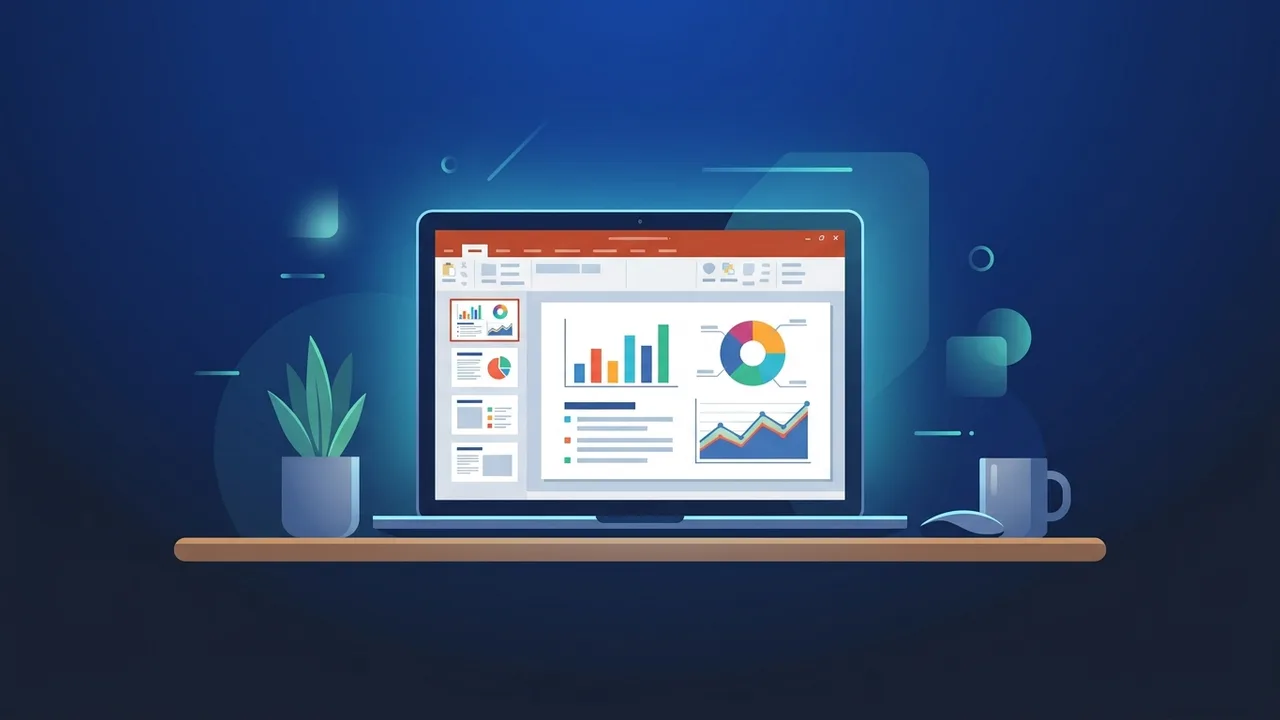
Overview of the PowerPoint App
The PowerPoint app is one of the most widely used presentation tools in the world, and it has become the go-to choice for students, professionals, and business owners across Saudi Arabia and globally. This application allows users to create professional slides that combine text, images, charts, and video, making it far easier to communicate ideas clearly and persuasively.
The PowerPoint app runs on Windows PCs and Mac computers, and is also available as a mobile application for both iOS and Android devices. Additionally, a web-based version can be accessed directly from a browser without any installation. This flexibility makes it a practical tool whether you are working from the office, at home, or on the go.
In professional and academic settings across the Kingdom, the PowerPoint app is a standard tool for presenting reports, conducting training sessions, and delivering formal presentations at conferences and meetings.
Key Features of the PowerPoint App
What sets the PowerPoint app apart from other presentation tools is its comprehensive set of features designed to suit a wide range of users:
- Ready-Made Templates: Hundreds of professionally designed templates are available, significantly reducing the time needed to start a new presentation.
- Animation Tools: Motion effects can be applied to individual elements and slide transitions to make the presentation more engaging.
- Multimedia Support: Images, videos, and audio clips can be embedded directly into slides with ease.
- Charts and Data Visualization: Built-in chart tools make it straightforward to present numerical data in a visually clear format.
- Real-Time Collaboration: Multiple users can co-edit a presentation simultaneously when working online.
- Right-to-Left Language Support: Full support for Arabic and other right-to-left languages is included.
- Multiple Export Formats: Presentations can be exported as PDF, video, or the standard .pptx format.
How to Use the PowerPoint App: Step by Step
Step 1: Open the App and Start a New Project
After launching the PowerPoint app, you will see the home screen displaying template options. Choose «Blank Presentation» if you want to start from scratch, or browse the available templates and select one that suits your topic and audience.
Step 2: Customize Your First Slide
Click on the title text box and type your presentation title, then add a subtitle if needed. Use the formatting toolbar at the top to adjust font type, size, and color to ensure the design aligns with your organization's visual identity.
Step 3: Add New Slides
Right-click in the left slide panel and select «New Slide», or use the keyboard shortcut Ctrl+M. Choose the appropriate slide layout depending on whether your content is text-heavy, image-based, or a combination of both.
Step 4: Insert Media and Visual Elements
Navigate to the «Insert» tab in the top ribbon. From there, you can add images from your device or online sources, as well as shapes, charts, data tables, and video clips. Always ensure that media is high quality and directly relevant to the slide content.
Step 5: Apply Transitions and Animations
Under the «Transitions» tab, select an effect that matches the tone of your presentation. Then move to the «Animations» tab to add motion effects to individual elements within a slide. Avoid overusing animations, as excessive effects can distract your audience from the core message.
Step 6: Review and Proofread
Use the spell-check tool under the «Review» tab to verify all text for errors. Then run the slide show by clicking «Slide Show» to preview the final result exactly as your audience will experience it, checking for any layout or sequencing issues.
Step 7: Save and Share Your Presentation
Press Ctrl+S to save the file in the default format. To export as a PDF, go to «File» then «Export». You can share the presentation directly via email or a cloud link by using the «Share» button in the upper right corner of the interface.
Common Questions About the PowerPoint App
Here are answers to some of the most frequently asked questions from users:
- Is the PowerPoint app free to use? A limited web-based version is available at no cost, but the full-featured desktop version requires a valid license.
- Does the app fully support Arabic text? Yes, it provides complete support for Arabic script and right-to-left text direction.
- What file formats can presentations be exported to? Presentations can be exported as .pptx, .pdf, image files, or .mp4 video.
- Can I work on a presentation without an internet connection? Yes, the desktop-installed version works fully offline without requiring an active internet connection.
Important Tips for Professional Presentations
- The 6×6 Rule: Limit each slide to no more than six bullet points, and each bullet to no more than six words for maximum clarity.
- Visual Consistency: Use the same color palette and font set throughout the entire presentation to maintain a unified visual identity.
- Use Animations Sparingly: Overusing transitions and motion effects reduces the professional appearance of a presentation and distracts viewers.
- Image Quality: Use high-resolution images that are directly relevant to the content; avoid generic stock images that add no informational value.
- Correct Slide Dimensions: Set the slide size to 16:9 ratio for modern widescreen displays, which is now the standard in most professional settings.
- Cloud Backup: Save a backup copy of your file to cloud storage to protect your work from accidental loss or device failure.
Conclusion
The PowerPoint app remains an indispensable tool for anyone who needs to present information in a structured, visually appealing, and professional manner — whether in academic, corporate, or government environments. Following the step-by-step process outlined in this guide will help you build presentations that leave a lasting impression on your audience.
Investing in a genuine, licensed version of the application ensures you have access to the latest features, security updates, and technical support without interruption — all of which contribute directly to the quality and consistency of your work.
If you need a genuine Office 2021 Pro Plus Lifetime license, you'll find it at ABMKeys at a fair price with instant WhatsApp delivery.
Frequently Asked Questions
Can the PowerPoint app be used on a mobile phone?
What is the difference between the web version of PowerPoint and the installed desktop version?
How can I share a PowerPoint presentation with others for collaborative editing?
Does the PowerPoint app support exporting a presentation as a video file?
You can get a genuine license from ABMKeys at a competitive price with instant WhatsApp delivery.
Buy Now