
Photoshop Photo Editing: The Right Way to Do It
Photoshop photo editing is an essential skill for photographers, designers, and business owners alike. This article walks through seven practical steps covering brightness correction, color balancing, blemish removal, and professional image export. Follow these steps to achieve professional results from the very start.
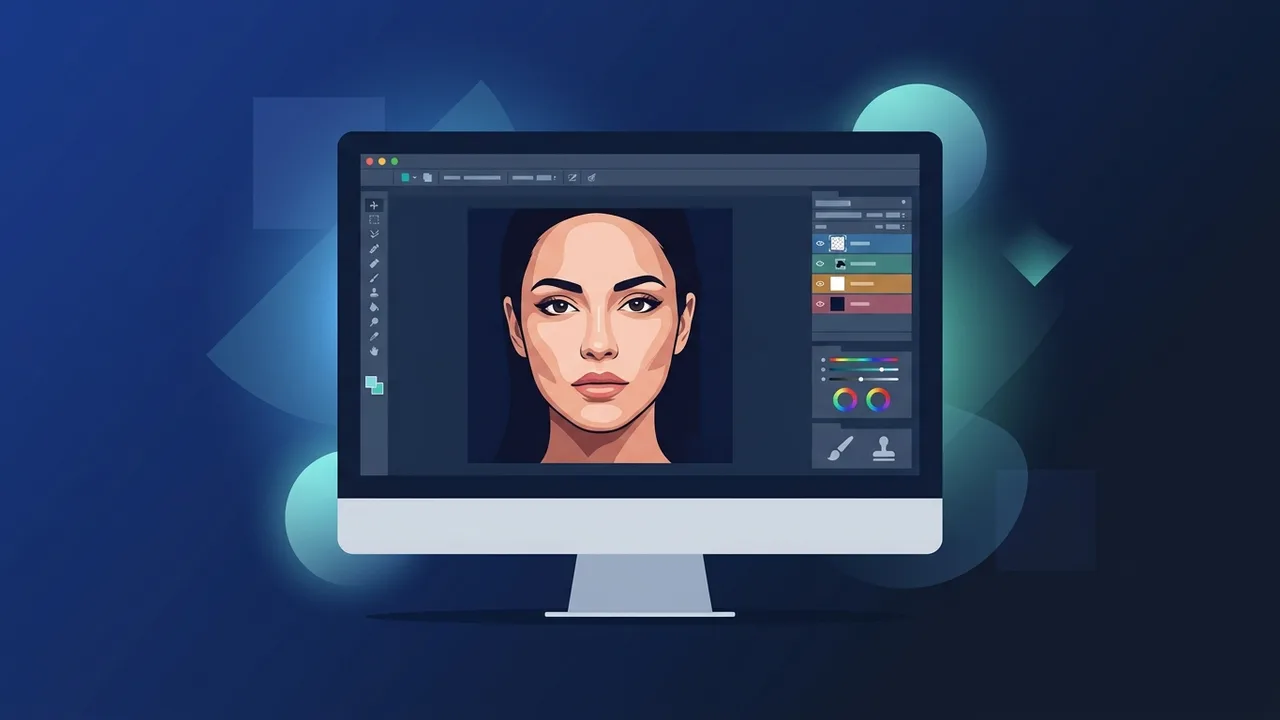
Overview of Photoshop Photo Editing
Photoshop photo editing is one of the most in-demand digital skills today, whether for individuals looking to enhance personal photos or businesses that need professional visual content. Adobe Photoshop provides a comprehensive work environment that gives users full control over every element of an image — from colors and lighting to layers and advanced effects. In this guide, you will learn how to master photoshop photo editing through seven practical, well-structured steps designed for users who want to elevate their design and visual editing capabilities to a professional level.
Key Features of Photoshop for Photo Editing
Adobe Photoshop stands out with a wide range of tools that make it the first choice among professionals and creatives worldwide. Key features include:
- Layer System: Allows you to edit each element of the image independently without affecting the rest, giving designers maximum flexibility.
- Advanced Selection Tools: Tools like Quick Selection, Magic Wand, and Select Subject help isolate objects with high precision.
- Color and Lighting Correction: Using Curves, Levels, and Color Balance, you can professionally adjust color tones, brightness, and contrast.
- Filters and Effects: A vast library of ready-made and customizable filters that add creative touches to any image.
- Camera Raw: A specialized tool for editing RAW format photos at the highest quality — ideal for professional photographers.
- AI-Powered Neural Filters: Enable advanced editing capabilities such as skin smoothing and automatic image quality enhancement.
How to Use Photoshop: 7 Practical Steps for Photo Editing
Step 1: Open the Image and Configure Work Settings
Start by opening your image via File then Open, or drag the file directly into the program interface. Make sure the color mode is set to RGB for digital publishing, or CMYK for print. You can verify this via Image then Mode.
Step 2: Correct Brightness and Contrast
Navigate to Image then Adjustments then Levels or Curves. Move the white and black point sliders to improve the tonal range of the image. It is advisable to use Adjustment Layers to preserve the original image without permanent modifications — a core principle of non-destructive photoshop photo editing.
Step 3: Correct and Balance Colors
Use Color Balance or Hue/Saturation to adjust color tones and eliminate color noise. For images taken under artificial lighting, you can correct the color temperature using the Camera Raw Filter to achieve natural, realistic colors.
Step 4: Crop and Resize the Image
Use the Crop tool to remove unwanted areas and improve the image composition. When you need to resize the image, go to Image then Image Size, and make sure the Constrain Proportions option is enabled to maintain the original aspect ratio.
Step 5: Remove Blemishes and Imperfections
This stage is one of the most important in photoshop photo editing. Use the Healing Brush or Spot Healing Brush to remove blemishes, scratches, and unwanted details. The Clone Stamp tool is used to replace areas with content sampled from another part of the same image.
Step 6: Add Effects and Adjustment Layers
You can add Adjustment Layers such as Gradient Map or Photo Filter to give the image a distinctive visual style. Using Smart Objects allows you to preserve the quality of elements when resizing or applying repeated effects — an essential technique for professional photoshop photo editing workflows.
Step 7: Save and Export the Final Image
Save your working file in PSD format to keep all layers intact. Once finished, export the final image via File then Export then Export As. Choose JPEG for standard photos, or PNG for images that require a transparent background.
Common Questions About Photoshop Photo Editing
Users will find answers to frequently asked questions in the FAQ section below.
Important Tips for Professional Photo Editing
- Always work on a copy of the original image: Avoid editing the original file directly by creating a backup or using non-merged Adjustment Layers.
- Use keyboard shortcuts: Such as Ctrl+Z to undo, Ctrl+J to duplicate a layer, and B to select the Brush tool. These shortcuts significantly speed up the photoshop photo editing workflow.
- Learn the History Panel: It allows you to go back to any previous step in the current session — an indispensable tool when editing repeatedly.
- Invest in a color-calibrated monitor: Color editing requires a screen that displays colors accurately, especially for designers delivering work for print.
- Practice on diverse images: Editing photos taken under different conditions — natural light, artificial light, nighttime — builds genuine practical experience.
- Leverage cloud solutions: Custom brushes, presets, and application settings can be synced via Adobe Creative Cloud for access from any device.
Conclusion
Mastering photoshop photo editing is a genuine investment in your digital skill set — whether you are a photographer looking to enhance your shots, a designer working on creative projects, or a business owner who needs compelling visual content. The seven steps outlined in this guide provide a clear and organized path that can be applied immediately without any prior experience. The real key is consistent practice and a willingness to explore the program's tools with increasing depth over time.
If you need a genuine Adobe Master Collection 2025 Windows Lifetime license, you'll find it at ABMKeys at a fair price with instant WhatsApp delivery.
Frequently Asked Questions
Does photoshop photo editing require advanced technical or programming skills?
What is the difference between editing RAW and JPEG images in Photoshop?
How can I preserve the original image while doing photoshop photo editing?
You can get a genuine license from ABMKeys at a competitive price with instant WhatsApp delivery.
Buy Now