
Photoshop Brushes: The Right Way to Do It
Discover a practical, step-by-step guide to installing, customizing, and mastering Photoshop brushes to elevate your digital designs and streamline your creative workflow.
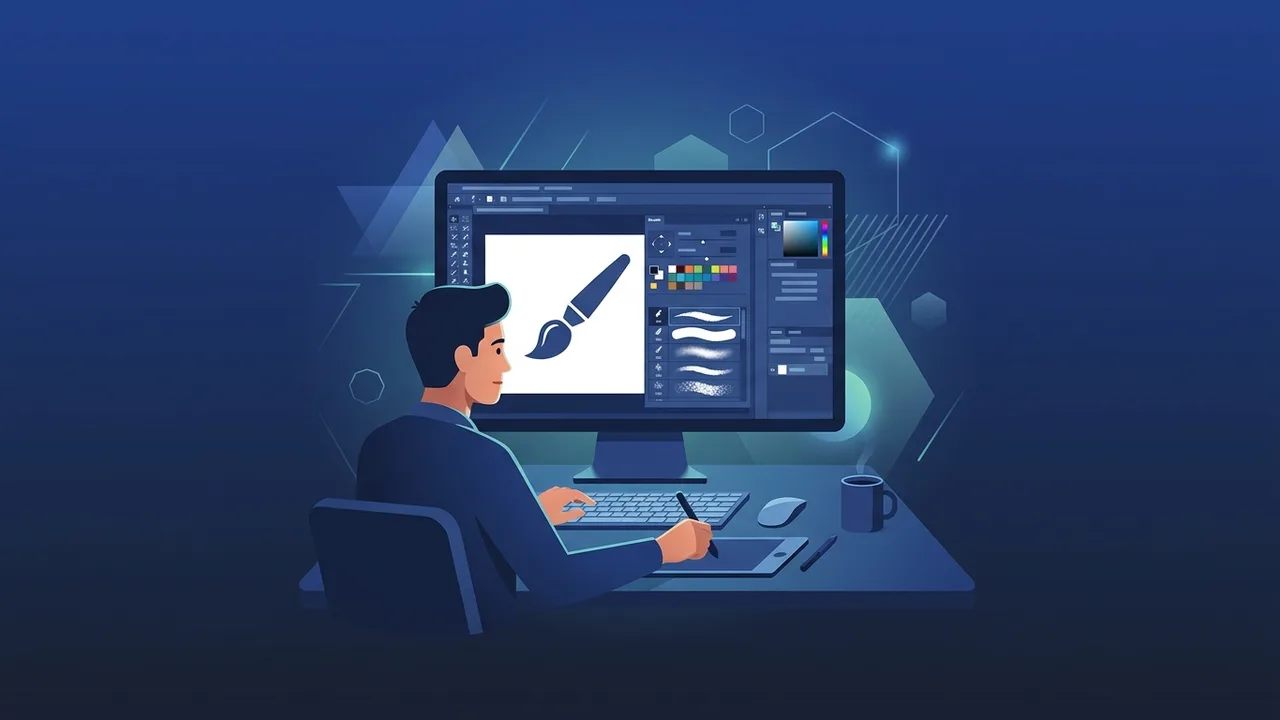
In the rapidly growing creative industry of Saudi Arabia and the wider region, digital design tools have become essential for creating compelling visual narratives. Among the vast array of creative utilities available, Photoshop brushes stand out as one of the most powerful features for digital artists, photo manipulators, and graphic designers, allowing for limitless artistic expression and efficiency.
Overview of Photoshop Brushes
Photoshop brushes are the foundational tools used for drawing, painting, and adding complex visual effects within Adobe Photoshop. Far from being simple digital representations of traditional paintbrushes, they act as dynamic stamp engines that can render intricate textures, patterns, and environmental elements—such as fog, dust, and rain—with a single click or stroke.
For creative professionals working in marketing, social media design, and digital art across Saudi Arabia, mastering Photoshop brushes is key to accelerating workflows. By utilizing pre-made brush libraries in .ABR format or customizing your own, you can easily elevate the visual depth of your projects, transforming flat graphic elements into rich, textured masterpieces.
Key Features
The versatility of Photoshop brushes lies in their highly advanced technical features, which provide users with total control over their creative output:
- Extensive Customization: Designers can modify brush size, angle, roundness, and spacing to alter how the pattern repeats across the canvas.
- Graphic Tablet Integration: Full support for pressure sensitivity and tilt dynamics when using professional drawing tablets, allowing for a natural hand-drawn feel.
- Advanced Brush Dynamics: Through the brush settings engine, you can inject randomness into your strokes by adjusting size jitter, angle jitter, and scatter parameters.
- Custom Preset Creation: Photoshop allows you to define any high-contrast shape, logo, or photo as a custom brush, enabling instant replication of signatures or watermarks.
How to Use
To integrate Photoshop brushes into your daily design workflow effectively, follow this structured, practical seven-step guide:
1. Select the Brush Tool and Define Core Settings
Activate the Brush Tool from the toolbar on the left side of your screen, or simply press the (B) shortcut on your keyboard. In the top options bar, adjust the basic parameters: Size (which dictates coverage) and Hardness (which determines how sharp or soft the brush edges will appear).
2. Access the Brushes Panel
Right-click anywhere on the open canvas to display the quick brush picker, or open the persistent panel by navigating to Window and then selecting Brushes. Here you will see your active brush sets organized in nested folders for easier navigation.
3. Import External Brush Files (.ABR)
To expand your creative toolkit with third-party Photoshop brushes, click the gear icon located in the top-right corner of the Brushes panel. Choose "Import Brushes," browse to where your .ABR file is saved on your hard drive, and load it into your library instantly.
4. Adjust Advanced Dynamics via the Brush Settings Panel
Press the F5 key to open the highly detailed Brush Settings panel. Here, you can toggle option checkboxes like "Shape Dynamics" to tie brush size to your stylus pressure, or "Scattering" to spread the brush tips randomly across a wider path.
5. Create and Utilize Dedicated Layers
Never paint directly onto your background photo or base image. Always create a new, blank layer (Ctrl+Shift+N or Cmd+Shift+N) before using your brush. This non-destructive method allows you to erase mistakes, adjust opacity, and scale the brushwork without modifying original pixel data.
6. Fine-Tune Opacity and Flow Controls
Experiment with the Opacity and Flow options in the top control bar. While Opacity sets a strict limit on transparency per stroke, Flow controls the speed at which virtual ink builds up as you drag. Lowering the Flow values is ideal for smooth gradient blending and realistic shading.
7. Apply Layer Blending Modes
To seamlessly integrate your newly applied brush strokes with underlying background images, modify the layer blend mode. Switching from Normal to Overlay, Screen, or Multiply can instantly harmonize colors and lighting for a highly cohesive composite image.
Common Questions
When working with custom brush assets, designers frequently encounter technical questions regarding performance, installation, and optimization. To help you troubleshoot smoothly, we have compiled a detailed FAQ section at the end of this guide containing practical answers to common brush issues.
Important Tips
Keep these best practices in mind to optimize your digital workspace and maximize the efficiency of your Photoshop brushes:
- Maintain an Organized Library: Loading too many heavy ABR files simultaneously can degrade system performance and cause Photoshop to lag. Categorize your brushes into thematic folders and delete those you rarely use.
- Master Keyboard Shortcuts: Speed up your work by using the square bracket keys [ and ] to quickly resize your brush size on the fly, and hold Shift + [ or ] to change brush hardness.
- Export Your Master Presets: If you spend time creating custom brush settings, select them and choose "Export Selected Brushes" to secure an external backup on your cloud drive.
- Use Licensed Software: Utilizing a stable, genuine version of Adobe Photoshop ensures smooth performance of heavy dynamic brushes, prevents unexpected crashes during complex rendering, and avoids security risks associated with cracked files.
Conclusion
Photoshop brushes are indispensable tools that bridge the gap between technical photo editing and fine digital art. By understanding how to control, modify, and organize these assets, you unlock a massive creative advantage that allows you to produce stunning, high-tier visual content for any personal or commercial project.
If you need a genuine Adobe Master Collection 2025 Windows Lifetime license, you'll find it at ABMKeys at a fair price with instant WhatsApp delivery.
Frequently Asked Questions
How do I download and install new Photoshop brushes?
Why do my Photoshop brushes lag or slow down the software?
Can I create my own custom brush in Photoshop?
What is the difference between Opacity and Flow when using a brush?
You can get a genuine license from ABMKeys at a competitive price with instant WhatsApp delivery.
Buy Now