
Photoshop Backgrounds for Design from Zero to Pro
Ready-made Photoshop backgrounds for design are among the most essential resources for digital designers. This article provides a practical step-by-step guide for selecting, editing, and exporting backgrounds professionally. Apply these tips to elevate your design quality and boost your creative productivity.
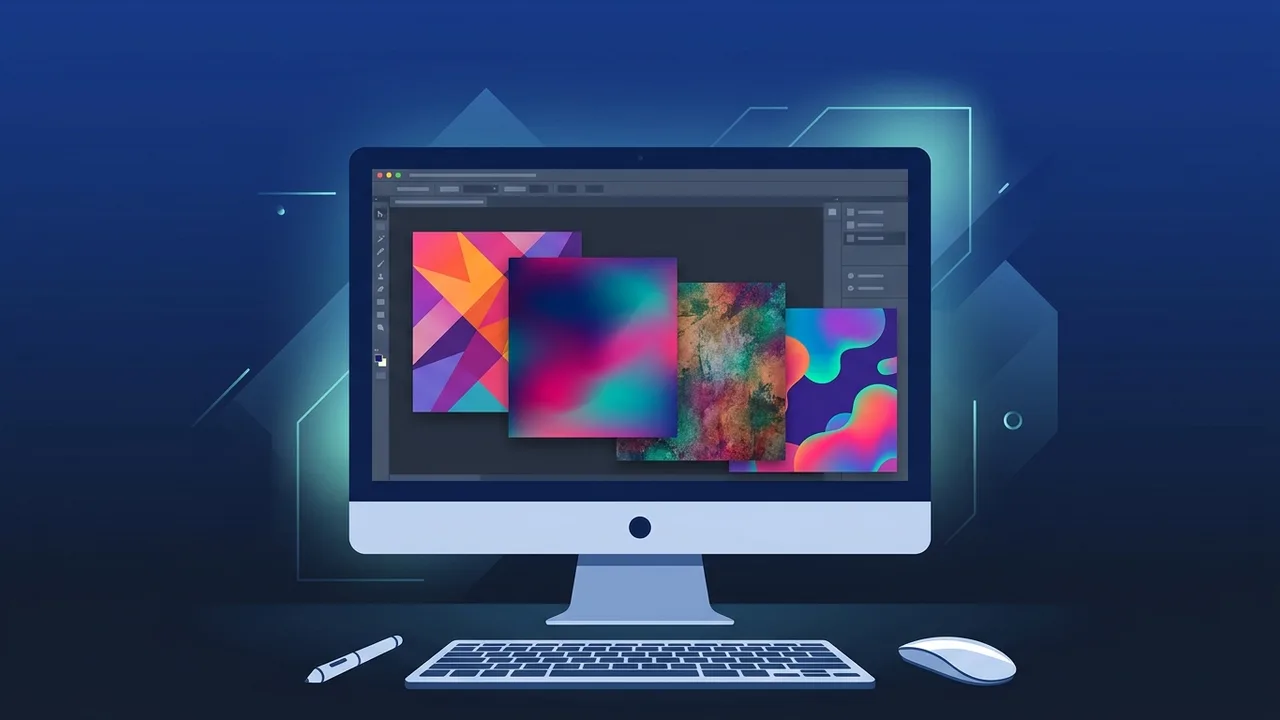
Overview of Photoshop Backgrounds for Design
Photoshop backgrounds for design are among the most widely used visual assets in the graphic design and creative production world. Whether you are a beginner or a seasoned professional, having the right background forms a solid foundation for any visual project. In the Saudi market specifically, demand for these resources has grown significantly alongside the expansion of the digital design sector and the proliferation of social media and digital marketing platforms.
Photoshop backgrounds are available in multiple formats including PSD, JPEG, and PNG, and come in varying resolution levels starting from 72 DPI for digital use and reaching up to 300 DPI for professional printing. Adobe Photoshop allows complete freedom to modify these backgrounds, making them accessible even for those at the early stages of learning. Understanding the nature of these files and choosing the right type for each project saves considerable time and effort for the designer.
Key Features of Ready-Made Photoshop Backgrounds
Ready-made Photoshop backgrounds for design offer a range of characteristics that make them the optimal choice for both professional designers and hobbyists alike:
- Wide Variety: Backgrounds span multiple categories including abstract, natural, geometric, textured, and gradient styles, allowing designers to select what best suits their visual message.
- Full Editability: Many backgrounds come in layered PSD format, enabling designers to adjust colors, modify elements, or remove specific layers without affecting the original file quality.
- High Resolution: Professional backgrounds offer resolutions up to 300 DPI, which is an essential standard for printing on banners, signage, and large-format materials.
- Multi-Project Compatibility: A single background can be used across various contexts including digital posts, promotional designs, website interfaces, and mobile applications.
- Time Efficiency: Rather than building a background from scratch, designers can start from an advanced point and customize the background to align with the project's visual identity.
How to Use Photoshop Backgrounds — Step by Step
The following is a detailed practical guide for using Photoshop backgrounds for design in a professional manner:
Step 1: Define Project Requirements
Before searching for any background, determine the purpose of the design, its dimensions, and the required color system. Is the design intended for digital publishing or print? Is the required style modern or classic? Answering these questions narrows the search scope and saves valuable time.
Step 2: Choose the Right Background
Search for backgrounds from reliable and reputable sources while paying close attention to licensing terms. Ensure the file comes at the required resolution and that its format is compatible with your version of Photoshop. PSD files are preferred as they offer the highest level of editing flexibility.
Step 3: Open the File in Photoshop
Open Photoshop and drag the background file into the workspace, or use the File menu followed by Open to access it. Review the Layers panel carefully to understand the file's components and layers before making any modifications.
Step 4: Adjust Colors and Elements
Use Adjustment Layers such as Hue/Saturation, Color Balance, and Curves to modify color tones without directly affecting the original layer. This non-destructive approach allows you to undo any adjustment at any time, preserving complete creative flexibility.
Step 5: Add Design Elements
Place text, icons, and images above the background while paying attention to visual balance and color harmony. Use Smart Objects when inserting images to ensure their quality is preserved when resizing within the composition.
Step 6: Review the Final Design
Before exporting, view the design at 100% zoom to verify quality and check for any low-resolution pixels or irregular edges. Use the Proof Colors feature to preview the colors as they will appear in print if the project is intended for physical output.
Step 7: Export in the Appropriate Format
Export the final file as JPEG or PNG for digital use, or as TIFF or PDF for professional printing. Use the Export As option for precise control over compression level, quality settings, and final dimensions to meet project specifications.
Common Questions About Ready-Made Photoshop Backgrounds
Many questions arise regarding the use of Photoshop backgrounds for design. Among the most common: What is the difference between free and paid backgrounds? The answer is that paid backgrounds generally come with higher resolution, more layers, and clear commercial usage rights. Another frequent question is how to change a background's color without losing detail — a task that is handled efficiently through the Adjustment Layers tools described earlier in this guide.
Important Tips for Using Photoshop Backgrounds Professionally
- Always keep a copy of the original file before making any modifications to avoid irreversible data loss.
- Verify the licensing terms for every background you use, particularly in commercial projects that require explicit usage rights.
- Apply non-destructive editing techniques through Smart Objects and Adjustment Layers to maintain full design flexibility throughout the project.
- Pay close attention to color harmony between the background and the elements placed on top of it, and use a Color Wheel to select professional, cohesive color combinations.
- Experiment with blending multiple backgrounds using Blend Modes to achieve unique visual effects that distinguish your designs from others.
- Organize your files in folders sorted by type and project to facilitate easy access in the future and reduce time spent searching for assets.
Conclusion
Ready-made Photoshop backgrounds for design represent a valuable tool in the hands of every designer who seeks to deliver outstanding and efficient visual work. By following the steps outlined in this guide, you can maximize the benefit of these resources and deploy them in ways that serve the objectives of your design projects. Remember that quality begins with choosing the right tools and genuinely licensed software that guarantees a stable and reliable working environment.
If you need a genuine Adobe Master Collection 2025 Windows Lifetime license, you'll find it at ABMKeys at a fair price with instant WhatsApp delivery.
Frequently Asked Questions
What is the difference between free and paid Photoshop backgrounds?
How can I change a Photoshop background color without losing detail?
What is the ideal resolution for Photoshop backgrounds intended for print?
Is it possible to combine multiple backgrounds in Photoshop?
You can get a genuine license from ABMKeys at a competitive price with instant WhatsApp delivery.
Buy Now