
Photoshop background Step by Step
A practical step-by-step tutorial on how to edit and refine a Photoshop background. Master subject isolation, advanced blending techniques, and realistic color matching for stunning designs.
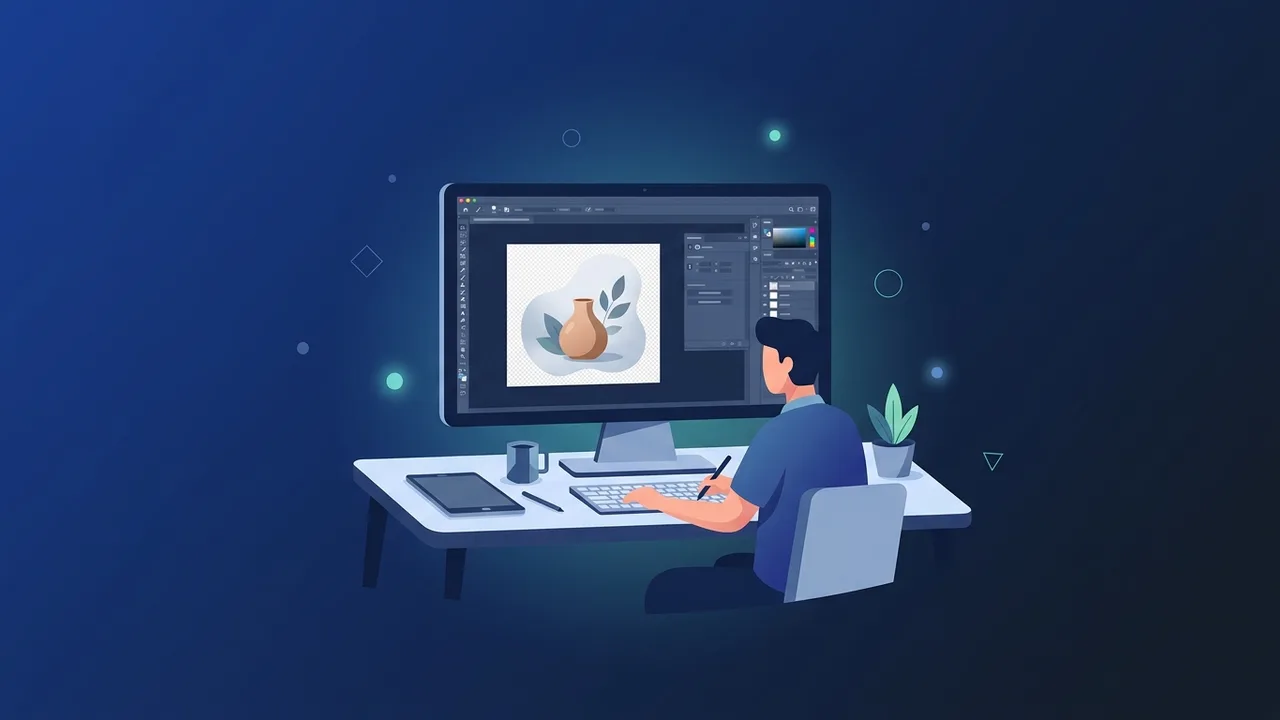
Overview of Photoshop background
The background of any visual project is the essential canvas that establishes depth, realism, and context. Within Adobe Photoshop, a professional Photoshop background is much more than a simple empty area; it represents the complete visual environment that tells a cohesive story and supports your design's core marketing or artistic message. Whether you are working with a creative agency in Riyadh or preparing high-quality product images for local Saudi e-commerce stores on platforms like Salla or Zid, mastering background manipulation is what separates amateur work from a polished, high-converting product that immediately commands user trust.
These backgrounds vary greatly depending on the project scope. For instance, clean white backdrops are the industry standard for e-commerce catalog photography. Conversely, colorful gradient backgrounds bring energy and a modern aesthetic to social media ads, while complex digital compositing blends natural landscapes or futuristic smart cities to simulate highly realistic or imaginative environments that captivate your target audience.
Key Features
Manipulating your Photoshop background comes with several professional advantages that empower designers to push the boundaries of creative editing. Key benefits include:
- Non-Destructive Editing: By employing layer masks rather than traditional erasing tools, you preserve original image data, allowing you to tweak, restore, or change elements dynamically at any project stage without losing original quality.
- AI-Powered Compositing: Modern features like Generative Fill analyze your main subject's lighting and shadow structure, letting you generate or substitute backdrops with unmatched contextual awareness and style integration.
- Perfect Color Harmony: Built-in blending and matching algorithms help reconcile color temperature differences between your isolated subject and the new background automatically, creating an authentic overall look.
- Advanced Edge Control: Precision selection workspaces allow you to isolate fine, organic details like wispy hair, smoke, or transparent glass with absolute clarity, preventing any unnatural halos around your elements.
How to Use
To successfully change or edit a Photoshop background with flawless blending, follow this structured, step-by-step technical guide:
Step 1: Open Your File and Unlock the Layer
Launch Adobe Photoshop and import your target image. In the Layers panel, look for the layer labeled "Background" which displays a small padlock icon. Double-click this padlock to convert it into a standard editable layer, giving you full control over its transparency, position, and stack order.
Step 2: Isolate the Main Subject
Choose the Quick Selection Tool from your toolbar or simply navigate to the top menu bar and select Select > Subject. Photoshop's advanced machine learning algorithms will detect the boundaries of your subject and create a precise outline around it in seconds.
Step 3: Create a Non-Destructive Layer Mask
With your subject selection active, navigate to the bottom of your Layers panel and click the "Add Layer Mask" icon. This instantly hides the original background, leaving your primary subject perfectly isolated on a transparent grid without permanently erasing any pixels.
Step 4: Place the New Photoshop background and Adjust Scaling
Drag and drop your chosen new image into the active workspace. To place it correctly, go to your Layers panel and drag this new image layer directly underneath your masked subject layer. Use the shortcut Ctrl + T (or Cmd + T on Mac) to scale and align the background naturally to fit your workspace without stretching.
Step 5: Harmonize Color and Lighting
To make the composition look realistic, select your isolated subject layer, then go to Image > Adjustments > Match Color. Set the current document as the "Source" and target your new background layer under the "Layer" dropdown. The tool will automatically calibrate the subject’s highlights, midtones, and shadows to blend seamlessly with the new environment.
Common Questions
How do I make a Photoshop background transparent?
To make a background transparent, unlock the default layer by clicking the lock icon, select the background area using tools like the Magic Wand or Select Subject, and then apply a Layer Mask or hit Delete on your keyboard to clear the pixels.
What is the best file format to save images with transparent backgrounds?
The best format is PNG (Portable Network Graphics). Unlike JPEG, PNG supports full alpha-channel transparency, keeping your background clear and maintaining crisp edges when used across different media or websites.
How can I clean up rough or jagged edges after changing a background?
Double-click your Layer Mask to open the Select and Mask workspace. Use the Refine Edge Brush Tool to smooth out challenging areas like hair or fur, and adjust the "Feather" slider slightly to blend the edges naturally.
Can I generate a completely new background using AI?
Yes, by using the "Generative Fill" feature. Simply invert your subject selection to select the background, click "Generative Fill" in the contextual taskbar, type a text prompt of your desired scene in English, and select from the generated options.
Important Tips
To achieve professional, commercial-grade designs suitable for competitive markets, implement these crucial design tips:
- Match Light Source Directions: Always analyze where the primary light is coming from on your subject. Ensure your chosen backdrop shares the same lighting angle to maintain physical realism.
- Use High-Resolution Elements: Never use low-quality or pixelated images for your Photoshop background. A mismatched resolution immediately ruins the professional look of your final composition.
- Build Believable Contact Shadows: Ground your subject by manually drawing subtle contact and cast shadows underneath them. Without shadows, your subject will appear to be floating unnaturally in space.
- Keep Layers Well-Organized: Label every layer correctly and group related assets together. This makes it much easier to return to your design files for future adjustments or client requests.
Conclusion
Mastering how to manipulate, refine, and replace a Photoshop background is a fundamental skill that transforms ordinary photographs into stunning, professional-grade compositions. By combining precise selection techniques with color harmonization tools, you can easily produce highly persuasive visuals that captivate your audience and elevate your design portfolio.
If you need a genuine Adobe Master Collection 2025 Windows Lifetime license, you'll find it at ABMKeys at a fair price with instant WhatsApp delivery.
Frequently Asked Questions
How do I make a Photoshop background transparent?
What is the best file format to save images with transparent backgrounds?
How can I clean up rough or jagged edges after changing a background?
Can I generate a completely new background using AI?
You can get a genuine license from ABMKeys at a competitive price with instant WhatsApp delivery.
Buy Now