
Photoshop Arabic Step by Step
Learn how to correctly enable Photoshop Arabic settings, configure the Middle Eastern text engine, and fix text direction issues for professional designs.
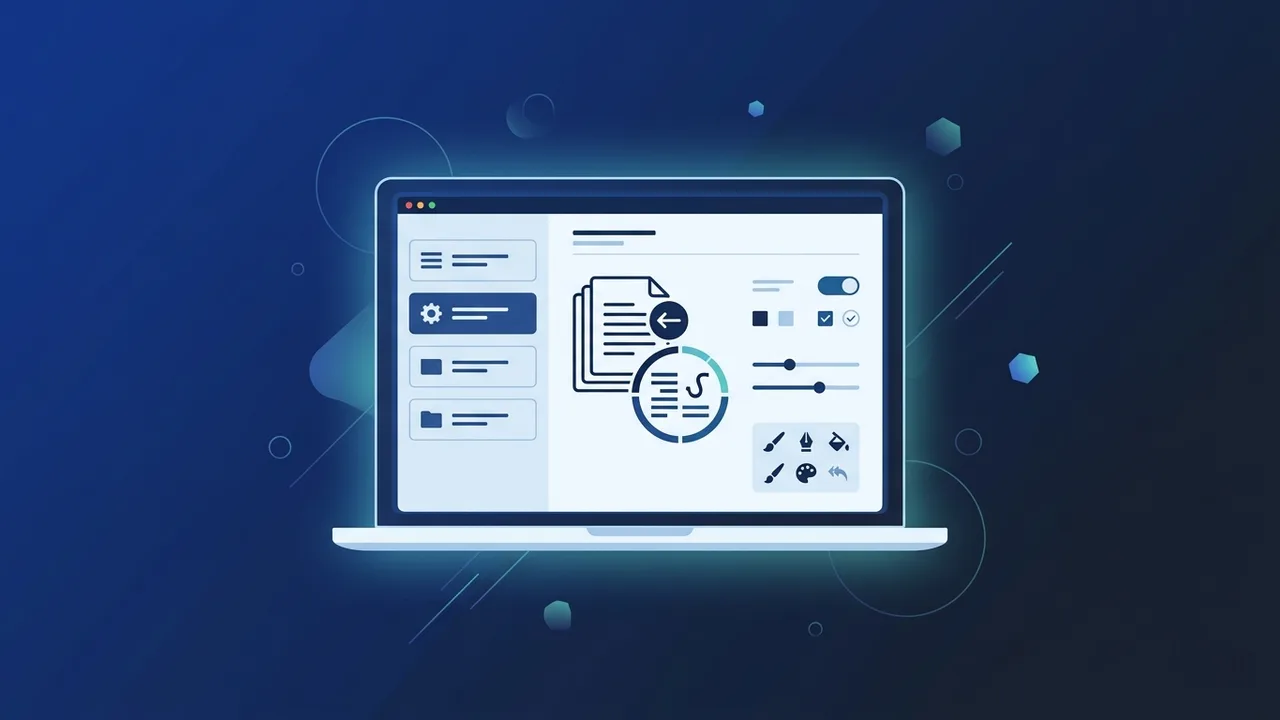
Overview of Photoshop Arabic
The digital design landscape in Saudi Arabia is experiencing phenomenal growth, driven by digital transformation initiatives and Vision 2030. To cater to local audiences, designers and businesses require sophisticated software configurations capable of handling complex Arabic scripts. This is where Photoshop Arabic settings become crucial. It refers to the optimization of Adobe Photoshop with Middle Eastern typography features to support correct right-to-left layout direction and authentic Arabic script rendering.
In the past, working with Arabic text in international design programs presented major challenges, such as reversed characters and disconnected letters. However, with Adobe's modern layout engines, setting up Photoshop Arabic correctly ensures a smooth, native design environment that respects the rich aesthetics of Middle Eastern typography and calligraphy.
Key Features
Configuring your workspace for Middle Eastern typography unlocks several essential features tailored for Arabic-centric professional designs:
- Middle Eastern Text Engine: Offers dedicated text rendering that formats Arabic letters in their correct initial, medial, final, and isolated forms naturally.
- Right-to-Left (RTL) Layout: Enables natural paragraph flow, making it simple to write and format Arabic sentences, as well as mix bilingual English and Arabic text flawlessly.
- Kashida and Justification: Gives creators full control over extending Arabic letter-joining strokes (Kashidas) to justify paragraphs neatly, a core requirement for Saudi publication designs.
- Digit System Customization: Allows designers to switch between standard Western Arabic numerals and Eastern Arabic numerals to fit official documentation or creative themes.
How to Use
To enable the Photoshop Arabic workspace and ensure all your layout functions operate smoothly without text alignment glitches, follow this step-by-step procedure:
Step 1: Open Type Preferences
Launch the application. Navigate to the top menu bar, select Edit, scroll down to Preferences, and then click on Type.
Step 2: Enable the Middle Eastern Layout Engine
In the text preferences window under 'Choose Text Engine Options', select the option labeled Middle Eastern and South Asian. Click OK to confirm.
Step 3: Restart the Application
For these system-level typographic changes to take effect properly, close Photoshop entirely and relaunch it.
Step 4: Set the Paragraph Direction
Create a new canvas and select the Type Tool. Open the Paragraph panel (Window > Paragraph) and click the Right-to-Left button. Your characters will now flow seamlessly and connect perfectly.
Common Questions
Creative professionals frequently face minor technical hiccups when setting up their workspaces for regional typography. This section aims to provide quick, reliable troubleshooting steps for configuring Photoshop Arabic and avoiding frustrating layout errors during crucial project deadlines.
Whether dealing with reversed sentences or misplaced diacritics, almost all formatting issues stem from using incorrect layout engine preferences or utilizing outdated, unlicensed software copies that lack robust language support packs.
Important Tips
To master Middle Eastern layout designs and deliver impeccable visual projects, keep these industry-proven tips in mind:
- Avoid Unofficial Software: Always rely on genuine licenses. Counterfeit or modified software builds often break the integrated font cache, causing rendering crashes or missing language options.
- Select Clean Typography: Use highly readable, modern Arabic Google Fonts (such as Tajawal, Cairo, or Montserrat Arabic) that reflect a clean corporate image suitable for the Saudi market.
- Mind the Line Spacing: Arabic characters feature high ascenders, deep descenders, and accent marks. Ensure you increase your line leading slightly compared to standard English rules to prevent overlap.
Conclusion
Configuring Photoshop Arabic correctly is a mandatory step for any professional designer targeting the Saudi market. By utilizing the built-in Middle Eastern text engine and choosing the right settings, you can eliminate structural text errors and focus entirely on creating beautiful, localized visuals.
If you need a genuine Adobe Master Collection 2025 Windows Lifetime license, you'll find it at ABMKeys at a fair price with instant WhatsApp delivery.
Frequently Asked Questions
Why are my Arabic letters disconnected and reversed in Photoshop?
How do I activate the Right-to-Left text direction?
Is the Arabic version of Photoshop separate from the global version?
Does using genuine software resolve Arabic font compatibility issues?
You can get a genuine license from ABMKeys at a competitive price with instant WhatsApp delivery.
Buy Now