
Parallels Desktop 20 Business Explained Simply
Parallels Desktop 20 Business is a professional virtualization tool that lets Mac users run Windows and other operating systems seamlessly on the same device. The Business edition adds enterprise-grade management and support features for teams and organizations. This article covers everything beginners need to know to get started.
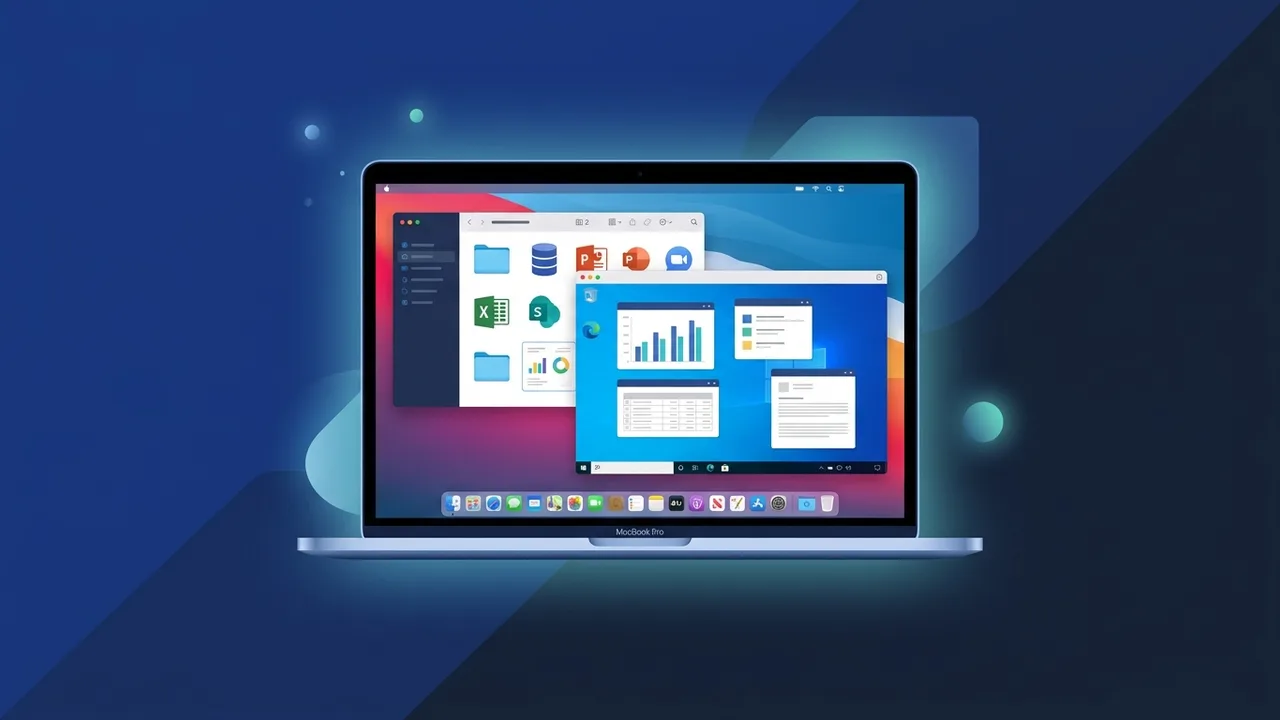
Overview of Parallels Desktop 20 Business
Parallels Desktop 20 Business is a professional virtualization solution designed specifically for Mac computers. It allows users to run Windows, Linux, and other operating systems simultaneously alongside macOS — all on the same machine, without rebooting or switching between drives. The result is a seamless, dual-environment workspace that dramatically expands what a Mac user can accomplish.
The Business edition takes this capability further by adding enterprise-grade features tailored for organizations, IT administrators, and professional teams. Whether you are managing a small startup or a mid-sized enterprise, Parallels Desktop 20 Business provides the tools needed to deploy, monitor, and maintain virtual environments across multiple devices from a single management interface.
Version 20 represents the latest generation of this software, bringing meaningful performance improvements, deeper integration with Apple Silicon chips, and expanded support for modern cloud workflows. For anyone new to virtualization, this article provides a clear, beginner-friendly explanation of what the software does, why it matters, and how to get started.
Key Features of Parallels Desktop 20 Business
Parallels Desktop 20 Business includes a rich set of features that distinguish it from both its consumer counterpart and competing virtualization tools:
- Seamless Windows Integration: Run Windows applications directly within macOS without switching screens or rebooting. Windows apps appear in the macOS Dock and taskbar just like native Mac applications.
- Optimized for Apple Silicon: Version 20 is fully optimized for M1, M2, M3, and M4 processors, delivering fast virtual machine performance even on resource-intensive tasks such as software development, CAD design, or data processing.
- Centralized License Management: The Business edition includes an administration portal that allows IT managers to deploy and manage licenses across multiple machines within the organization, saving time and reducing configuration errors.
- Priority Technical Support: Business subscribers receive priority access to the technical support team, ensuring faster resolution of issues and minimal downtime for critical operations.
- Advanced Cloud Integration: The software integrates with cloud management platforms, making it possible to provision and update virtual environments remotely — a major advantage for distributed teams.
- Automated Snapshots and Backup: Built-in snapshot functionality lets users save the state of a virtual machine at any point, providing a reliable safety net before making system changes or installing untested software.
- USB and Peripheral Support: Connect USB devices, printers, and other peripherals directly to the virtual Windows environment, just as you would with a physical Windows PC.
- Shared Folders and Clipboard: Transfer files and copy-paste content between macOS and Windows effortlessly using shared folder support and cross-platform clipboard synchronization.
Together, these features make Parallels Desktop 20 Business a comprehensive platform for organizations that rely on Mac hardware but need Windows-only applications as part of their daily workflows.
How to Use Parallels Desktop 20 Business
Getting started with Parallels Desktop 20 Business is straightforward, even for users with no prior experience in virtualization. Here is a step-by-step overview of the process:
- Obtain a Genuine License: Purchase an authentic license key from a trusted source to ensure full access to updates and technical support.
- Download and Install: Download the installer from the official website and run it on your Mac. The installation wizard guides you through each step and completes within minutes.
- Create a Virtual Machine: Launch the software and follow the setup assistant to create a new virtual machine. Select the operating system you wish to install — Windows is the most common choice — and the assistant handles the configuration automatically.
- Allocate Resources: Assign the amount of RAM and storage space you want to dedicate to the virtual machine. For business use, allocating at least 4 GB of RAM and 60 GB of storage is generally recommended for a smooth Windows experience.
- Install Your Applications: Once Windows is running inside the virtual machine, install the Windows applications your work requires — just as you would on a standard Windows PC.
- Switch Between Environments: Use Coherence Mode to run Windows applications directly within the macOS interface without a visible Windows desktop, or use Full Screen Mode for a complete Windows experience on demand.
For organizations deploying Parallels Desktop 20 Business at scale, the administration console provides tools for mass deployment, license assignment, and remote configuration — significantly reducing the burden on IT teams.
Common Questions About Parallels Desktop 20 Business
Many users — especially those new to Mac virtualization — have recurring questions when evaluating Parallels Desktop 20 Business. The FAQ section below addresses the most frequently raised topics in detail.
Important Tips for Getting the Most Out of Parallels Desktop 20 Business
To maximize productivity and system stability when using Parallels Desktop 20 Business, keep the following practical tips in mind:
- Keep the Software Updated: Regular updates improve performance, fix security vulnerabilities, and ensure compatibility with the latest macOS releases. Enable automatic updates to stay current without manual effort.
- Match Resources to Workload: Allocate more RAM and CPU cores to the virtual machine when running demanding applications. Insufficient resources are the most common cause of sluggish performance in virtual environments.
- Use Snapshots Before Major Changes: Before installing new software or modifying system settings inside the virtual machine, take a snapshot. This allows you to restore the previous state instantly if something goes wrong.
- Verify macOS Compatibility: Always check that your current version of Parallels Desktop 20 Business is compatible with your macOS version before upgrading the operating system, especially after major macOS releases.
- Leverage the Business Administration Portal: If you are managing multiple machines, invest time in learning the centralized management features. They can significantly reduce deployment time and help enforce consistent configurations across your organization.
- Use Genuine Licenses Only: A legitimate license ensures uninterrupted access to technical support, security patches, and feature updates — all of which are critical for business continuity.
Conclusion
Parallels Desktop 20 Business is a mature, well-engineered solution that bridges the gap between macOS and Windows in professional environments. Its combination of ease of use, high performance on Apple Silicon, and enterprise-focused management tools makes it a compelling choice for individuals and organizations that need to run cross-platform workflows without compromising efficiency.
For businesses operating in environments where both Mac and Windows applications are essential — a scenario increasingly common across sectors — Parallels Desktop 20 Business eliminates the need for separate hardware, reduces IT overhead, and keeps teams productive on a single device.
Whether you are an IT administrator evaluating options for your organization or an individual professional looking to expand what your Mac can do, Parallels Desktop 20 Business offers a reliable and feature-rich foundation for modern work.
You can get a genuine Parallels Desktop 20 Business license from ABMKeys at a competitive price with instant WhatsApp delivery.
Frequently Asked Questions
Is Parallels Desktop 20 Business compatible with Apple Silicon processors?
What is the difference between Parallels Desktop 20 Business and the Pro edition?
Does running Windows through Parallels Desktop 20 Business slow down the Mac?
Does Parallels Desktop 20 Business include a Windows license?
You can get a genuine license from ABMKeys at a competitive price with instant WhatsApp delivery.
Buy Now