
Office 2024 Pro Plus Windows 3 Devices: The Right Way to Do It
Learn how to easily install and activate your Office 2024 Pro Plus Windows 3 Devices license step-by-step. Get deep technical instructions to run your workspace smoothly on three PCs.
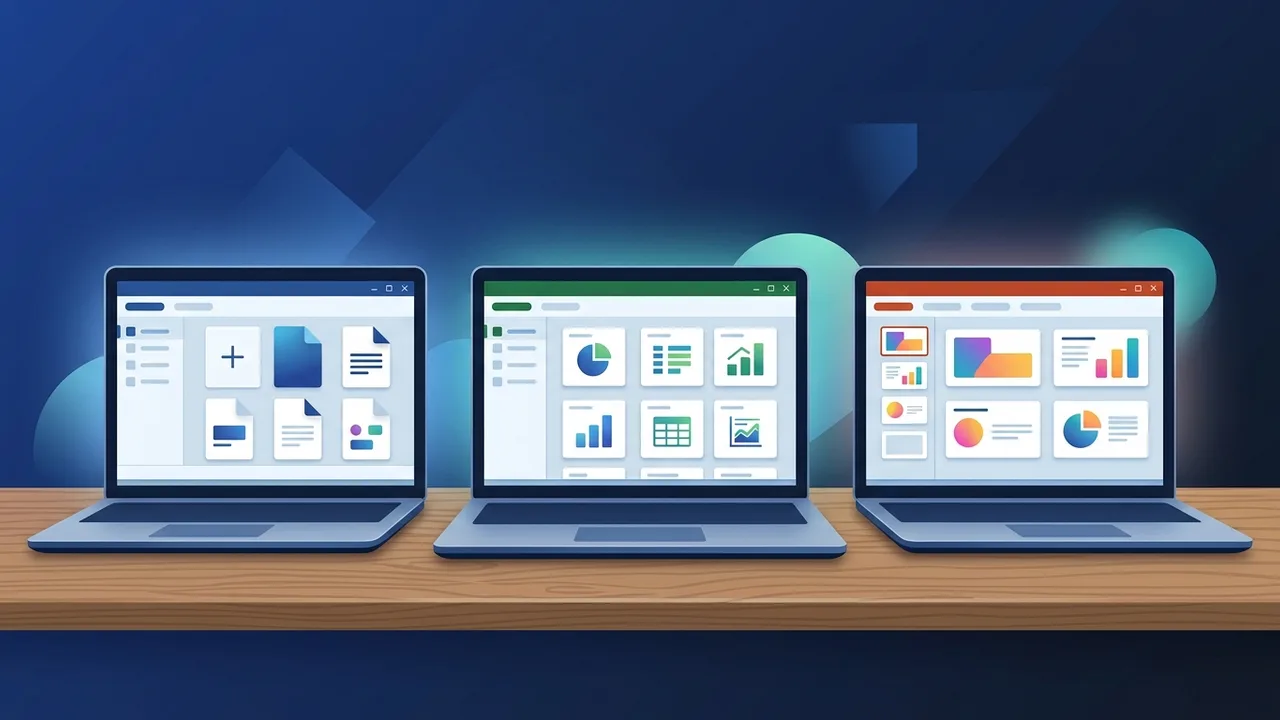
In today's fast-paced digital business landscape in Saudi Arabia, access to reliable and high-performance productivity tools is essential. Many professionals and businesses are moving away from monthly subscription fatigue, looking instead for robust lifetime licensing models. This is where the Office 2024 Pro Plus Windows 3 Devices bundle stands out as an exceptional choice. By offering a permanent solution for up to three computers, it provides unmatched flexibility and efficiency, allowing teams and individuals to manage their workloads smoothly across multiple workstations without recurring costs.
Overview of Office 2024 Pro Plus Windows 3 Devices
This specific release from Microsoft represents the latest milestone in stand-alone office suites. Designed for power users, it bundles essential applications including Word, Excel, PowerPoint, Outlook, Access, and Publisher under a perpetual license model. The defining feature of this particular package is its multi-device capability, enabling users to activate the suite on up to three separate Windows-based PCs (fully compatible with Windows 10 and Windows 11).
This licensing structure perfectly matches the hybrid working patterns of the modern Saudi market. Professionals often transition between a main office desktop, a portable laptop for meetings, and a home setup. Deploying Office 2024 Pro Plus Windows 3 Devices across these systems ensures that you have identical, fully featured tools wherever you work, with all your offline preferences and performance configurations synchronized seamlessly.
Key Features
Choosing Office 2024 Pro Plus Windows 3 Devices delivers several practical advantages that improve daily workflow execution:
- Optimized Performance: Built on a modern codebase, this version opens large documents faster and handles database heavy-lifting in Excel with reduced CPU usage compared to older iterations.
- Modern Data Tools: Excel 2024 introduces refined dynamic arrays, improved search functions, and advanced data visualization options, which are highly beneficial for financial analysts and operations managers.
- Refined Visual Design: The interface has been visually aligned with Windows 11 aesthetics, offering a clean, distraction-free environment that promotes focus.
- Enterprise-Grade Security: With robust security layers in Outlook and Excel, user data is protected against modern phishing threats, satisfying local Saudi cybersecurity compliance guidelines.
- Full Offline Autonomy: The software runs entirely on your local machine, removing the dependency on an active internet connection to edit or view files.
How to Use
Setting up your Office 2024 Pro Plus Windows 3 Devices requires following a clean and orderly process to ensure the digital product key links correctly to your Microsoft account and deploys across your selected systems without error.
Step 1: Prepare Your System
Before running the installer, ensure that you remove all previous installations or trials of office software from your system. Leftover files can cause licensing conflicts. Use the official Microsoft Support and Recovery Assistant tool to perform a deep clean, then restart your PC.
Step 2: Redeem and Link the License Key
Navigate to the official setup page at setup.office.com. Log in with your primary Microsoft account. Enter the 25-character digital key provided with your purchase. This step links the perpetual license permanently to your account, ensuring you can manage or reinstall it later.
Step 3: Download and Install
Once the key is linked, you will be redirected to your account's Services and Subscriptions page. Click the "Install" button to download the setup file. Run the installer and let the process run in the background. Keep your internet connection stable until the setup is complete.
Step 4: Activate on Additional Systems
Open Word or Excel, navigate to the "Account" menu, and sign in using the same Microsoft account. To activate the license on your second and third devices, repeat the installation steps on those systems and sign in with the identical account credentials.
Troubleshooting Technical Setup Issues
If you encounter installation error codes like 30015, temporarily disable third-party antivirus utilities and verify that your system drive has at least 10 GB of free space.
Common Questions
Many users wonder about the specific limitations and flexibility of this multi-device bundle. Saudi professionals frequently look for clear answers regarding operating system compatibility and transfer limits. Below, we address these specific technical queries to help you manage your digital assets efficiently.
Important Tips
To get the best experience and protect your software investment, keep these key technical tips in mind:
- Keep your Microsoft account credentials safe and secure, as they hold the key to managing your multi-device setup.
- Keep automatic updates enabled to ensure your applications receive critical stability patches and safety enhancements.
- Avoid any third-party activation tools or crack files, which can compromise system integrity and void your genuine activation status across all devices.
Conclusion
Investing in official software licenses guarantees steady performance, comprehensive security, and an uninterrupted workspace. The Office 2024 Pro Plus Windows 3 Devices package represents an ideal, cost-effective productivity foundation for Saudi professionals and small businesses.
You can get a genuine Office 2024 Pro Plus Windows 3 Devices license from ABMKeys at a competitive price with instant WhatsApp delivery.
Frequently Asked Questions
Can I activate Office 2024 Pro Plus Windows 3 Devices on a Mac?
What happens if one of the three activated devices fails?
Does the Office 2024 Pro Plus Windows 3 Devices bundle require an annual subscription?
How can I resolve error codes during the installation process?
You can get a genuine license from ABMKeys at a competitive price with instant WhatsApp delivery.
Buy Now