
Microsoft Windows 11 from Zero to Pro
Learn how to configure Microsoft Windows 11 step by step, exploring its primary features, usage guides, and essential security practices.
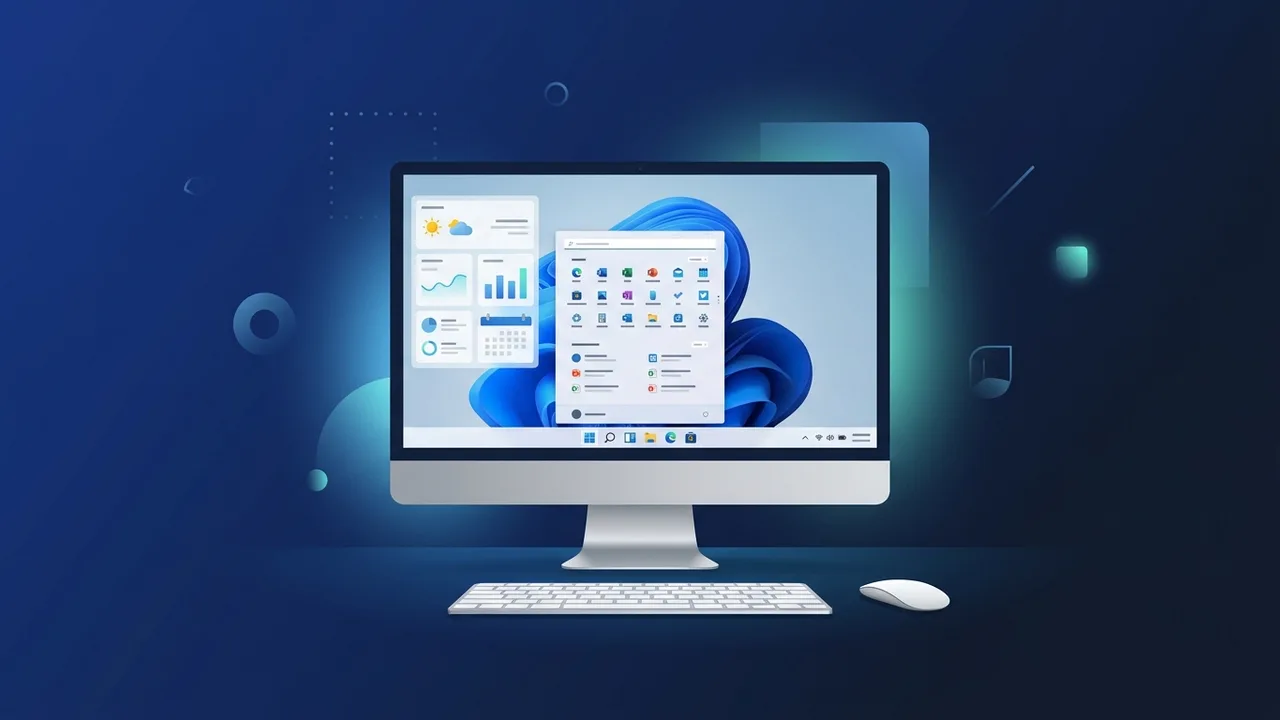
A modern operating system is the cornerstone of daily productivity for both individuals and organizations, and Microsoft Windows 11 represents a massive leap forward in this domain. This operating system is meticulously engineered to satisfy the demands of users in Saudi Arabia who seek a more secure, organized, and lightning-fast digital workspace. This article focuses on delivering clear, actionable instructions to help you understand, configure, and utilize the system efficiently, ensuring you maximize its full potential.
Overview of Microsoft Windows 11
As the latest unified operating system developed by Microsoft, Microsoft Windows 11 serves as a substantial upgrade over its predecessors. The adjustments are not merely cosmetic; they penetrate deep into the system's core architecture to establish higher standards of protection and operational stability. The OS mandates specific hardware prerequisites to guarantee fluid performance, such as TPM 2.0 security chip compatibility and modern multi-core processors. This reflects Microsoft's commitment to strengthening cybersecurity and shielding user data against evolving digital threats.
The system fundamentally aims to simplify the desktop experience with a contemporary design language characterized by rounded corners, subtle animations, and clean layouts. Furthermore, it optimizes system resource allocation (such as RAM and CPU power), making it an outstanding choice for professionals, students, and developers in the Saudi market looking for a stable and reliable workspace.
Key Features
The Microsoft Windows 11 environment introduces an array of pioneering features that distinguish it from previous releases. The most prominent key features include:
- Centered Start Menu & Taskbar: The redesigned Start Menu is now centrally positioned, allowing rapid access to pinned applications and your most recently accessed cloud files.
- Snap Layouts: This feature enables you to organize multiple open windows on your display into various grid formats with a single click, taking multitasking productivity to the next level.
- Seamless Microsoft Teams Integration: Communication is simplified with Teams directly integrated into the taskbar, allowing you to launch chats and video calls instantly.
- Advanced Gaming Performance: Integrating Auto HDR and DirectStorage technologies, the operating system yields stunning visual fidelity and significantly faster load times for modern gaming.
- Personalized Widgets: A dedicated, slide-out panel delivers personalized AI-powered content, including local weather updates, news feeds, calendar events, and custom checklists.
How to Use
To acquire the finest experience from Microsoft Windows 11, you can implement these practical steps to configure and navigate the operating system correctly:
Step 1: Verify Hardware Compatibility
Before initiating any installation, confirm that your PC meets the minimum system requirements. Download the official PC Health Check utility from Microsoft to quickly inspect your processor compatibility, RAM capacity, and the status of your TPM 2.0 chip.
Step 2: Upgrade or Perform a Clean Installation
If your current machine is fully compatible, you can perform a free upgrade directly via Windows Update. Alternatively, downloading the official ISO file allows you to create a bootable USB drive for a clean installation, which is highly recommended for pristine performance.
Step 3: Initial Setup & Personalization
Upon completing the installation, follow the on-screen prompts to select your region, language settings, and keyboard input layout. We strongly suggest signing in with your Microsoft account to automatically sync your settings, layout configurations, and cloud files.
Step 4: Managing Desktops and Windows
Create multiple virtual desktops to split your professional work from personal projects. To arrange your working workspace, hover your mouse cursor over the maximize button of any active window and pick your desired layout pattern to distribute your apps neatly.
Common Questions
Many inquiries frequently arise among users in the local Saudi market regarding this modern operating system:
Is the transition to this operating system entirely free?
Yes, the upgrade is completely free for users who own genuine, active licenses of the previous operating system version, provided their hardware meets the technical criteria.
What is the function of TPM 2.0, and is it mandatory?
TPM 2.0 (Trusted Platform Module) is an integrated hardware security chip that performs cryptographic operations to defend your machine against startup exploits and malware. It is essential for booting the OS safely.
Will my older desktop applications run smoothly on it?
The vast majority of legacy software applications built for older systems are fully compatible and function seamlessly on the modern platform due to advanced compatibility layers.
Does the interface support the Arabic language fully?
Yes, the system offers native, complete support for the Arabic language, modifying menus, orientations, and right-to-left alignments seamlessly for Arab users.
Important Tips
To maintain peak performance and protect your computer while using Microsoft Windows 11, implement the following best practices:
- Keep System Updates Active: Never pause system updates; they deliver critical security patches, stability improvements, and fresh feature enhancements directly to your device.
- Leverage Built-In Security: Windows Security (formerly Defender) provides top-tier protection against malicious files without slowing down system performance, making external software redundant for most users.
- Enable Automated Backups: Set up OneDrive cloud backup to continuously safeguard your critical files and folders against local drive failures.
- Adopt Genuine Product Keys: Utilizing an original activation key guarantees full access to system updates and prevents risks associated with malware bundled in cracked activation utilities.
Conclusion
The modern operating system delivers a superior computing experience that blends design elegance, state-of-the-art security, and productivity tools. By understanding the configuration steps and applying these key tips, users can enjoy a stable, seamless digital workspace that easily handles daily workloads.
If you need a genuine Windows 11 Pro Lifetime license, you'll find it at ABMKeys at a fair price with instant WhatsApp delivery.
Frequently Asked Questions
Can I upgrade to Microsoft Windows 11 for free?
What is the Snap Layouts feature in Microsoft Windows 11?
Why is the TPM 2.0 chip required to run the operating system?
Does Microsoft Windows 11 support legacy software applications?
You can get a genuine license from ABMKeys at a competitive price with instant WhatsApp delivery.
Buy Now