
Learn Windows 11 tablet in Minutes
Learn how to set up and use a Windows 11 tablet step-by-step. Discover key features, touch gestures, and useful tips for maximum productivity.
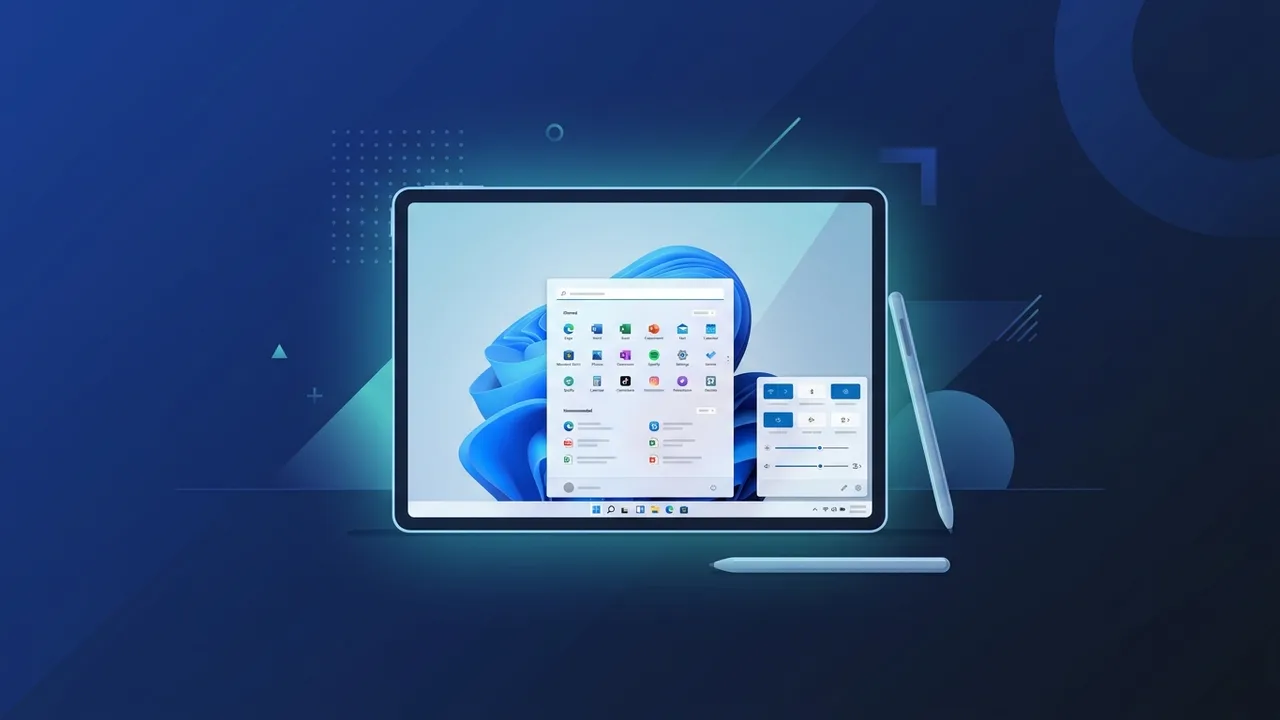
Investing in a Windows 11 tablet can transform the way you work and study, especially if you require portability without compromising on full PC power. This step-by-step guide is designed to help users in Saudi Arabia discover how to properly set up, operate, and maintain their portable system to maximize daily productivity and streamline digital tasks.
Overview of Windows 11 tablet
A modern Windows 11 tablet offers the complete performance of a desktop operating system packaged inside a highly compact, touch-friendly form factor. Microsoft designed this latest operating system version with mobile users in mind, creating wider touch targets, improved scaling, and responsive visual gestures that adapt automatically when a physical keyboard is detached.
In the Saudi market, this versatile device format is highly favored by field engineers, healthcare professionals, and students who need a portable workstation. Whether you are running complex ERP software in an office in Riyadh or sketching design ideas on the go, this technology ensures your productivity tools remain fully accessible and responsive wherever you are.
Key Features
Transitioning from a traditional laptop to a tablet setup brings several innovative features to your fingertips:
- Enhanced Touch Gestures: Multi-finger gestures allow you to switch active windows, minimize apps, or open task previews seamlessly without relying on physical buttons.
- Dynamic On-Screen Keyboard: The redesigned virtual keyboard supports multiple layouts, themes, swipe typing, and accurate voice-to-text input to make typing on glass feel natural.
- Snap Layouts and Groups: Perfect for multitasking on smaller screens, this feature lets you split your interface into organized configurations with just a few taps.
- Advanced Stylus Support: Active pens offer high precision and tactile feedback, making digital signature capture, note-taking, and graphic design highly intuitive.
How to Use
Using a Windows 11 tablet efficiently requires understanding the initial setup and adapting to the touch-centric layout. Follow these steps to optimize your experience:
Step 1: Complete Initial Setup and Syncing
Turn on your device and follow the prompts to connect to Wi-Fi. Sign in with your Microsoft account to synchronize your files, desktop settings, and browser history automatically from your other computers.
Step 2: Learn and Practice Touch Gestures
Familiarize yourself with the system's interactive touch capabilities. Swipe in from the right edge of the screen to view notifications, swipe from the left to access your widgets, and swipe up with three fingers to view all open applications instantly.
Step 3: Organize Your Screen with Snap Layouts
Tap and hold the maximize button on any window to trigger Snap Layouts. Choose a side-by-side layout to keep your web browser open on one half and your document editor open on the other half for fast referencing.
Step 4: Enable Battery Saver Mode
Go to Settings, select System, and tap Power & Battery. Configure the battery saver settings to activate at 20% to dim the display and limit background applications, preserving charge during long trips.
Common Questions
When adopting a portable touch-first system, users often wonder about application compatibility and system performance. Fortunately, because it runs a full desktop OS, you do not have to compromise on features or look for watered-down mobile app versions.
Indeed, a Windows 11 tablet offers complete compatibility with professional software suites, database tools, and browser extensions that mobile operating systems simply cannot run, making it a reliable investment for career professionals.
Important Tips
To maximize the lifespan and efficiency of your Windows 11 tablet, consider implementing the following best practices:
- Acquire Genuine Licensing: Utilizing an authentic operating system ensures you receive critical security updates, driver patches, and technical support to keep your tablet running smoothly.
- Adjust Display and Power Settings: Keep screen brightness in check and adjust sleep timers to prevent screen burn-in and minimize energy consumption.
- Install Driver Updates: Visit Windows Update regularly to ensure your touchscreen, pen input, and graphics hardware have the latest software calibrations.
- Keep the Screen Clean: Use a micro-fiber cloth to clean the glass surface regularly, as oils and dust can interfere with accurate touch registration.
Conclusion
A Windows 11 tablet bridges the gap between unmatched portability and robust desktop productivity. By mastering basic touch gestures, optimizing battery performance, and configuring intuitive multitasking layouts, you can easily turn your tablet into an indispensable workspace suited for both work and entertainment.
If you need a genuine Windows 11 Pro Lifetime license, you'll find it at ABMKeys at a fair price with instant WhatsApp delivery.
Frequently Asked Questions
Can I run standard desktop programs on a Windows 11 tablet?
How does battery saver mode impact performance on this device?
Is an external keyboard mandatory for using a Windows tablet?
What is the best way to secure my tablet from malware?
You can get a genuine license from ABMKeys at a competitive price with instant WhatsApp delivery.
Buy Now