
Learn Windows 11 System Requirements in Minutes
Learn about the official Windows 11 system requirements in detail. This practical step-by-step guide explains the necessary hardware specifications and how to check your PC compatibility.
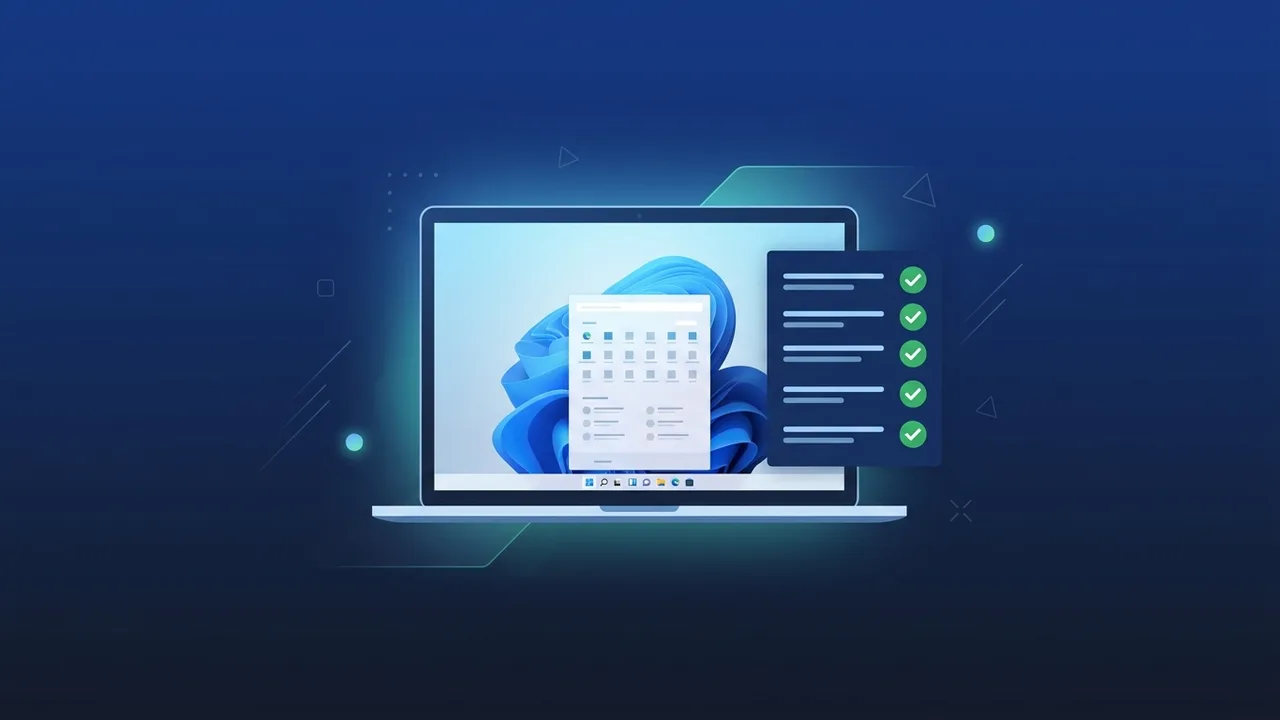
Upgrading to the newest operating system from Microsoft is an essential milestone for individuals and business entities in Saudi Arabia seeking advanced security protocols, refined design, and superior productivity. To ensure your computer is ready for this major transition, you must first thoroughly understand the official windows 11 system requirements. This comprehensive, step-by-step educational guide covers the core hardware specifications, key design features, and practical diagnostic tools you need to successfully prepare your system without unexpected software errors.
Overview of windows 11 system requirements
Microsoft introduced modernized compatibility rules to elevate device security and performance stability. Let us break down the official windows 11 system requirements to see exactly what hardware components are required to complete the installation:
- Processor (CPU): 1 gigahertz (GHz) or faster with 2 or more cores on a compatible 64-bit processor or System on a Chip (SoC). Supported models generally include Intel 8th Generation processors and AMD Ryzen 2000 series or newer.
- Memory (RAM): A minimum of 4 gigabytes (GB) to run modern multitasking operations efficiently.
- Storage: 64 GB or larger available storage space. An Solid State Drive (SSD) is highly recommended for faster booting and responsive app loading times.
- System Firmware: UEFI (Unified Extensible Firmware Interface) with Secure Boot capability.
- TPM: Trusted Platform Module (TPM) version 2.0. This cryptographic security chip is a crucial element for securing digital identities and business data.
- Graphics Card: Compatible with DirectX 12 or later with a WDDM 2.0 driver.
- Display: High definition (720p) display that is greater than 9 inches diagonally, 8 bits per color channel.
Key Features
Meeting these hardware prerequisites unlocks several next-generation capabilities that empower corporate professionals and individual power users:
Hardware-Rooted Security
By enforcing TPM 2.0 and Secure Boot, the system creates a resilient barrier against rootkits, malware, and ransomware. This integration ensures sensitive corporate assets and personal information are protected, aligning with national cybersecurity standards in the kingdom.
Modernized Multitasking
The redesigned interface features a centered taskbar and an intuitive Start Menu that organizes recently opened documents and programs. Features like Snap Layouts allow you to arrange multiple open application windows on your screen, boosting daily work efficiency.
Seamless Collaboration and Gaming
Microsoft Teams is deeply integrated into the taskbar, offering quick chat and video calling. Gamers also benefit from advanced gaming technologies such as Auto HDR for richer visual colors and DirectStorage for faster game asset loading.
How to Use
To check if your PC meets the windows 11 system requirements, follow these precise and practical steps to perform a complete compatibility diagnostic check:
Step 1: Download the PC Health Check Tool
The most straightforward method to evaluate your hardware is using Microsoft's official PC Health Check utility. Download and install this lightweight app on your current Windows 10 computer.
Step 2: Launch the App and Run Diagnostic
Open the program and click the prominent "Check Now" button. The tool will quickly analyze your CPU, RAM, storage configuration, and firmware settings, providing a clear visual report of compatible and incompatible hardware components.
Step 3: Enable TPM 2.0 and Secure Boot via UEFI/BIOS
If the diagnostic report indicates that TPM 2.0 or Secure Boot is missing or disabled, you can often activate them within your motherboard's system BIOS settings:
- Restart your computer and repeatedly press the designated BIOS key (such as F2, Del, or F12) during the startup screen.
- Navigate to the "Security" or "Advanced" tab using your keyboard.
- Locate the TPM setting, which might be labeled as Intel PTT (Platform Trust Technology) or AMD fTPM, and set it to "Enabled".
- Go to the "Boot" settings and ensure "Secure Boot" is enabled.
- Save your configuration changes and exit the BIOS. Your PC will restart normally, allowing you to run the compatibility check again.
Common Questions
Many users in the Saudi marketplace wonder if it is safe to bypass these strict requirements on older computer systems. While workarounds exist, installing the operating system on unsupported hardware is highly discouraged because it compromises security and deprives you of crucial system and driver updates.
Adhering to the official hardware standards ensures a stable, responsive, and secure computer environment that can run the latest software without crashing.
Important Tips
Before initiating any operating system upgrade, keep these vital safety practices in mind to prevent any operational downtime:
- Back Up Your Files: Always copy your important files, work presentations, and personal media to an external hard drive or a secure cloud backup platform before starting the upgrade.
- Update Hardware Drivers: Check the official website of your computer manufacturer and update your system drivers (especially graphics and network cards) to prevent post-upgrade conflicts.
- Ensure Stable Power: If you are upgrading a laptop, keep it plugged into a stable power source to prevent the device from shutting down midway through the operating system installation.
Conclusion
Evaluating your device eligibility and understanding the necessary technical parameters is key to enjoying a secure and modern computing environment. Upgrading your workspace with compliant hardware ensures you are ready for future digital workflows and robust data protection.
If you need a genuine Windows 11 Pro Lifetime license, you'll find it at ABMKeys at a fair price with instant WhatsApp delivery.
Frequently Asked Questions
Can I upgrade to Windows 11 if my processor is not officially supported?
What is TPM 2.0 and is it mandatory for installation?
Is the upgrade from Windows 10 to Windows 11 free?
How much storage space is required to install Windows 11?
You can get a genuine license from ABMKeys at a competitive price with instant WhatsApp delivery.
Buy Now