
Learn Photoshop Software in Minutes
Photoshop software offers powerful tools for professional image editing and creative design. This article breaks down the essential steps, key features, and practical tips to help you reach a professional level quickly.
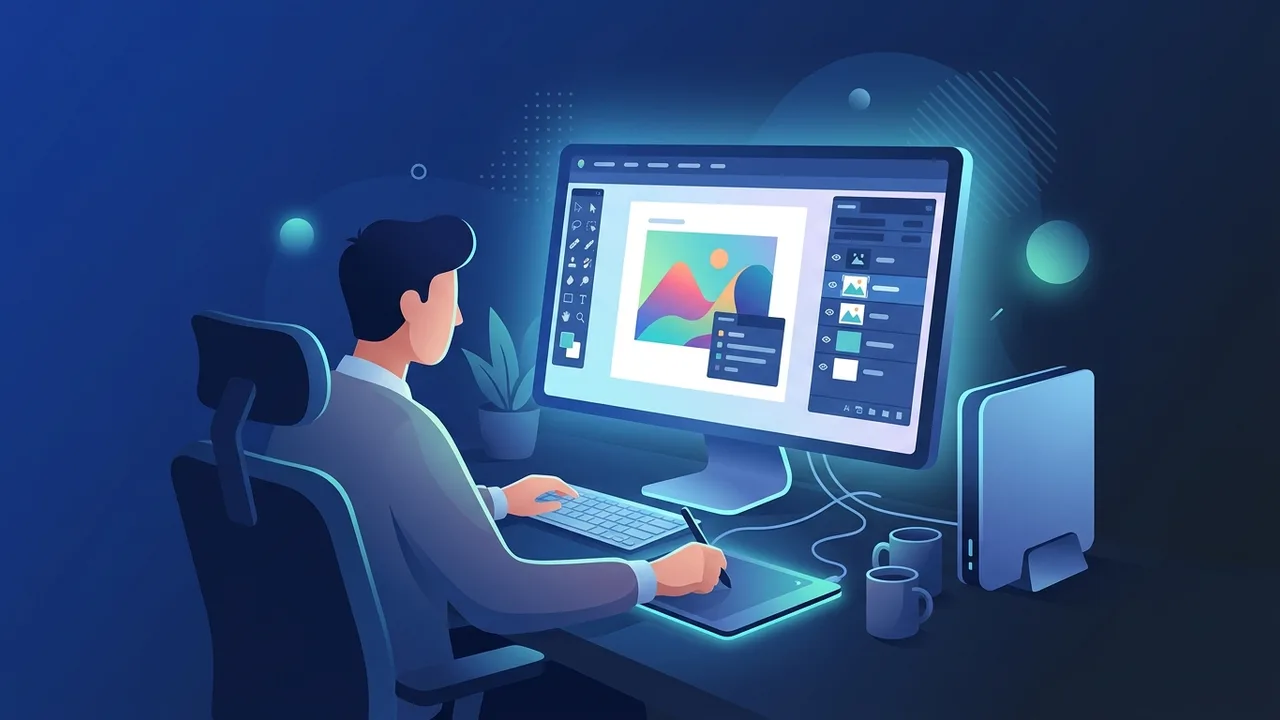
Overview of Photoshop Software
Photoshop software stands as one of the most widely recognized and widely used image editing applications in the world. Since its initial release, it has grown into an essential tool for designers, photographers, marketers, and content creators across every industry. In Saudi Arabia, demand for professional Photoshop skills has risen steadily, driven by the country's expanding digital economy and the growing need for high-quality visual content in business and media.
At its core, Photoshop software gives users precise control over digital images — from simple brightness corrections to complex multi-layer compositions combining photographs, illustrations, and typography. It is available through official subscriptions that ensure access to the latest updates, AI-powered tools, and cloud integration features.
Key Features of Photoshop Software
Understanding the core capabilities of Photoshop software helps users get the most value from it from day one. Here are the standout features:
- Layers Panel: Work on individual elements independently without affecting the rest of the composition — the foundation of non-destructive editing.
- AI-Powered Selection Tools: Select Subject, Select Sky, and Object Finder use machine learning to create precise selections in seconds.
- Filters and Effects Library: Hundreds of built-in filters — from blur and sharpening to artistic effects — all fully customizable.
- Camera Raw Integration: Process RAW files directly within Photoshop for maximum image quality and flexibility.
- Neural Filters: AI-driven tools for skin smoothing, colorizing black-and-white photos, facial expression adjustments, and more.
- Adobe Creative Cloud Sync: Fonts, assets, and projects stay synchronized across all your devices automatically.
How to Use Photoshop Software — A Step-by-Step Guide
The following practical guide walks you through the essential workflow for getting started with Photoshop software effectively.
Step 1: Install the Software and Set Up Your Workspace
After obtaining a genuine license for Photoshop software, sign in to your Adobe account and download the application through the Creative Cloud Desktop app. Verify that your computer meets the minimum system requirements — at least 8 GB of RAM is recommended, along with a dedicated graphics card for smoother performance.
Step 2: Get Familiar with the Interface
The Photoshop interface consists of four key areas: the Tools panel on the left, the Properties and Layers panels on the right, the Menu Bar at the top, and the Canvas in the center. Spend time learning where each tool lives before starting any project — this investment pays off quickly.
Step 3: Open an Image and Protect the Original
Go to File, then Open, and select the image you want to edit. Once it appears in the Layers panel as the background layer, duplicate it immediately using Ctrl+J (Cmd+J on Mac). Always work on the duplicate to keep the original intact.
Step 4: Adjust Lighting and Color
Navigate to Image, then Adjustments to access tools like Brightness/Contrast, Curves, and Hue/Saturation. For a non-destructive workflow, use Adjustment Layers instead — these apply corrections without permanently altering the pixels beneath them and can be modified at any point.
Step 5: Remove or Replace Backgrounds
Use the Quick Selection tool or the one-click Remove Background button to isolate your subject. For complex edges such as hair or fur, open Select and Mask to refine the selection with dedicated edge-detection brushes. This is one of the most-used features in everyday Photoshop work.
Step 6: Add Text and Graphic Elements
Select the Type tool (T) from the toolbar and click anywhere on the canvas to start typing. Customize the font, size, color, and tracking from the options bar at the top. Use Shape tools to add geometric or custom vector shapes, which scale infinitely without quality loss.
Step 7: Export and Save Your Work
Save your project as a PSD file to preserve all layers and maintain full editability. To export the final image for web or print, go to File, then Export, then Export As, and choose the appropriate format — JPEG for photographs, PNG for transparent backgrounds, and WebP for optimized web delivery.
Important Tips for Photoshop Software Users
- Master keyboard shortcuts: Ctrl+Z undoes the last action, Ctrl+T activates Free Transform, and Ctrl+Shift+E merges visible layers. These shortcuts dramatically speed up your workflow.
- Name and organize your layers: Label every layer clearly and group related layers into folders, especially on complex projects with dozens of elements.
- Use Smart Objects: Converting layers to Smart Objects preserves full image quality through repeated resizing and enables non-destructive filter application.
- Automate with Actions: Record a sequence of repetitive steps as a single Action and apply it to batches of images with one click — a major time saver for photographers and designers.
- Study before you create: Analyze professional designs that inspire you and try to understand how they were built before attempting to recreate them.
- Always use a genuine license: A legitimate Photoshop software license guarantees access to security patches, new features, and official Adobe support — critical for professional use.
Common Questions About Photoshop Software
Users frequently ask questions about getting started with Photoshop software, its cost, system requirements, and best learning practices. The FAQ section below addresses the most common queries from users in Saudi Arabia and beyond.
Conclusion
Photoshop software is a long-term investment in your creative and professional capabilities. Whether you are a freelance designer, a marketing professional, or a business owner producing your own visual content, the step-by-step approach outlined in this guide gives you a solid foundation to build on. Consistency and curiosity are the two traits that separate those who truly master the software from those who only scratch its surface.
If you need a genuine Adobe Master Collection 2025 Windows Lifetime license, you'll find it at ABMKeys at a fair price with instant WhatsApp delivery.
Frequently Asked Questions
Is Photoshop software suitable for complete beginners?
What is the difference between Photoshop software and free alternatives?
What are the minimum system requirements for Photoshop software?
Can Photoshop software be used for social media content creation?
You can get a genuine license from ABMKeys at a competitive price with instant WhatsApp delivery.
Buy Now