
Learn Photoshop AI in Minutes
Learn how to use Photoshop AI step by step with our detailed guide covering Generative Fill, writing effective bilingual prompts, and configuring system settings.
What is Photoshop AI (Generative AI) and How Does It Work?
The digital design world has experienced a genuine revolution with the integration of generative AI features. Photoshop AI is at the forefront of this technological leap, powered by the Adobe Firefly engine. This technology allows designers to transform written text prompts into realistic visual elements in seconds, eliminating hours of manual work and streamlining the editing workflow.
The AI image generator Photoshop technology works by analyzing millions of licensed and public domain images. This ensures that any generated content naturally blends with the original image's lighting, perspective, and shadow details. In Saudi Arabia, this innovation is highly valuable as content creators and marketing professionals align with Vision 2030 to embrace cutting-edge digital transformation.
System Requirements for Running AI Features in Photoshop
To fully benefit from modern generative tools, you must ensure your device meets the required technical specifications. Simply acquiring a Photoshop Beta AI download or installing the standard application is not enough; you need a compatible environment to handle cloud-based processes efficiently:
- Active Internet Connection: Generative tools rely heavily on Adobe's cloud servers to process and return images, meaning an active connection is mandatory.
- Modern Operating System: You need Windows 10 (64-bit) or newer, or a compatible version of macOS to run the latest updates properly.
- System Memory (RAM): A minimum of 16 GB RAM is highly recommended for smooth performance during complex AI tasks.
- Valid Adobe Account: Users must log in with an authorized account to access and utilize their monthly generative credits allotment.
Step-by-Step Guide: How to Use Generative Fill in Photoshop
The generative fill feature is the most popular tool in the software today. Follow this guide to learn how to use AI in Photoshop effectively:
Step 1: Make a Selection
Use any selection tool, such as the Lasso Tool or the Rectangular Marquee Tool, to highlight the specific area in your image you want to modify, replace, or add elements to.
Step 2: Access the Contextual Task Bar
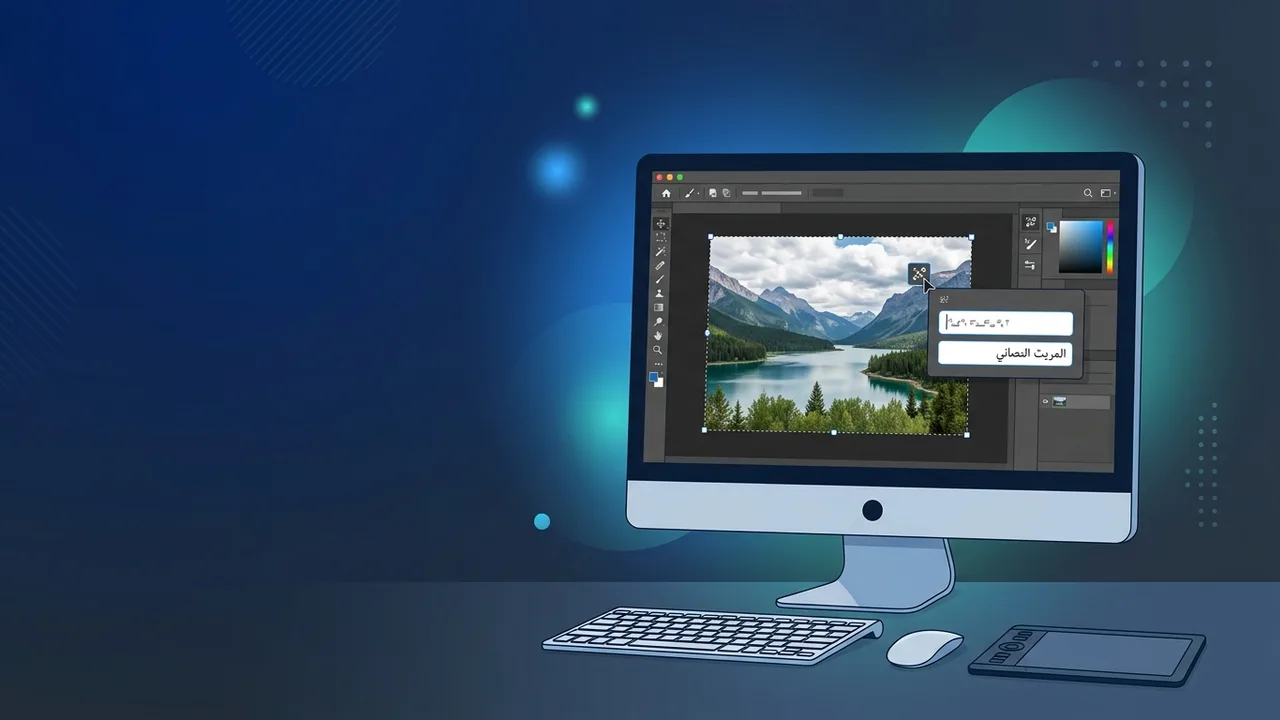
Once you make a selection, the Contextual Task Bar will automatically appear below the selected zone. Click on the "Generative Fill" button to activate the prompt input box.
Step 3: Enter Your Prompt and Generate
Type a clear, descriptive prompt in the text box and click "Generate". The software will process your request and generate three distinct options. You can browse through them and select the option that best fits your design aesthetic.
How to Write Effective Prompts in Arabic and English for Photoshop AI
The final output of your Photoshop AI generative fill depends largely on how you structure your prompt. Fortunately, the system natively supports Adobe Firefly Arabic prompts along with English, providing immense value to creators in Saudi Arabia.
To write highly effective prompts, keep these key points in mind:
- Be Specific and Detailed: Avoid generic terms like "car." Instead, write "a modern red SUV parked on a sandy desert road during sunset."
- Define the Style: State the exact artistic medium, such as "hyper-realistic photograph," "oil painting," or "3D render."
- Avoid Fluff Words: Words like "amazing," "high quality," or "beautiful" do not add value since the AI algorithm focuses on descriptive nouns and adjectives.
- Language Versatility: Feel free to use clear and grammatically correct Arabic prompts; the generator processes them with high accuracy, comparable to English prompts.
Advanced Techniques: Image Expansion and Background Replacement
AI features go far beyond adding tiny items; they also allow you to easily expand images (Outpainting) or completely change complex backgrounds with clean, professional results.
To expand your image, use the Crop Tool to drag the borders outwards and increase the canvas size. Select the new empty spaces, making sure to overlap slightly with the original image border. Click Generative Fill and leave the text prompt completely empty, then click Generate. The system will intelligently analyze the scene and generate seamless matching details to fill the expanded area.
To replace a background, click "Select Subject" from your toolbar, then invert the selection to target only the background. Open the generative panel and write a descriptive prompt for your new setting, such as "a warm, modern office background with soft bokeh lighting."
How to License and Buy Genuine Photoshop in Saudi Arabia
To enjoy stable, secure, and uninterrupted access to these innovative AI tools, buying a genuine license is highly recommended. Cracked software poses severe security risks and lacks the required cloud-based connectivity needed for generative tasks.
When searching for the best Photoshop original license price, you will find multiple flexible tiers tailored for individuals, students, and businesses. A legitimate Creative Cloud Saudi subscription can be easily secured using local payment options, including Mada cards and local credit cards, ensuring a secure payment path and continuous product updates without disruption.
If you need a genuine Adobe Master Collection 2025 Windows Lifetime license, you'll find it at ABMKeys at a fair price with instant WhatsApp delivery.
Frequently Asked Questions
Does Photoshop AI support the Arabic language?
Do I need an internet connection to use Generative Fill?
What are Generative Credits?
Can I use images generated by Photoshop AI commercially?
You can get a genuine license from ABMKeys at a competitive price with instant WhatsApp delivery.
Buy Now