
Learn how to screenshot on Windows 11 in Minutes
Discover the best methods and step-by-step instructions on how to screenshot on Windows 11 using built-in utilities and hotkeys to boost your productivity.
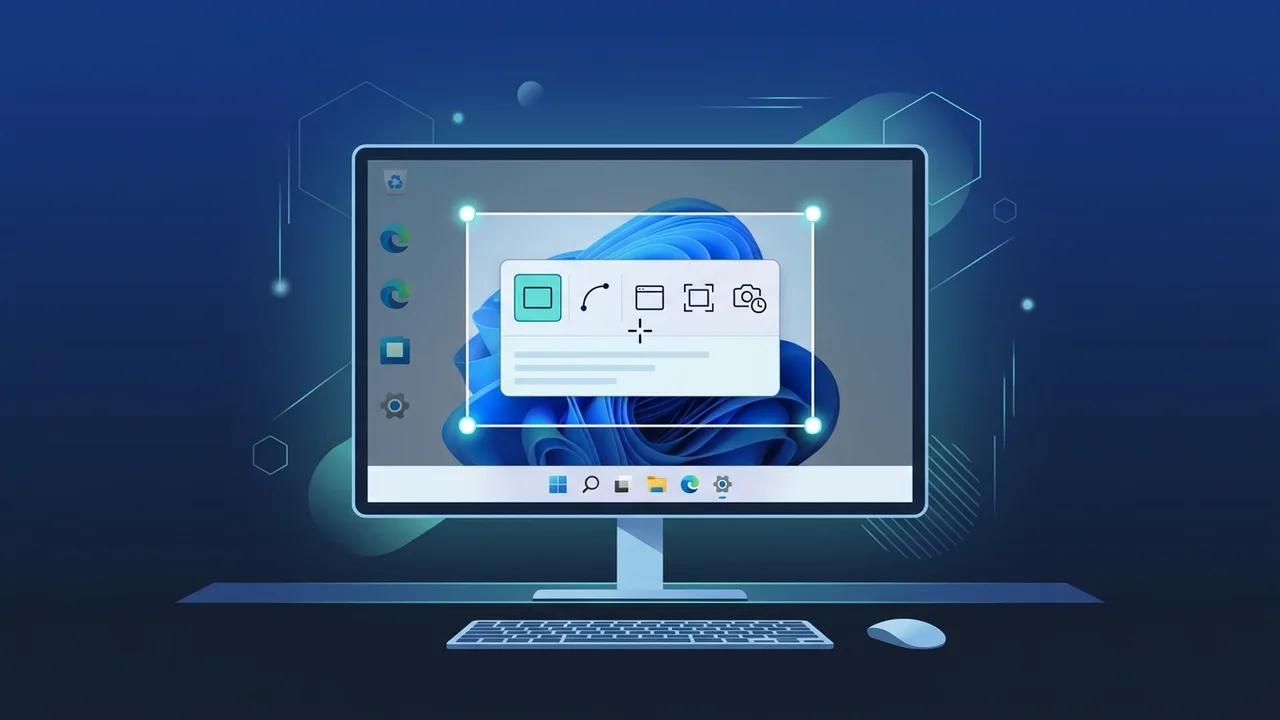
Overview of how to screenshot on windows 11
Windows 11 has introduced a refined user interface and robust native features designed to elevate overall system efficiency and productivity. For corporate professionals, software engineers, educators, and students in Saudi Arabia, knowing how to screenshot on windows 11 is an indispensable skill. Capturing screen visual data is essential for preserving critical online documents, logging digital errors, and clarifying visual feedback. Windows 11 simplifies this process by integrating older, separate screenshot utilities into a single, unified, and powerful tool known as the Snipping Tool. This makes capturing your screen efficient and highly intuitive, removing any reliance on bloated third-party software.
Key Features
The built-in screenshot utilities in Windows 11 offer an array of highly functional features designed to support modern digital workflows:
- Multiple Capturing Modes: Users can capture the entire screen, a specific active application window, a precise rectangular selection, or draw a freeform shape around any area.
- Delayed Capture Timer: This built-in timer allows a delay of 3, 5, or 10 seconds, giving you ample time to prepare menus, open pop-ups, and arrange your screen layout.
- Smart Text Extraction (Text Actions): Driven by OCR technology, the system recognizes text within your captured image, allowing you to instantly copy text or redact confidential data.
- Integrated Screen Recording: Transition easily from taking static screenshots to recording high-definition video clips of selected desktop sections.
- Seamless Auto-Save: Captures are automatically saved to your dedicated pictures directory, preventing data loss even if you close the utility without manual saving.
How to Use
There are several easy and swift methods to implement how to screenshot on windows 11 depending on your practical requirements:
Method 1: The Fast-Access Keyboard Shortcut (Windows Key + Shift + S)
This is the most common and versatile keyboard combination to trigger the specialized screenshot overlay:
- Press the Windows Key + Shift + S keys simultaneously on your keyboard.
- Your active monitor screen will dim, and a dynamic menu of icons will appear at the top center.
- Select your preferred capturing mode (rectangular, freeform, window, or fullscreen).
- Click and drag your mouse pointer over the specific area you want to save.
- Once you release the cursor, the image is copied to your system clipboard, and a notification toast will appear allowing you to edit or save the image file manually.
Method 2: Fullscreen Capture and Immediate Save (Windows Key + Print Screen)
When you need to immediately store a full-screen screenshot to your storage drive without opening any editing interface:
- Press the Windows Key + Print Screen (PrtScn) keys at the same time.
- Your screen will momentarily dim, confirming the capture has been processed.
- Navigate directly to your local file explorer and open Pictures > Screenshots to find your high-resolution PNG file saved instantly.
Method 3: Remap the Print Screen Key to Open Snipping Tool
To access the screenshot tool with a single click, you can configure your system to launch the Snipping Tool using only the Print Screen key:
- Open the system settings application by pressing Windows Key + I.
- Navigate to Accessibility and select the Keyboard settings option.
- Toggle the button labeled "Use the Print Screen button to open screen snipping" to the active position.
- Now, simply pressing the single PrtScn key will trigger your snipping tools instantly.
Method 4: Utilizing the Built-In Xbox Game Bar
This method is highly useful for gamers, media creators, and individuals running full-screen interactive apps:
- Press the Windows Key + G to open the Game Bar control overlay.
- Locate the Capture panel and select the camera icon to save a picture of your currently focused application.
Common Questions
Where are screenshots saved by default in Windows 11?
When you use automatic saving shortcuts, files are placed directly into the path: C:\Users\Username\Pictures\Screenshots. If you use the standard snipping shortcut, the image remains in your computer's temporary clipboard memory until you click the pop-up notification and save it to your desired folder.
Can I capture scrolling web pages in Windows 11?
While the default Snipping Tool does not natively support continuous scrolling capture, you can capture wide pages by zooming out your browser window or utilizing the developer tools screen-capture function built into modern web browsers.
How do I extract text directly from a screenshot?
After taking a screenshot with the Snipping Tool, open the editor and click on the "Text Actions" icon on the top taskbar. The tool will parse the image text, allowing you to highlight, copy, or redact sensitive blocks of information instantly.
Important Tips
- Maintain Folder Organization: Regularly clean and categorize your screenshots directory to avoid accumulation of raw, unnamed images, ensuring a faster workspace search.
- Enable Clipboard History: Press Windows Key + V to turn on clipboard history, which allows you to store and access multiple previous screen grabs sequentially.
- Cloud Storage Backup: Link your screenshots folder with OneDrive to back up your visual documents, ensuring secure access from any mobile phone or external device across Saudi Arabia.
- Prioritize Privacy and Security: When capturing screens containing sensitive bank credentials or private passwords, utilize the integrated redaction feature to blackout delicate text before sharing.
Conclusion
Mastering the various native methods of capturing screens on Windows 11 drastically improves daily output, facilitates precise remote collaboration, and simplifies data logging. Utilizing these native integrated tools protects your device from safety vulnerabilities while providing a clean, professional, and efficient user experience.
If you need a genuine Windows 11 Pro Lifetime license, you'll find it at ABMKeys at a fair price with instant WhatsApp delivery.
Frequently Asked Questions
Where are screenshots automatically saved in Windows 11?
How can I map the Print Screen button to open the Snipping Tool directly?
Does Windows 11 support extracting text from captured screenshots?
What should I do if the Print Screen key is not working?
You can get a genuine license from ABMKeys at a competitive price with instant WhatsApp delivery.
Buy Now