
Learn How to Change Windows 10 Password in Minutes
Learn the detailed, step-by-step methods to change your Windows 10 password via Settings or shortcuts to enhance your PC security and privacy.
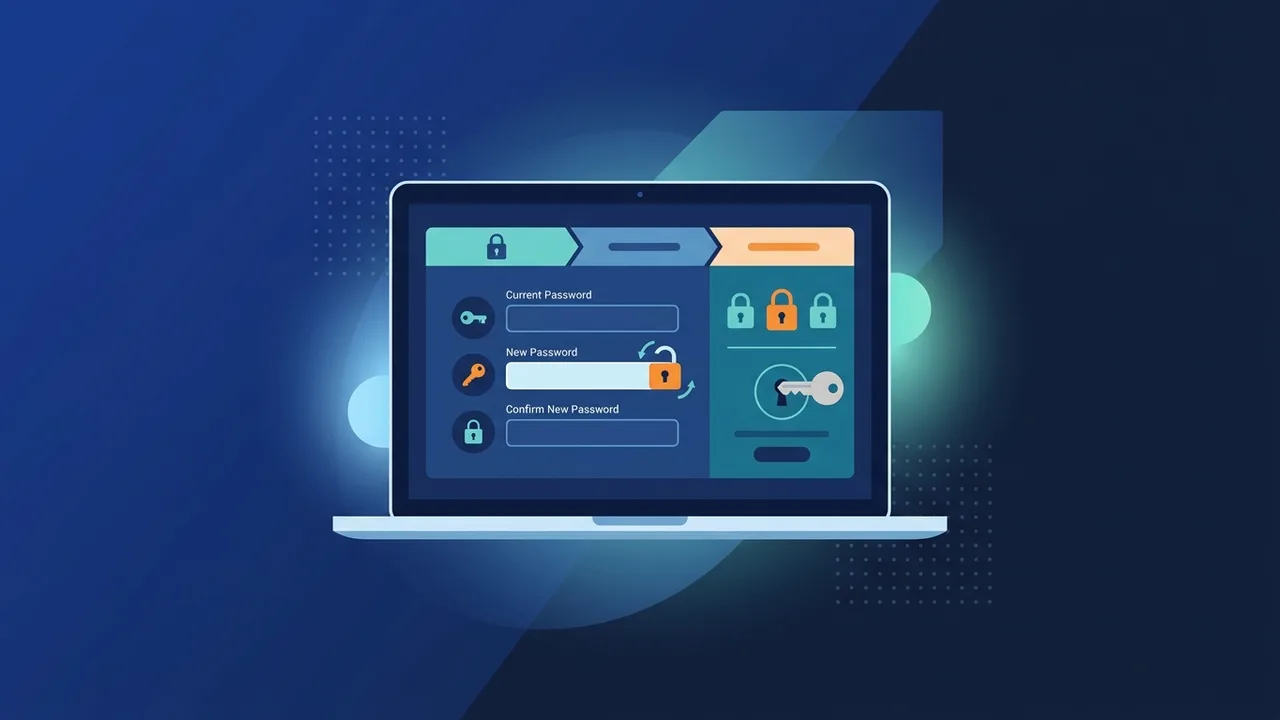
Overview of how to change windows 10 password
Protecting your digital assets has never been more critical, especially for corporate environments and individual users in Saudi Arabia. Understanding how to change windows 10 password is the first step toward securing your operating system against unauthorized local access and potential security breaches. Regularly updating your login credentials is an essential security practice that ensures your personal files, financial records, and sensitive business communications remain completely confidential.
Whether you use your device for remote work, study, or enterprise-level tasks, maintaining a fresh and secure access key is vital. Windows 10 provides several flexible and easy administrative methods to update and manage your local or Microsoft account profiles without requiring complex technical skills or external support tools.
Key Features
When you master the process of how to change windows 10 password, you unlock several crucial security and system advantages that elevate your overall digital computing experience:
- Improved Device Security: Regularly updating your password reduces the risk of password-guessing attacks, brute-force intrusions, and unauthorized physical access to your device.
- Seamless Account Synchronization: If you use a Microsoft account, changing your computer password updates your credentials globally across all connected Microsoft services and devices.
- Individual Profile Privacy: Multi-user setups benefit from unique passwords, ensuring that separate profiles on a shared corporate or family computer remain entirely private and secure.
- Multi-Factor Authentication Support: A strong basic password forms the foundation for adding faster, modern biometric security layers like Windows Hello PIN, face recognition, or fingerprint scanning.
How to Use
To execute the process of how to change windows 10 password, you can select one of the following reliable and straightforward methods based on your preference:
Method 1: Via Windows Settings (The Standard Method)
This is the most common and user-friendly way to update your system credentials:
- Click on the Start menu on the taskbar, then select the Settings (gear icon), or simply press the keyboard shortcut
Windows Key + I. - Inside the Settings panel, navigate to and click on the Accounts category.
- On the left sidebar menu, select the Sign-in options tab.
- Scroll down to find the Password section, click on it to expand the options, and then click the Change button.
- Enter your current password to verify that you are the legitimate account owner, and click Next.
- Type your new secure password in the field, confirm it by typing it again, enter a helpful password hint, and click Next followed by Finish to save your changes.
Method 2: Using the Ctrl + Alt + Delete Keyboard Shortcut
This is an extremely fast method that bypasses the need to navigate through nested system menus:
- Press the
Ctrl + Alt + Deletekeys simultaneously on your keyboard. - On the blue system security overlay screen that appears, click on Change a password.
- Type your existing password in the first input box.
- Enter your desired new password in the second box, and confirm it in the third box.
- Click the submit arrow button next to the confirm box or press
Enterto apply the new settings instantly.
Common Questions
Many desktop and laptop users frequently raise queries regarding system locking issues, account integration, and security recovery options on Windows 10. In the following section, we address these common inquiries directly to help you navigate your security settings without running into administrative errors or locked screens.
Important Tips
To optimize your security while managing the process of how to change windows 10 password, keep these expert-approved guidelines in mind:
- Build Strong, Complex Passwords: Avoid predictable combinations like your name, pet names, sequential numbers, or simple keyboard runs. Use a robust combination of uppercase letters, lowercase letters, numbers, and special symbols (such as !, @, #, $).
- Avoid Reusing Passwords: Never recycle your Windows login password for critical online platforms like your primary personal email, social profiles, or financial banking accounts.
- Update Your Credentials Periodically: It is highly recommended to change your operating system password every 90 to 180 days to maintain high security, especially on corporate computers in business workspaces.
- Be Cautious with Password Hints: Make sure your password hint is clear enough to prompt your memory, but obscure enough that an unauthorized user cannot easily decipher it.
Conclusion
Securing your personal or professional digital environment starts with solid credentials. Learning how to change windows 10 password is a simple yet vital action to ensure your system and data remain shielded from potential cyber threats and unauthorized access. By keeping your operating system password fresh and complex, you establish a solid first line of defense for your digital life.
If you need a genuine Windows 10 Pro Lifetime license, you'll find it at ABMKeys at a fair price with instant WhatsApp delivery.
Frequently Asked Questions
How can I change my password if I have already forgotten it?
Do I have to change my entire Microsoft account password?
Can I set up a PIN code as an alternative to my password in Windows 10?
How often should I change my computer password?
You can get a genuine license from ABMKeys at a competitive price with instant WhatsApp delivery.
Buy Now