
Learn Change Windows 11 Password in Minutes
A practical step-by-step guide explaining how to change your Windows 11 password using system settings and advanced tools, with security advice to protect your personal computer.
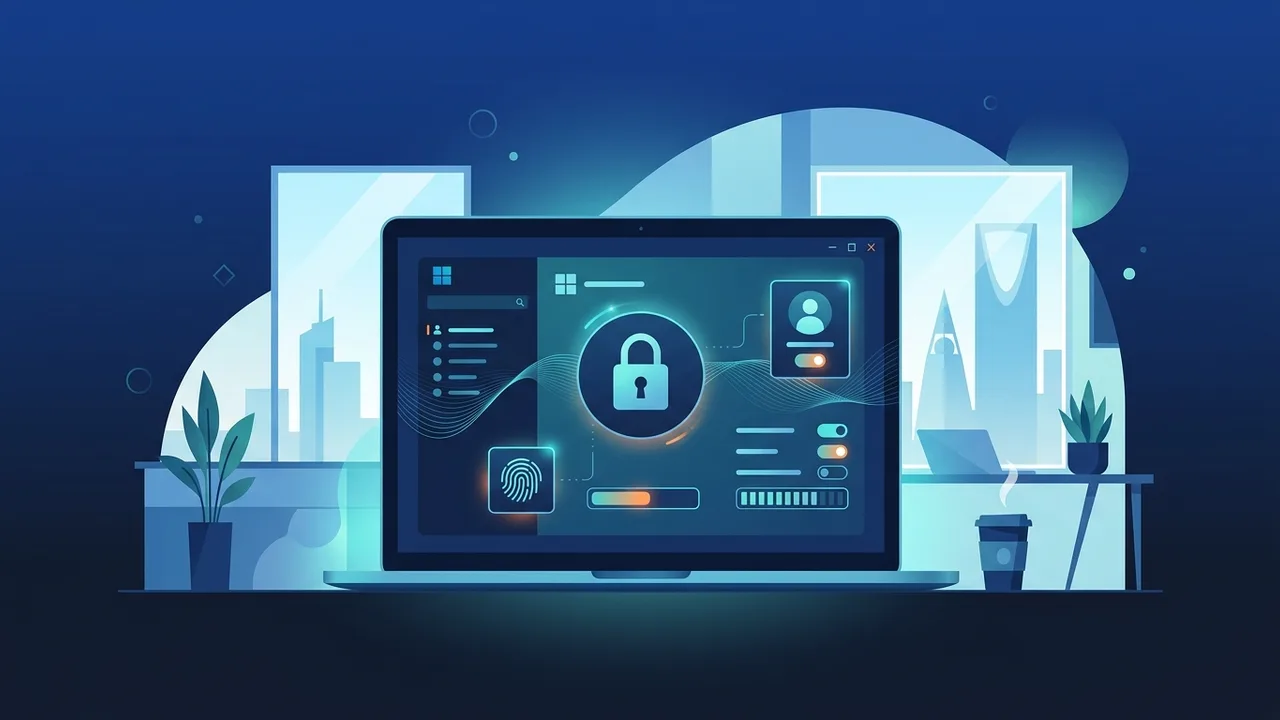
The digital landscape of the Kingdom of Saudi Arabia is evolving rapidly, driven by the ambitious objectives of Saudi Vision 2030. In this highly digitized environment, personal and corporate cybersecurity has become a top priority. With many governmental and private sector employees in Saudi Arabia adopting remote work habits, ensuring the security of local devices is more critical than ever. In this helpful article, we will guide you through the process to change windows 11 password. Keeping your computer credentials fresh is one of the easiest yet most effective ways to protect your personal information and sensitive work resources from unauthorized access.
Why You Should Periodically Change Your Windows 11 Password
Securing your operating system with a fresh access key is your first line of defense against modern security threats. When you routinely update your credentials, you dramatically reduce the chances of brute-force attacks or security compromises due to leaked data. For professionals handling critical files, maintaining a secure windows 11 laptop is not just a personal choice but a necessary protocol, especially in professional workspaces across KSA where compliance with regulatory data security standards is mandatory.
Regularly rotating your credentials ensures that your computer remains protected against evolving digital threats. A stale passcode makes your machine a vulnerable target, whereas updating your credentials creates a barrier against remote hacking attempts and unauthorized physical access to your device.
How to Change Windows 11 Password via System Settings
The easiest way to update your security settings is directly through the native operating system menu. Follow these steps to complete the process:
- First, open the Start Menu and click on 'Settings', or use the shortcut (Windows + I) on your keyboard.
- Second, select 'Accounts' from the sidebar navigation panel.
- Third, scroll down and look for the windows 11 sign-in options menu, then click on it.
- Fourth, locate the 'Password' section, click to expand it, and then click on the 'Change' button.
- Fifth, you will be prompted to enter your current password to verify your identity. Input it and click 'Next'.
- Sixth, type your new secure password, confirm it by typing it again, write a helpful password hint, and click 'Finish'.
Following these simple steps regularly ensures that you change your password easily and maintain robust control over your computer security.
Changing Windows 11 Password Using the Control Panel
While modern settings have migrated to the sleek new interface, advanced users can still use system utilities or administrative commands to modify account configurations. To update a windows 11 local account password via an administrative command tool:
Right-click the Start button and select 'Terminal (Admin)' or 'Command Prompt (Admin)' from the power menu. Once the terminal window opens, type the command net user and press Enter to list all local user accounts registered on your machine.
Once you identify your username, execute the following command: net user [YourUsername] [YourNewPassword] (replace with your actual username and desired password). Press Enter. A success confirmation message will appear. This method is highly favored by IT administrators in Saudi corporate environments because of its efficiency in managing multiple accounts simultaneously without going through multiple graphical user interface layers.
How to Change Password for a Linked Microsoft Account on Windows 11
Many modern systems are linked directly to a Microsoft profile to sync preferences, documents, and system configurations. If your profile is cloud-connected, carrying out a microsoft account password change is necessary to secure your access:
Open your web browser and navigate to the official Microsoft Account page at account.microsoft.com. Sign in with your current credentials. Navigate to the 'Security' tab located on the upper navigation dashboard, and select the 'Password security' option.
To verify your identity, the system will prompt you to enter a verification code sent to your registered backup email or mobile phone number. Input the security code, enter your current password, and then write and confirm your new password. Once saved, the credentials on your computer will update automatically the next time it connects to the internet, securing your linked ecosystem.
Steps to Reset Your Windows 11 Password If You Forget It
Forgetting device credentials is a common hurdle for many users. If you encounter a situation where you need to reset windows 11 password or if you forgot windows 11 pin, there are several standard recovery paths available:
If you are using a local offline account, click on the 'Reset password' option that appears after an incorrect entry attempt. You will be prompted to answer the security questions you configured during the initial system setup.
Alternatively, if you previously prepared a windows 11 password reset disk using a USB drive, you can insert it into your laptop and follow the on-screen reset wizard steps to safely create a new password. For linked accounts, you can perform an online reset directly from the login screen by clicking 'I forgot my password' and recovering access via your Microsoft security info. While some users look for ways to entirely disable their system password, we strongly discourage this action as it leaves your private files completely exposed.
Best Security Practices for Creating a Strong, Unhackable Password
Updating your passcode is only half the battle; the quality of your password determines your overall device safety. Here are the top security recommendations recommended by cybersecurity experts:
- Ensure your password is at least 12 characters long and incorporates a balanced blend of uppercase letters, lowercase letters, numbers, and special symbols (e.g., @, #, $, %).
- Avoid using easily guessable personal details, such as family names, phone numbers, or birthdays, within your security phrases.
- Combine traditional credentials with biometric features via Windows Hello. This feature is highly popular on modern hardware models in the Saudi market, allowing secure, lightning-fast login via facial recognition or fingerprint scanners.
- Set your screen to lock automatically after a short period of inactivity to secure your computer when you walk away from your desk.
If you need a genuine Windows 11 Pro Lifetime license, you'll find it at ABMKeys at a fair price with instant WhatsApp delivery.
Frequently Asked Questions
How can I change my Windows 11 password if I do not remember the current one?
Does changing my password affect my personal files stored on the computer?
What is Windows Hello, and does it replace the traditional password?
Is there a way to completely remove the password on Windows 11?
You can get a genuine license from ABMKeys at a competitive price with instant WhatsApp delivery.
Buy Now