
How to Show Desktop Icons in Windows 11 Step by Step
Discover the simple step-by-step process to restore essential system icons like This PC and Control Panel to your Windows 11 desktop interface.
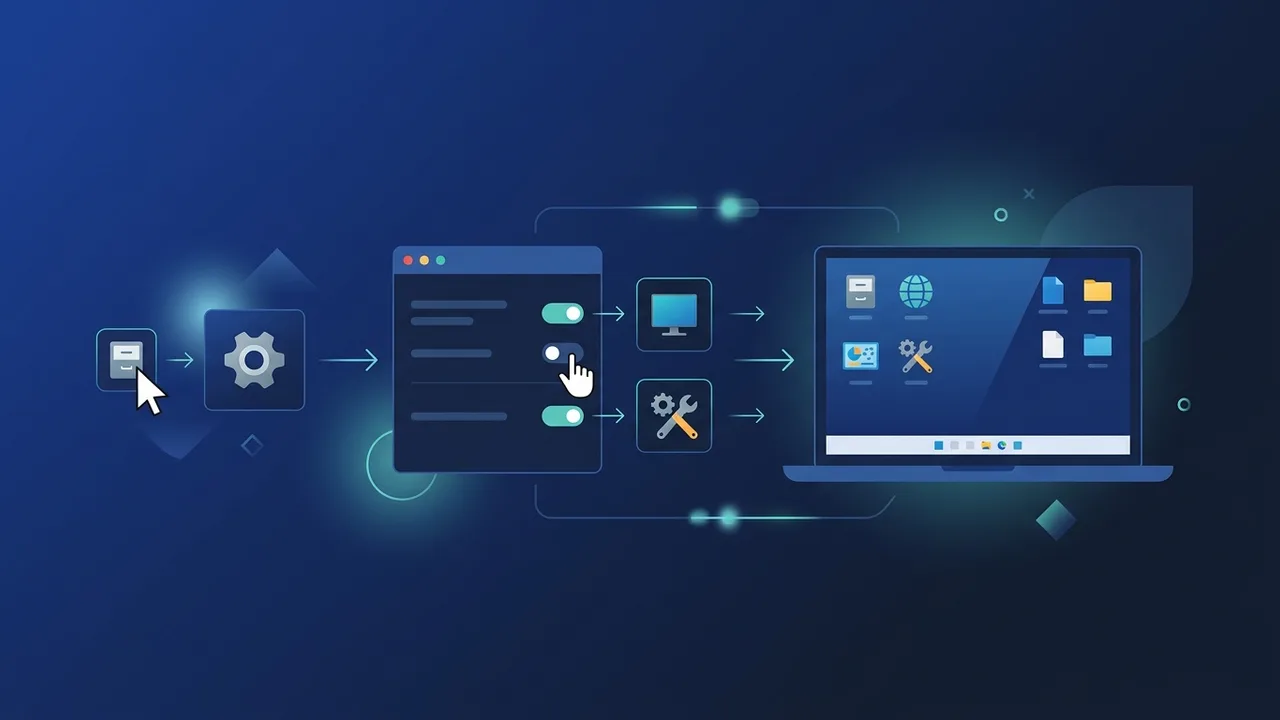
When transitioning to Microsoft's latest operating system, many users face layout adjustments, particularly learning how to show desktop icons in windows 11. The redesigned interface emphasizes a clean, minimalist workspace by hiding legacy icons like 'This PC', 'Control Panel', and 'Network' by default. While this approach reduces clutter, it can slow down productivity for professionals and businesses who rely on immediate access to their local resources. This practical guide provides clear, step-by-step instructions to help you customize your desktop experience effortlessly.
Overview of how to show desktop icons in windows 11
The layout change in the latest Windows release aims to improve focus and aesthetics, making the understanding of how to show desktop icons in windows 11 one of the first tasks for new users. In previous Windows versions, vital system navigation points were easily accessible directly from the main screen. The modern interface shifts these configuration options deep into the Settings application. Restoring these visual guides is not only a matter of preference but a crucial step to restoring standard productivity and accessing system file trees, network configurations, and administrative tools directly without navigation delays.
Key Features
Mastering how to show desktop icons in windows 11 allows you to leverage several core features of the operating system with speed and ease:
- Direct Access to Storage: With the 'This PC' icon on your screen, you can bypass the file explorer navigation panel and launch directly into your local drives, external disks, and system properties.
- Simplified System Administration: The 'Control Panel' shortcut provides a direct route to advanced settings, network adapter settings, program uninstallation wizards, and security features.
- Streamlined Local Networking: The 'Network' shortcut allows you to quickly view, configure, and share files with other computers and servers on your local domain.
- Optimized Personal Workspace: Selecting precisely which system shortcuts appear on your screen helps maintain a balance between visual minimalism and direct utility.
How to Use
Here is the exact method on how to show desktop icons in windows 11 without any complexity or third-party software installations:
- Right-Click the Desktop: Move your mouse cursor to any empty, open space on your main screen, right-click, and open the context menu.
- Select Personalize: Look down the menu list and select 'Personalize'. This action launches the system settings directly to the customization hub.
- Navigate to Themes: In the Personalization settings panel, look for the 'Themes' subsection and click on it to expand your style options.
- Access Desktop Icon Settings: Scroll down the Themes configuration page until you locate the 'Related settings' section, then click on 'Desktop icon settings'.
- Select Your Desired Icons: A small configuration window will appear. Check the boxes next to the shortcuts you want to display (Computer, User's Files, Network, Recycle Bin, Control Panel).
- Apply and Save: Click the 'Apply' button at the bottom of the window, and then click 'OK'. Minimize your settings window to view your newly restored shortcuts.
Common Questions
Here are clear answers to the most common queries regarding desktop layout settings and system personalization:
Why is the Personalization menu grayed out on my computer?
This limitation occurs when your operating system is not activated with a valid license key. Microsoft restricts personalization options, including themes, wallpapers, and desktop icon settings, until you activate your copy of Windows.
Can I quickly hide all desktop elements temporarily?
Yes, you can hide everything by right-clicking on an empty space on your desktop, selecting 'View' from the pop-up menu, and toggling off 'Show desktop icons'. Re-enable it using the same steps when you want them back.
Important Tips
Once you have mastered how to show desktop icons in windows 11, you can use these management tips to keep your digital space fast and highly organized:
- Use Grid Alignment: Keep your icons neatly structured by right-clicking on your desktop, choosing 'View', and enabling 'Align icons to grid'. This prevents icons from overlapping randomly.
- Limit Shortcut Clutter: Avoid downloading and saving heavy files directly onto your main screen. Instead, use designated system folders like Documents or Downloads to keep the system boot time fast.
- Resize Icons Easily: You can quickly change the size of your desktop shortcuts by holding down the 'Ctrl' key on your keyboard and scrolling your mouse wheel up or down.
- Ensure Windows is Fully Activated: Use a genuine operating system key to maintain unrestricted access to personalization features and secure continuous security updates.
Conclusion
Restoring critical navigation shortcuts to your desktop is a highly effective way to improve your workflow and customize Windows 11 to match your professional habits. By following the straightforward instructions detailed in this guide, you can establish a more productive, reliable, and accessible interface tailored to your daily operations.
If you need a genuine Windows 11 Pro Lifetime license, you'll find it at ABMKeys at a fair price with instant WhatsApp delivery.
Frequently Asked Questions
How do I display the "This PC" icon on the Windows 11 desktop?
Why are my desktop icon settings locked or grayed out?
Is there a way to hide all desktop icons at once?
How can I change the size of my desktop shortcuts?
You can get a genuine license from ABMKeys at a competitive price with instant WhatsApp delivery.
Buy Now