
How to Set Password on Windows 11 Step by Step
Learn how to set a secure password on Windows 11 with this detailed step-by-step guide. Discover how to configure traditional passwords, quick PINs, and Windows Hello biometrics to protect your personal computer.
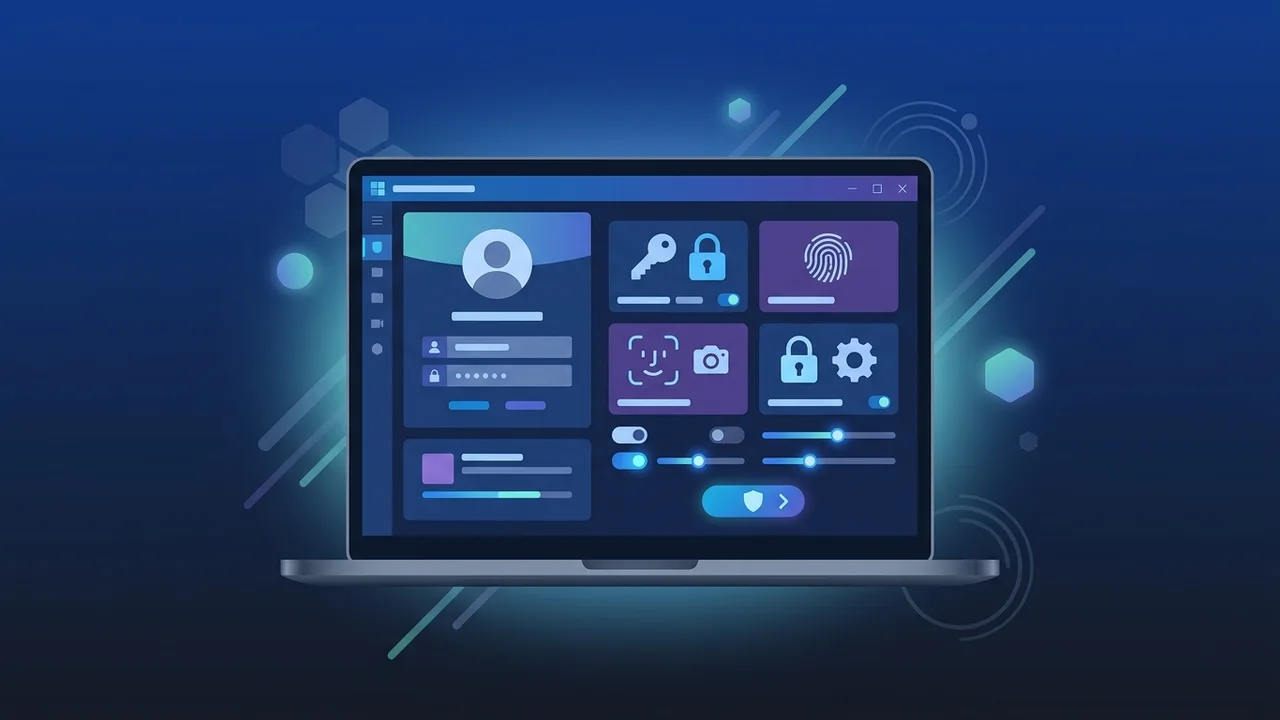
In light of the rapid digital transformation in the Kingdom of Saudi Arabia, securing personal and professional data has become a fundamental pillar for both individuals and organizations. In alignment with the cyber security standards set by the National Cybersecurity Authority (NCA), establishing secure access controls on your device is the first and most critical line of defense. In this step-by-step tutorial, we will explain how to set password on Windows 11 to protect your files and maintain your privacy.
Step-by-Step Guide to Setting a Windows 11 Password (Traditional Method)
A traditional password remains one of the primary methods to control access to your operating system. Whether you want to learn how to secure Windows 11 computer or set a local credential, follow these steps to manage your Windows 11 lock screen password:
- Open the Start Menu and select Settings, or press the shortcut
Windows + Ion your keyboard. - From the left sidebar, click on the Accounts category.
- Scroll down on the right pane and click on Sign-in options.
- Under the Ways to sign in section, click on Password to expand it, then click the Add button.
- Type your desired password, confirm it in the field below, and write a helpful password hint to prevent getting locked out.
- Click Next and then Finish to save your configuration.
Once completed, your device will require this master password every time you boot your computer or wake it from sleep mode, keeping your Windows 11 login options secure.
How to Set Up a Quick PIN in Windows 11 for Easier Login
Entering a complex, long password every single time you access your PC can be inconvenient. To streamline this process while maintaining robust local security, Microsoft offers a PIN option. Unlike cloud-based credentials, a PIN is tied directly to your physical hardware, meaning it cannot be used to compromise your account from another device.
To configure and set PIN Windows 11, use the following steps:
- Navigate to Settings > Accounts > Sign-in options.
- Click on PIN (Windows Hello) to expand the drop-down menu.
- Click the Set up (or Add) button.
- Verify your identity by entering your current Microsoft account password.
- Enter a new PIN (minimum of 4 digits). If you want to include letters and symbols for maximum complexity, check the box that says "Include letters and symbols".
- Click OK to apply the changes.
Enabling Windows Hello Biometrics (Face and Fingerprint) in Windows 11
For high-security environments, such as remote corporate workplaces in Saudi Arabia, leveraging biometric verification is highly recommended. The integrated Windows Hello setup process allows you to unlock your computer almost instantly using your physical traits.
To enable face or fingerprint recognition:
- Ensure your laptop or desktop has a compatible infrared (IR) camera or a built-in fingerprint scanner.
- Open Settings > Accounts > Sign-in options.
- Select either Facial recognition (Windows Hello) or Fingerprint recognition (Windows Hello).
- Click Set up and follow the on-screen wizard to register your facial features or scan your finger from multiple angles.
How to Change or Remove Your Windows 11 Password
Security best practices dictate that you periodically update your authentication keys. If you suspect your current key has been compromised, you should immediately change PC password Windows 11 to block unauthorized access.
To Change Your Password:
Go to Settings > Accounts > Sign-in options. Expand the Password tab and click on Change. Enter your current password, then type your new password twice, followed by a new hint, and click save.
To Remove Your Password:
If you wish to remove the login requirement entirely (though not recommended for security reasons), follow the change password steps above. When prompted to enter your "New Password", leave all fields completely blank and proceed to click Next and then Finish.
How to Create a Password-Protected Local Account Without a Microsoft Account
For privacy-conscious users in Saudi Arabia who prefer to keep their computing activities entirely offline and separate from cloud-synced accounts, setting up a local user profile is the best choice. Here is how you can set a local account password Windows 11:
- Go to Settings > Accounts and select Other users.
- Click the Add account button next to "Add other user".
- In the Microsoft login window, click on I don't have this person's sign-in information.
- On the next screen, choose Add a user without a Microsoft account.
- Enter the new username, type the password twice, and complete the three security questions. These questions are critical to reset Windows 11 password if you ever forget it.
Best Practices for Choosing a Strong Password to Secure Your PC
Setting up a lock screen is only half the battle; the quality of your credentials determines the actual strength of your defense. To prevent security breaches, keep these practices in mind:
- Watch Out for Keyboard Layouts: Many users in KSA frequently toggle between English and Arabic input layouts. Typing an English password while your keyboard layout is set to Arabic will register different characters, leading to frustrating login errors. Always check your language bar on the lock screen.
- Length and Complexity: Ensure your credentials are at least 12 characters long, containing a mix of upper and lower-case letters, special characters, and numbers. Avoid obvious patterns like "123456" or "password".
- Keep Recovery Options Ready: Whether using a Microsoft account or a local profile, configure your security questions, backup email, or mobile phone number so you can easily recover access without losing your local data.
If you need a genuine Windows 11 Pro Lifetime license, you'll find it at ABMKeys at a fair price with instant WhatsApp delivery.
Frequently Asked Questions
How can I instantly lock my Windows 11 screen when leaving my desk?
Does changing the keyboard layout affect typing my password in Windows 11?
What should I do if I forget my local account password in Windows 11?
Is a PIN more secure than a standard password?
You can get a genuine license from ABMKeys at a competitive price with instant WhatsApp delivery.
Buy Now