
Fixing Filmora 12 MAC Lifetime - 7 Proven Solutions
Discover practical solutions for common Filmora 12 MAC Lifetime issues on macOS. Learn how to resolve rendering lag, activation errors, and export crashes for a smooth video editing experience.
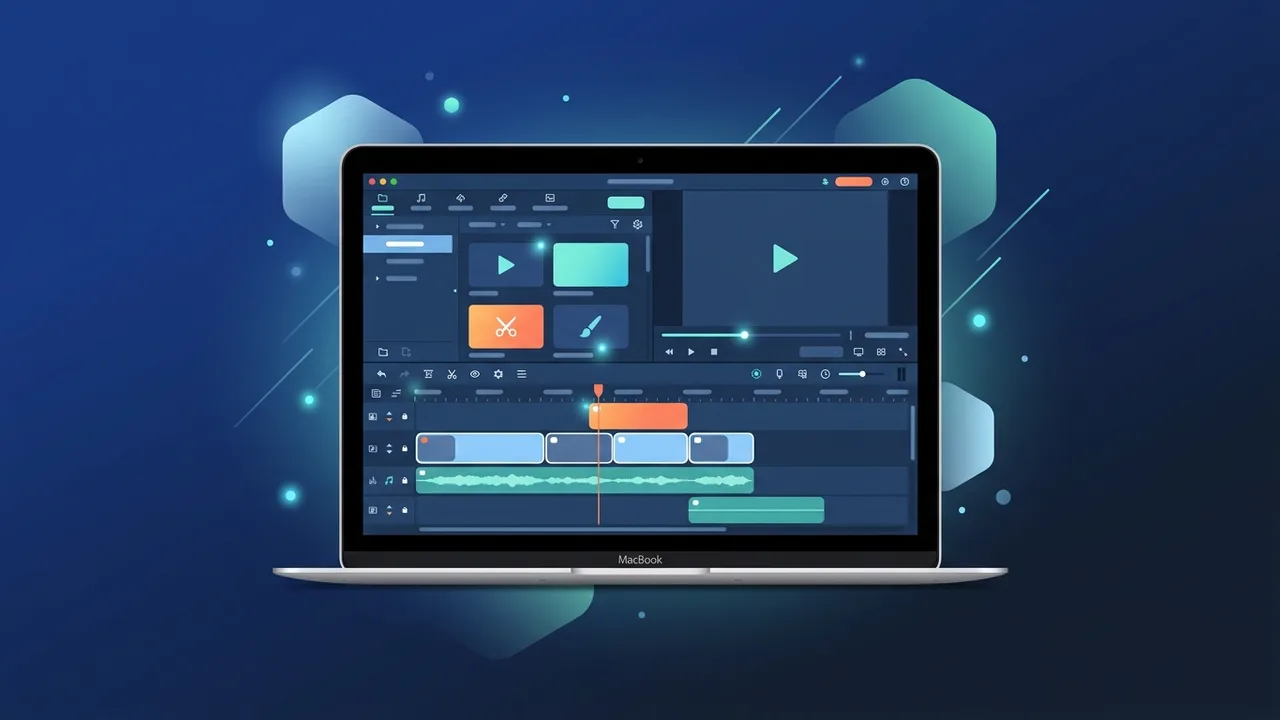
Overview of Filmora 12 MAC Lifetime
The Filmora 12 MAC Lifetime license has become a preferred choice for video creators and professionals in Saudi Arabia who use macOS devices. Known for its perfect balance between ease of use and professional editing tools, this software allows creators to produce high-quality videos without the pressure of recurring subscription fees. This specific edition is thoroughly optimized for the macOS ecosystem, delivering exceptional speed and reliability across Intel-based Macs and Apple Silicon models including M1, M2, and M3 chips.
While Filmora 12 MAC Lifetime is highly stable, macOS users might occasionally experience technical hurdles related to file permissions, rendering, or activation. In this article, we will go through the most common challenges faced by users and provide practical, step-by-step solutions to ensure your creative workflow remains uninterrupted and highly productive.
Key Features
The Filmora 12 MAC Lifetime edition is equipped with advanced technologies aimed at speeding up post-production while maintaining premium visual quality. Notable features include:
- AI-Powered Tools: Take advantage of features like AI Smart Cutout, AI Audio Denoise, and AI Audio Stretch to automate tedious editing tasks in seconds.
- Native Apple Silicon Optimization: Fully optimized to run smoothly on M1, M2, and M3 processors, ensuring faster export times and minimal battery drain on MacBooks.
- Flexible User Interface: The workspace can be fully customized, allowing you to rearrange panels and timelines to fit your specific editing habits.
- Extensive Asset Library: Access thousands of professional transitions, visual effects, 3D titles, and royalty-free music tracks directly inside the app.
- Professional Speed Ramping: Easily customize speed curves to create smooth cinematic fast-or-slow motion transitions in your clips.
How to Use
To run Filmora 12 MAC Lifetime smoothly and prevent typical installation or performance issues, follow these guided steps:
Installation and Setup Guide:
- Download from Official Sources: Always download the official macOS DMG installer to ensure your system files are safe and free from corruption.
- Adjust System Security Settings: If macOS Gatekeeper prevents the app from opening, go to System Settings > Privacy & Security, and allow the application to run under the security tab.
- Activate Your Perpetual License: Launch the program, navigate to the activation panel, and enter your genuine license details to link the software permanently to your user account.
Common Questions
1. Why does the software show an activation error or prompt me to buy again?
This issue usually occurs if you are logged in with a different email account than the one associated with your purchased license, or if corrupted licensing files are cached on your Mac. To resolve this, completely sign out of the software, clear your temporary application cache, and log back in with the correct account registered to your Filmora 12 MAC Lifetime license.
2. How do I fix lag and freezing issues during timeline editing and rendering?
To optimize performance on macOS, navigate to Preferences > Performance and make sure that GPU Acceleration is fully enabled. Additionally, lowering the preview playback quality on your timeline to 1/2 or 1/4 can drastically reduce lag when working with complex 4K source footage.
3. Why does the application crash unexpectedly when exporting projects?
Export crashes on macOS are typically caused by insufficient storage space on your startup disk or outdated application builds. Ensure you have at least 20 GB of free SSD space, and check for any minor version updates available for Filmora 12 to resolve internal software conflicts.
4. Does the lifetime license include free major upgrades?
A lifetime license for Filmora 12 guarantees you will receive all minor version updates and stability patches for the entire lifecycle of version 12 without any hidden or monthly fees.
Important Tips
To ensure a flawless and fast video editing experience with Filmora 12 MAC Lifetime on your macOS device, keep these key practices in mind:
- Clear Render Cache regularly: Routinely delete accumulated render files from your project settings to free up valuable SSD storage and maintain speedy timeline performance.
- Keep macOS Updated: Ensure your Mac runs a supported version of macOS. Apple's system updates resolve underlying compatibility issues that can directly impact video editing software.
- Use Only Genuine Licenses: Avoid using cracked software, as modified files can lead to data loss, project file corruption, and serious security risks on your macOS device.
Conclusion
Investing in Filmora 12 MAC Lifetime is an excellent choice for video editors in Saudi Arabia looking for an intuitive, reliable, and powerful editing solution on Mac. By adopting simple optimization habits like enabling GPU acceleration and keeping your macOS updated, you can bypass common errors and edit seamlessly.
You can get a genuine Filmora 12 MAC Lifetime license from ABMKeys at a competitive price with instant WhatsApp delivery.
Frequently Asked Questions
Why does my Filmora 12 MAC Lifetime show an activation error?
How do I fix timeline and playback lag on macOS?
Why does Filmora 12 crash unexpectedly during export?
Does the Filmora 12 MAC Lifetime license cover future major versions?
You can get a genuine license from ABMKeys at a competitive price with instant WhatsApp delivery.
Buy Now