
Epson l3250 driver Windows 10 Explained Simply
Learn how to easily install the Epson l3250 driver Windows 10. Follow our step-by-step beginner guide to enable seamless printing and scanning functions.
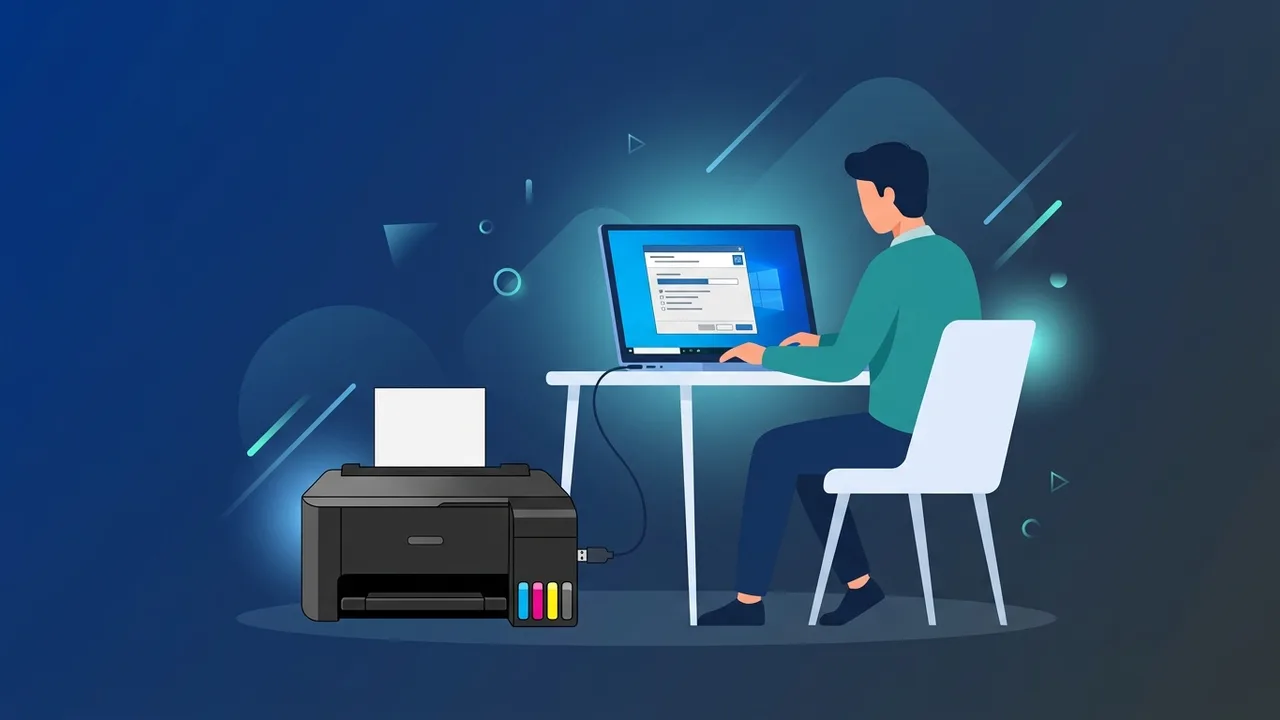
Many home users and small businesses in the Saudi market rely on high-efficiency hardware setups to streamline their daily workflows. In this context, setting up the Epson l3250 driver Windows 10 acts as a fundamental step to ensure your printer runs at peak performance. The Epson EcoTank L3250 is widely popular for its ultra-low-cost ink tank system and versatile 3-in-1 capabilities: printing, copying, and scanning wirelessly. To fully leverage these modern features, installing the correct and compatible software on Windows 10 is essential.
Overview of Epson l3250 driver Windows 10
A device driver is a specialized software component that translates instructions between your operating system and the physical hardware. Installing the dedicated Epson l3250 driver Windows 10 enables seamless communication so your PC can accurately command print queues, handle high-resolution scanning, and report ink supply states. Modern Windows 10 operating systems support both 32-bit and 64-bit architectures, and the official installer automatically matches your system configuration to deliver the most stable driver environment.
While Windows 10 can sometimes recognize the device using a generic driver, the official manufacturer package unlocks customized utilities such as color balance adjustment, draft modes, borderless printing configurations, and system-level maintenance tools that extend the life of your device.
Key Features
By executing the correct setup for the Epson l3250 driver Windows 10, you gain access to a powerful set of functions:
- Smart Wireless Control: It allows simple network configurations via Wi-Fi and Wi-Fi Direct, letting you print from laptops or mobile devices from anywhere in your workspace.
- Ink Monitoring System: Provides real-time notifications on your computer screen about ink levels, helping you avoid blank pages and plan refills on time.
- Epson Scan Utility: Activates advanced optical scanning capabilities, enabling you to scan multiple documents directly into PDF, JPEG, or TIFF formats on your PC.
- Printer Head Maintenance: Includes utility software for printhead alignment and nozzle checks, preventing ink clogging and ensuring sharp text output.
How to Use
Setting up your printing machine on Windows 10 is straightforward. Follow these clear steps to install the software correctly:
Step 1: Unboxing and Connection Preparation
Ensure your printer is plugged into a power source and turned on. If you prefer a wired setup, keep the USB cable unplugged from the PC until the installation software prompts you to insert it.
Step 2: Downloading the Driver File
Navigate to the official support portal of the manufacturer. Search for the "L3250" model, detect your Windows 10 operating system version (32-bit or 64-bit), and download the comprehensive software installer package for complete features.
Step 3: Initiating the Setup
Locate the downloaded executable file, right-click, and select "Run as administrator". Follow the on-screen prompts, accept the terms of the license agreement, and select your language.
Step 4: Choosing the Connection Interface
The setup wizard will request you to choose between a wireless Wi-Fi setup or a direct USB cable. Select your preferred method and let the installer configure your port connections automatically.
Step 5: Testing Your Device
Once completed, prompt the wizard to print a test page to verify that communication is fully established and that colors and margins are aligned correctly.
Common Questions
Users might occasionally experience installation obstacles such as the printer appearing as "offline" or network detection failures. Most of these issues can be easily resolved by resetting your router, ensuring your Windows 10 firewall is not blocking peripheral communication, or simply restarting your computer to clear pending print queues.
Important Tips
To preserve long-term device health and system security, consider the following best practices:
- Keep Drivers Updated: Periodic software updates resolve minor performance bugs and secure your PC against network vulnerabilities.
- Use a Genuine Operating System: Drivers function best on officially licensed operating systems. A genuine OS ensures background services run smoothly without unexpected crashes or compatibility conflicts.
- Avoid Unofficial Sources: Never download driver binaries from third-party sites, as they may bundle malware or corrupt operating system files.
Conclusion
Installing the correct Epson l3250 driver Windows 10 is key to maintaining a productive and hassle-free printing ecosystem in your office or home. By investing a few minutes in a proper installation, you will benefit from cost-efficient printing and high-quality document scanning for years to come.
If you need a genuine Windows 10 Pro Lifetime license, you'll find it at ABMKeys at a fair price with instant WhatsApp delivery.
Frequently Asked Questions
How can I safely download the Epson l3250 driver Windows 10?
Why does the printer appear offline even after installing the driver?
Does this driver support the scanning feature?
Does the Epson l3250 driver work on Windows 10 64-bit?
You can get a genuine license from ABMKeys at a competitive price with instant WhatsApp delivery.
Buy Now