
Downloading Computer Programs for Windows 10 Step by Step
Learn the practical and secure steps for downloading computer programs for Windows 10 from official sources and installing them safely to protect your system.
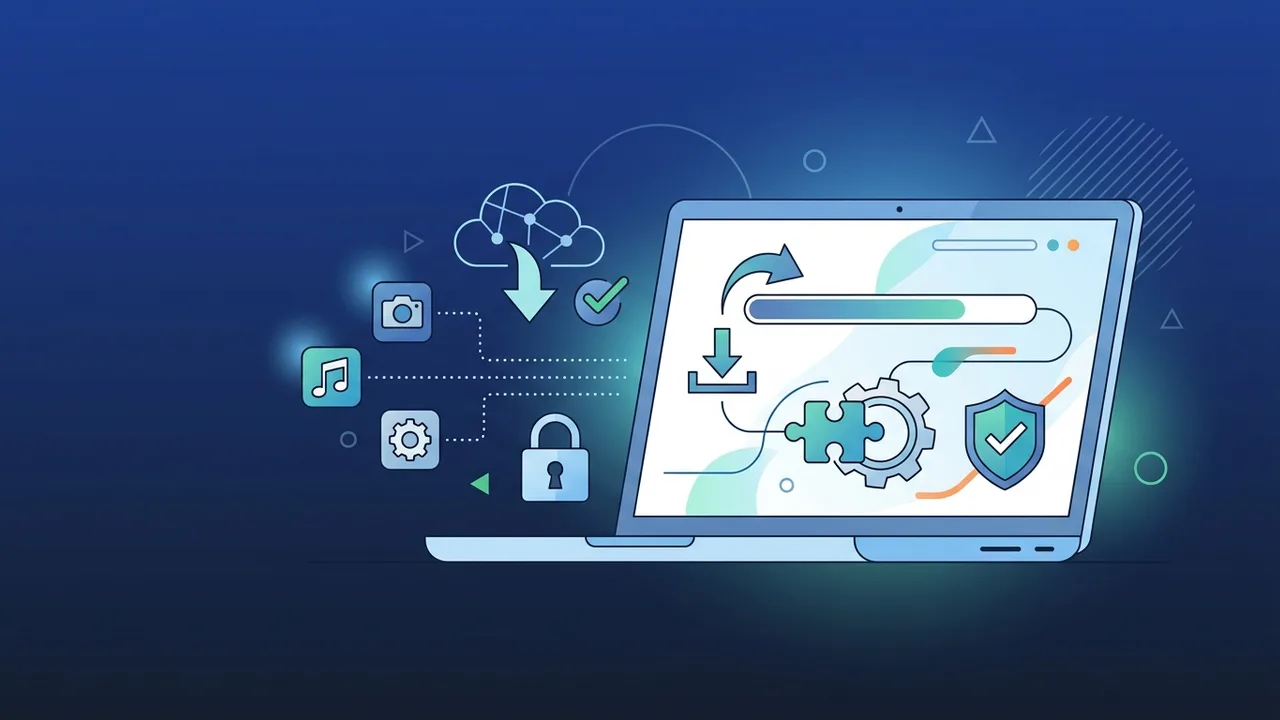
Overview of Downloading Computer Programs for Windows 10
Windows 10 is one of the most widely used operating systems in Saudi Arabia, supporting both individuals and enterprise sectors in achieving digital efficiency and security. Knowing the correct and secure methods for downloading computer programs for Windows 10 is a fundamental step to ensure operating system stability and protect sensitive data from rising cyber threats. This overview is designed to guide users toward the safest paths for obtaining the applications they need to complete their daily tasks efficiently.
In light of the rapid digital transformation in the Kingdom, businesses and individuals have become highly focused on finding reliable software sources. Utilizing official and authorized channels when downloading computer programs for Windows 10 is crucial to avoid modified or pirated software versions that can damage your system or compromise performance.
Key Features
When downloading computer programs for Windows 10, the platform offers excellent features that simplify the management and deployment of software without compromising security. These key features include:
- Microsoft Store Integration: Offers a centralized and secure platform to download verified applications with one click, ensuring they are free of malware.
- Built-in Security with Windows Defender: The native security system automatically scans downloaded executable files to prevent harmful scripts from running.
- Dual Architecture Support (32-bit & 64-bit): Windows 10 is highly compatible with both legacy and modern software, ensuring business tools and design software run optimally.
- Windows Package Manager (winget): For advanced users and IT admins, this command-line tool makes downloading and updating applications incredibly fast and efficient.
How to Use
We will outline the proper steps for downloading computer programs for Windows 10 with ease, ensuring your device remains clean, secure, and highly functional:
Step 1: Identify Software Needs and Official Channels
Before initiating any download, identify the specific tool you need. Always use the developer's official website or the built-in Microsoft Store to locate the application.
Step 2: Check System Architecture Compatibility
Verify whether your computer runs on a 32-bit or 64-bit system by navigating to Settings > System > About. Download the installer version that perfectly matches your architecture.
Step 3: Download the Installer File Safely
Click on the official download button. Ensure the file extension is secure and standard, such as (.exe) or (.msi). Avoid clicking on third-party download portals or aggressive pop-up advertisements.
Step 4: Run the Installation Setup Wizard
Double-click the downloaded installer to launch the wizard. Carefully read the setup screens and choose "Custom Installation" to prevent third-party bundled software from being installed on your machine.
Step 5: Activate and Update the Program
Once installation is complete, launch the program. Always use genuine product keys for activation, and check for software updates regularly to benefit from security patches.
Common Questions
Is it safe to download programs from third-party hosting websites?
It is highly discouraged. Downloading from unofficial third-party sites exposes your device to security vulnerabilities, adware, and dangerous malware.
How do I verify if a downloaded file is completely safe?
You can scan any downloaded installer file prior to execution by right-clicking it and selecting "Scan with Windows Defender" to ensure it is clean.
What is the main difference between 32-bit and 64-bit software versions?
64-bit programs can utilize larger amounts of RAM (above 4GB) and offer superior performance for modern hardware, while 32-bit programs are meant for older legacy devices.
Why does Windows display a SmartScreen warning when I open certain installers?
This warning acts as a safety shield when attempting to open a program from an unrecognized developer. Verify the source of the file before choosing to proceed.
Important Tips
Staying vigilant while downloading computer programs for Windows 10 ensures that your system remains free of malware and performs at its best. Keep these tips in mind:
- Prioritize Genuine Software Licenses: Genuine software ensures you get uninterrupted security updates, access to new features, and direct official technical support.
- Keep Windows Defender Active: Never disable your built-in antivirus or firewall, as they serve as your first line of defense against online threats.
- Avoid Crack and Keygen Tools: Unauthorized activation cracks are the leading delivery mechanism for ransomware and Trojan horses.
- Perform Regular Backups: Always maintain a secure backup of your essential files on an external drive or cloud storage before installing unfamiliar applications.
Conclusion
Downloading software on Windows 10 is straightforward and safe when utilizing official channels and genuine licensing. Adhering to verified platforms keeps your workspace stable, secure, and running smoothly.
If you need a genuine Windows 10 Pro Lifetime license, you'll find it at ABMKeys at a fair price with instant WhatsApp delivery.
Frequently Asked Questions
Is it safe to download programs from third-party hosting websites?
How do I verify if a downloaded file is completely safe?
What is the main difference between 32-bit and 64-bit software versions?
Why does Windows display a SmartScreen warning when I open certain installers?
You can get a genuine license from ABMKeys at a competitive price with instant WhatsApp delivery.
Buy Now