
Download Windows 11 Step by Step
This article provides a practical step-by-step guide to downloading Windows 11 safely and correctly. It covers system requirements, official download methods, and key tips for a successful installation experience.
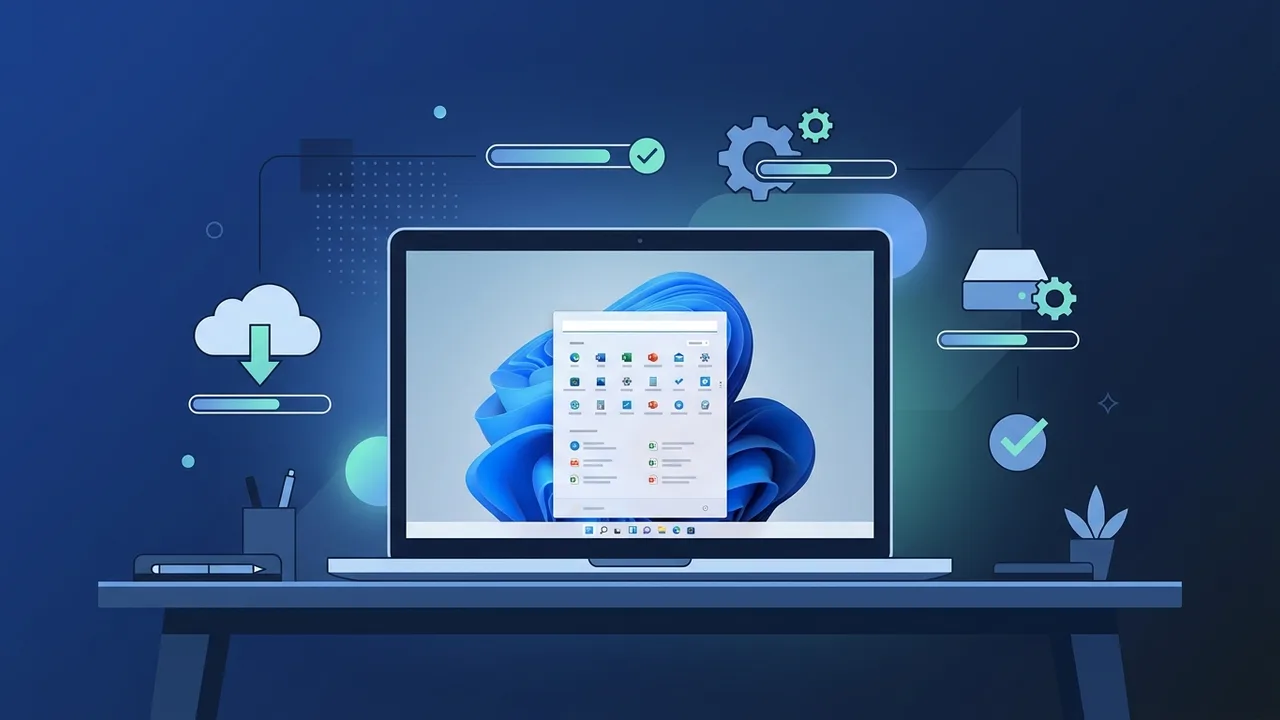
Overview of Download Windows 11
Choosing to download Windows 11 is one of the most significant technical decisions for users and businesses in Saudi Arabia today. Whether you are upgrading a personal device or rolling out a new operating system across a corporate fleet, Windows 11 offers a modern, secure, and productivity-focused environment. This step-by-step guide walks you through everything you need to know about how to download Windows 11 safely and correctly — from checking system requirements to activating your copy after installation.
Key Features of Windows 11
Before you download Windows 11, it helps to understand what makes this release stand out from its predecessors:
- Redesigned Start Menu and Taskbar: A clean, centered interface that feels intuitive for both new and experienced users.
- Android App Support: Run Android applications directly on your desktop through the Microsoft Store.
- Performance Improvements: Lower memory overhead and faster wake-from-sleep times compared to Windows 10.
- Enhanced Security: Mandatory TPM 2.0 and Secure Boot requirements provide a stronger baseline against malware and ransomware.
- Snap Layouts and Snap Groups: Smarter window management for multitasking efficiency.
- Integrated Microsoft Teams: Built-in chat and calling directly from the taskbar.
- DirectX 12 Ultimate: Improved gaming performance with ray-tracing support for compatible hardware.
How to Download Windows 11 — Step by Step
Follow these detailed steps to download Windows 11 and install it successfully on your device.
Step 1: Verify System Requirements
Before attempting to download Windows 11, confirm your device meets the minimum hardware specifications:
- Processor: 1 GHz or faster with 2 or more cores on a compatible 64-bit processor.
- RAM: 4 GB minimum.
- Storage: 64 GB or more.
- Graphics: DirectX 12 compatible GPU with WDDM 2.0 driver.
- Display: 720p resolution or higher, diagonal screen size greater than 9 inches.
- TPM: Version 2.0 enabled.
- Firmware: UEFI with Secure Boot capability.
Step 2: Run the PC Health Check Tool
Microsoft provides a free PC Health Check tool on its official website. Download and run it to get an instant compatibility report for your device. This saves time and prevents potential installation failures before you even begin the download Windows 11 process.
Step 3: Choose Your Download Method
Microsoft offers three official methods to download Windows 11:
- Windows Update: If your Windows 10 device is eligible, the upgrade will appear automatically under Settings > Windows Update.
- Windows 11 Installation Assistant: A guided tool that upgrades your current system in place without requiring external media.
- Media Creation Tool / ISO File: Ideal for a clean installation. Use the tool to create a bootable USB drive or download an ISO file directly.
Step 4: Back Up Your Data
This step is non-negotiable. Before you proceed to download Windows 11 and begin installation, back up all important files to an external drive or a trusted cloud service. Even when performing an in-place upgrade, unexpected errors can occur that result in data loss.
Step 5: Run the Installation
Once you have downloaded Windows 11 and prepared your installation media, follow these steps:
- Launch the setup file or boot from your USB drive.
- Accept the license terms.
- Choose your installation type: Upgrade (keeps files and apps) or Custom (clean install).
- Select the target partition for the operating system.
- Wait for the installation to complete — this typically takes between 20 and 40 minutes depending on hardware speed.
Step 6: Complete the Initial Setup (OOBE)
After the installation finishes, Windows 11 will guide you through the Out-of-Box Experience (OOBE): selecting your region and language, connecting to Wi-Fi, signing in with a Microsoft account, and configuring privacy settings. Take your time with these choices, as they affect your daily user experience.
Step 7: Activate Windows 11
To unlock all features and receive ongoing security updates, you must activate your copy of Windows 11 using a genuine product key. Check activation status via: Settings > System > Activation. An unactivated copy displays a watermark and restricts personalization options.
Common Questions About Downloading Windows 11
See the FAQ section below for answers to the most frequently asked questions by users who want to download Windows 11.
Important Tips for a Smooth Download and Installation
- Always use official sources: Never download Windows 11 from unofficial websites or third-party links. Unofficial copies often contain malware or modified system files.
- Ensure a stable internet connection: The installation file exceeds 5 GB; a dropped connection mid-download can corrupt the file.
- Do not interrupt the installation: Power loss or forced shutdowns during installation can cause irreparable system file damage.
- Update drivers after installation: Once Windows 11 is running, visit Windows Update and install all available driver and security updates.
- Temporarily disable antivirus software: Some security tools interfere with the setup process. Re-enable them immediately after the installation is complete.
- Store your license key securely: Keep your activation key in a safe location — a password manager or printed record — in case you need to reinstall in the future.
- Check storage space beforehand: Ensure you have sufficient free space not just for the 64 GB requirement, but also for temporary installation files that may require additional room.
Conclusion
Learning how to download Windows 11 correctly ensures you avoid common pitfalls such as incompatible hardware, corrupted downloads, and activation issues. By following the seven steps outlined in this guide — from verifying system requirements to completing the final activation — you can transition to Windows 11 with confidence. Always prioritize genuine, licensed copies to guarantee long-term security updates and system stability.
If you need a genuine Windows 11 Pro Lifetime license, you'll find it at ABMKeys at a fair price with instant WhatsApp delivery.
Frequently Asked Questions
Can I download Windows 11 for free?
How large is the Windows 11 download file?
What happens if my device does not support TPM 2.0?
Will I lose my files when I download and install Windows 11?
You can get a genuine license from ABMKeys at a competitive price with instant WhatsApp delivery.
Buy Now